As an Amazon Associate, we earn from qualifying purchases. Some links on this site are affiliate links at no extra cost to you. Our recommendations are based on thorough research and editorial judgment.


The Evolution of the USB-C Single-Cable Portable Monitor Hub

USB-C unified fragmented connector ecosystems by consolidating charging, data transfer, and video delivery into a single standard. Alt Mode enables video transmission without additional cables, supporting DisplayPort, HDMI, and Thunderbolt protocols simultaneously. Thunderbolt 3 delivers 40 Gbps bandwidth for multiple 4K streams, while USB4 handles 8K resolution through enhanced PCIe tunneling. Future advancements promise 80 Gbps speeds and AI-efficient power distribution across devices. Understanding how these technologies integrate reveals ideal hub configurations for your specific workflow requirements.
Key Takeaways
- USB-C replaced fragmented connector ecosystems, enabling universal compatibility across phones, monitors, and laptops with reversible design and faster data transfer speeds.
- Alt Mode technology transmits video, data, and power simultaneously through a single USB-C cable, eliminating additional adapters and reducing cable clutter significantly.
- Thunderbolt 3 and USB4 standards provide 40+ Gbps bandwidth, supporting multiple 4K video streams and up to 240W power delivery through one cable.
- Users can choose between portable single-cable solutions for mobility or expandable docking stations for organized, permanent workspaces based on workflow requirements.
- Future hubs will integrate AI firmware for intelligent device recognition and bandwidth optimization, while unified protocols aim to eliminate separate video adapters entirely.
Why USB-C Unified the Connector Mess

Why USB-C Unified the Connector Mess
Remember when you had to dig through a drawer full of cables just to charge your phone? Yeah, that was rough. Before USB-C showed up around 2014, your devices came with a different connector for basically everything—USB-A for your computer, USB-B for printers, and proprietary plugs for phones. You’d buy a new gadget and suddenly need a whole new set of cables. It was frustrating, wasteful, and honestly, a mess.
The root cause? Manufacturers weren’t playing nice. Each company wanted you locked into their ecosystem with their own special connector design. Competition was fierce, and nobody wanted to compromise.
That’s what makes what happened next actually interesting. Intel, Apple, HP, Microsoft, and the USB Implementers Forum sat down together in 2012 and decided to work on something better. By August 2014, they’d finished the Type-C Specification 1.0. So, why does this matter? Because instead of each company protecting its turf, they focused on solving real problems that annoyed real people like you.
The USB-C design tackled multiple issues at once:
- Reversible design: You can plug it in either way. No more fumbling in the dark.
- Better bandwidth: Faster data transfers, which matters if you’re moving large files.
- More power delivery: One cable could charge your laptop, phone, and tablet.
The best part is what happened after. You went from needing five different cables to maybe one or two that work across almost everything. Your desk got cleaner. Your cable drawer actually stays organized now. One connector handles data, video, and power on devices ranging from phones to monitors to laptops.
Honestly, USB-C shows what’s possible when an industry stops fighting and starts collaborating. Think about the devices sitting on your desk right now—how many use the same charger?
Why Speed and Power Matter for Portable Displays

Why Speed and Power Matter for Portable Displays****
Trying to work from a coffee shop with just your laptop screen? Yeah, it gets old fast. When you plug a portable monitor into your laptop via USB-C, two things make or break the experience: how much data can flow through that cable, and whether it can actually power your display without draining your battery.
Bandwidth is what handles your video. USB 3.0 maxes out at 5 Gbps, which limits you to lower resolutions. USB 3.1 bumps that up to 10 Gbps and lets you run 4K displays at 60Hz—basically, smooth, sharp, no lag. So why does this matter? Because a choppy screen kills productivity faster than anything else.
Then there’s power delivery. Here’s the trick: USB Power Delivery can supply up to 240 watts. This means your monitor can run *and* charge your laptop at the same time—no separate power brick required. Honestly, that alone changes how you work remotely.
The catch? If your USB-C connection doesn’t have enough power delivery capacity, you’re forced to choose. You either crank up the monitor brightness and watch your laptop battery tank, or dim everything and squint. Neither option is fun when you’re trying to focus on actual work. Higher bandwidth also supports DisplayPort Alt Mode, which is what actually makes 4K possible in the first place.
The best part is: once you know what to look for, finding a monitor that has both solid bandwidth and good power delivery isn’t hard. You just need to check the specs before you buy.
What’s your biggest frustration when working on the go—screen size, battery life, or something else?
Recommended Products

27-inch wide gamut LCD with 3840 x 2160 pixels (4K UHD), 99% AdobeRGB and 98% DCI-P3 color space coverage
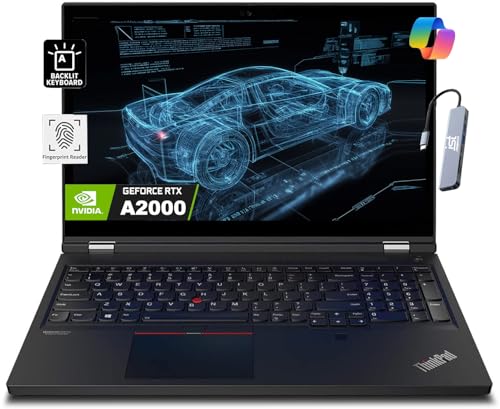
A lightweight 15.6" mobile workstation designed on the Intel vPro platform, it is like a more powerful ThinkPad T16 or T15 which comes with NVIDIA Quadro graphics. Epic Battery life. Real workstation power on the go. Great for students, engineers, and designers. Intel Octa Core i7-11850H (8 cores, 16 threads, 2.50 GHz base up to 4.80 GHz max, 24MB cache); 64GB DDR4 3200 MHz Memory, 2TB PCIe NVMe M.2 SSD

27-inch IPS panel with 4K UHD resolution (3840 x 2160 pixels, 163 ppi)
How Alt Mode Carried Video Over USB-C

How Alt Mode Carried Video Over USB-C
Tired of juggling multiple cables just to connect your laptop to a monitor? You’re not alone. USB-C was built to handle data and power through one connector, but engineers realized they could do more—they figured out how to squeeze video signals through the same cable using something called Alt Mode.
Think of Alt Mode as a clever workaround. Instead of wasting USB-C’s potential, it repurposes some of the connector’s unused pins to transmit video. This means DisplayPort, HDMI, and Thunderbolt standards can all run through your USB-C port without needing extra cables hanging off your setup.
Here’s what you actually get out of this:
- One cable delivers data, power, *and* video at the same time
- Support for 4K and even 8K resolution depending on which DisplayPort version (1.2, 1.4, or 2.0) your device uses
- No more shopping for specialized video adapters for every monitor
So, why does this matter? Because portable monitors and docking stations became actually practical. Before Alt Mode, carrying a thin monitor meant carrying at least two cables. Now you’re carrying one.
Frankly, the biggest shift Alt Mode created was in how we think about portable work setups. You can plug in a USB-C cable to a modern monitor and suddenly you’ve got data flowing back and forth, your laptop’s charging, and you’re seeing a crisp display—all through that single connection. The simplicity sounds small, but if you’ve ever untangled a desk cable situation, you know it’s anything but.
Does your USB-C device support Alt Mode? Check your monitor or docking station specs—most newer ones do. If it does, you’re already set up to ditch the cable clutter.
Recommended Products

Valve is entering the gaming console marketplace with the new Steam Deck, a console geared towards PC gamers. The Steam Deck can be docked to a monitor, and used as a PC, or docked to a TV.
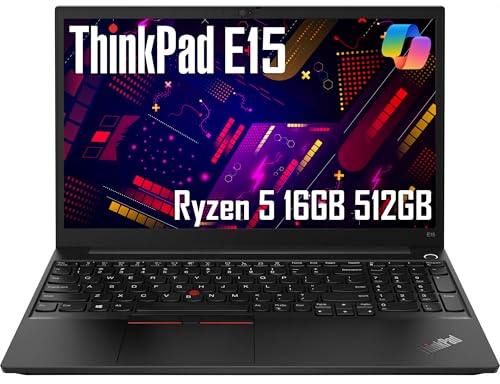
The ThinkPad E15 is a rugged, MIL-SPEC tested laptop designed to withstand tough conditions, ensuring reliability in any environment. Perfect for professionals seeking durability and functionality in a sleek, portable design.
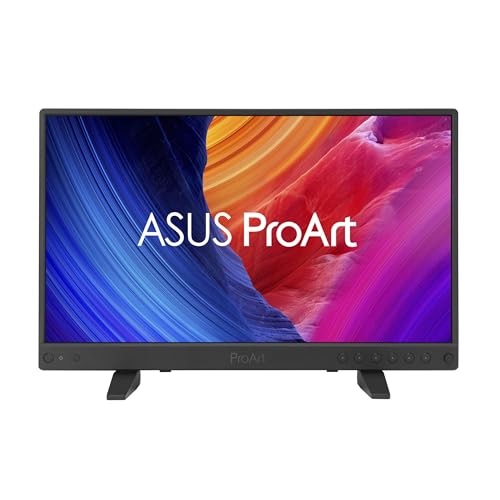
High-Resolution 4K HDR Display: 15.6-inch IPS panel with 3840 x 2160 resolution and 400 nits peak brightness for exceptional visual clarity
Why Thunderbolt 3 and USB4 Enable 4K/8K Multi-Display Docking

Alt Mode was a solid start, but let’s be honest—it wasn’t enough when you wanted to hook up multiple 4K displays at once. That’s where Thunderbolt 3 and USB4 actually made a real difference in what you can do with a docking station.
When Thunderbolt 3 rolled out in 2015, it switched to USB-C and brought four PCIe lanes to the table alongside DisplayPort tunneling. The result? 40 Gbps of total bandwidth. Why does this matter? Because it means you can run multiple 4K video streams at the same time without your picture getting choppy or delayed. If you’ve ever tried to push video and data across the same cable before, you know how quickly things fall apart. Thunderbolt 3 fixed that problem.
USB4 took things further. It mandates USB-C, which makes everything more consistent, and it beefed up the PCIe tunneling and DisplayPort support. You still get 40 Gbps, but it handles multiple devices way better than before. The best part is that both of these standards can handle 8K resolution too—assuming your monitor and power setup can keep up.
Recommended Products

1big Dock is an external hard drive and laptop docking station for filmmakers looking to centralize their desktop peripherals and store a massive portfolio of work with high-performance Thunderbolt 4 compatible technology

AI-POWERED PERFORMANCE - The Lenovo ThinkPad E16 ensures elevated productivity with Intel Core Ultra processors. This sleek, durable laptop boasts unmatched AI power for your seamless workload optimization and handling most demanding tasks. Built to meet the US Department of Defense's MIL-STD 810H standards, it ensures a perfect balance of reliability and durability

Processor: Intel Core Ultra 7 258V Processor (LPE-cores up to 3.70 GHz P-cores up to 4.80 GHz / 32 GB MOP)
Building Your USB-C Hub Setup: What Fits Your Workflow

So you’ve got the bandwidth sorted out with Thunderbolt 3 and USB4—now comes the part that actually matters: picking a hub setup that doesn’t feel like a compromise.
The real question is whether you’re working from a coffee shop three days a week or anchored at a desk. If you’re bouncing around, a 13-inch portable monitor with a USB-C dock is honestly the sweet spot. You get decent screen real estate without hauling around a monitor the size of a textbook. Stationary setups? That’s when you can justify going bigger with a 15 to 17 inch display and not worry about weight.
Before you buy anything, know what you’re actually plugging in. Does your laptop even support USB4? What peripherals do you actually use—external drives, printers, older USB-A devices? Write this stuff down. Frankly, it’s easy to overbuy a hub with features you’ll never touch.
Power delivery matters more than people think. Here’s the thing: you don’t want a $200 setup that can’t charge your laptop while you’re using it. A 60W hub works fine for ultrabooks and tablets. If you’re running a larger laptop or charging multiple devices at once, jump to 100W or higher. Some setups go up to 240W, but that’s only necessary if you’re powering heavy workstations.
The form factor choice is pretty straightforward:
- Compact single-cable solutions: Best if desk space is tight or you move around a lot
- Expandable docking stations: Better for permanent setups where you want everything visible and organized
The best part is you don’t have to decide everything at once. Start with what matches your actual workflow today, not some imaginary future setup. Are you working on one monitor or juggling multiple video streams regularly? Your answer to that changes everything about which hub makes sense.
Recommended Products

Powerful Processing: AMD 8-core Ryzen 7 8745HX Processor (Base Clock 3.6GHz, Max Boost Clock up to 5.1GHz, 32MB L3 Cache, 16 Threads).

6K IPS Panel with 99% DCI-P3:500-Nit Brightness,delivers deeper blacks, brighter highlights, and balanced visuals for immersive gaming, HDR content, and professional editing. The advanced IPS panel enhances dark scenes while maintaining 99% sRGB and DCI-P3 color accuracy (ΔE<2), ensuring lifelike details and vibrant colors.

Tested and Certified – This Renewed product is tested and certified to look and work like new, with limited to no signs of wear. The refurbishing process includes functionality testing, inspection, and repackaging. The product comes with 90-day warranty.
What’s Coming Next?
What’s Coming Next?
Tired of juggling multiple cables and adapters just to connect your monitor and charge your laptop? You’re not alone. The portable monitor hub world is about to shift in a big way, and it’s worth paying attention to what’s on the horizon.
USB4 and Thunderbolt 4 are finally becoming standard on everyday devices, and that’s opening doors. We’re talking about bandwidth jumping from 40Gbps to 80Gbps—basically double the speed for moving data around. Power delivery is climbing too, heading toward 240W, which means your demanding workstation can actually stay powered through a single cable instead of hunting for a wall outlet.
Here’s what’s getting interesting: manufacturers are ditching the need for separate video adapters altogether. New Alt Mode protocols are making it so your hub can handle HDMI and DisplayPort without forcing you to buy extra dongles or converters. So, why does this matter? Because fewer cables mean fewer things breaking and fewer compatibility headaches.
The really clever stuff is coming from AI integration into hub firmware. Soon, your hub will recognize what devices you’re plugging in and automatically figure out the best way to share power and bandwidth. Think of it like having a traffic controller for all your connections—it’ll prevent conflicts before they happen.
Manufacturers are also working on unified cable standards that actually consolidate different protocols. You won’t need to worry whether your monitor plays nice with your hub anymore. These improvements will smooth out your entire workflow, whether you’re a creative professional or just someone who needs to work from coffee shops and home offices.
The takeaway? Your next hub purchase will be simpler, more reliable, and require way fewer adapters gathering dust in your drawer. What’s holding you back from upgrading your setup right now?
Frequently Asked Questions
Are Older USB-A Devices Compatible With USB-C Portable Monitor Hubs?
I’ll cut to the chase: older USB-A devices aren’t directly compatible with USB-C portable monitor hubs. However, you can bridge this gap through adapter usage. I’d recommend USB-A to USB-C adapters to connect your legacy devices, ensuring backward compatibility.
What Is the Difference Between USB PD and Standard USB Power Delivery?
I’d clarify that USB PD *is* standard USB power delivery—there’s no difference. USB PD enables intelligent power negotiation between devices, optimizing charging efficiency so your hub delivers the right wattage safely without overloading your equipment.
How Does Displaylink Technology Differ From Native Alt Mode Video Transmission?
Ever wonder why some monitors need extra processing? I’ll tell you: DisplayLink compresses video through USB software, bypassing Alt mode limitations, while native Alt Mode sends uncompressed signals directly. DisplayLink benefits include flexibility with older devices, though it demands more bandwidth and CPU resources than direct transmission.
Can USB-C Hubs Simultaneously Charge a Laptop While Outputting 4K Video?
Yes, I can tell you that modern USB-C hubs offer impressive dual function capabilities. You’ll find they simultaneously charge your laptop while outputting 4K video, thanks to USB Power Delivery technology that handles both charging and video transmission through a single cable connection.
What Cable Specifications Ensure Full USB4 Bandwidth for Multi-Display Setups?
I’d recommend you verify your cable supports USB 3.1 Gen 2 or higher specs to access full USB4’s 40Gbps potential. Look for certified cables rated for Thunderbolt 4—they eliminate bandwidth limitations and guarantee multiple displays work seamlessly without compromising data speeds.