As an Amazon Associate, we earn from qualifying purchases. Some links on this site are affiliate links at no extra cost to you. Our recommendations are based on thorough research and editorial judgment.

Daisy-Chaining Portable Monitors for a Multi-Screen Mobile Setup

Daisy chaining portable monitors is technically possible when devices support DisplayPort 1.2 or newer with Multi-Stream Transport capability, though most lack the dual input-output ports required for sequential connection. You’ll need certified DisplayPort cables, USB-C Alt Mode connectivity, or Thunderbolt ports to establish this configuration. Connection limits vary by resolution: Full HD supports up to four monitors, while 4K typically restricts you to one or two displays. Understanding specific technical requirements, compatible monitor models, and systematic troubleshooting approaches will clarify your setup options.
Key Takeaways
- Daisy chaining portable monitors requires DisplayPort 1.2+ or USB-C with DisplayPort Alt Mode support for Multi-Stream Transport functionality.
- Resolution determines connection limits: 1080p supports four monitors, 1440p supports two, and 4K typically limits to one or two displays.
- Middle and first monitors need both input and output ports, while the final monitor requires only an input port.
- Enable MST on every monitor in the chain and verify your graphics card supports MST technology with sufficient bandwidth.
- Troubleshoot connection issues by checking cable certification, confirming MST activation, adjusting resolutions, and restarting your system systematically.
Can You Actually Daisy Chain Portable Monitors? (Feasibility Check)
Can You Actually Daisy Chain Portable Monitors?
So you’ve got multiple portable monitors sitting around, and you’re wondering if you can just hook them together like some kind of display domino chain. Totally fair question—and the short answer is yes, you can do it, but there’s a catch.
Most portable monitors these days come with DisplayPort 1.2 or newer, which supports something called Multi-Stream Transport. That’s the tech that actually makes chaining possible. Without it, you’re stuck.
Here’s where it gets tricky: not every portable monitor has both an input *and* an output port. You need those output ports if you want to chain monitors together—think of them like the connection points in the middle of the chain. If your monitor only has an input, it’s the end of the line (literally).
USB-C with DisplayPort Alt Mode is honestly your best bet. Why? Because it handles video, power, and data all through one cable. It’s cleaner, simpler, and it actually supports chaining without extra headaches.
Try this: before you spend time setting everything up, check your monitor’s specs. Does it have a video output port? That’s your first question. Not all portable displays do, and that’s the real limitation you’ll run into.
The bottom line? Daisy chaining works, but your specific monitor model matters way more than the concept itself. Make sure your devices support it before you get your hopes up.
What Cables and Ports You Really Need

So you’ve confirmed your portable monitors can handle daisy chaining—now comes the part that actually makes it work: having the right cables and ports. It’s not complicated, but getting it wrong will definitely frustrate you.
Cable Types Matter More Than You’d Think
DisplayPort 1.2+ certified cables are your key to MST functionality. Without them, daisy chaining just won’t happen, period. USB-C with DisplayPort Alt Mode is another solid option because it lets you send both power and video through one cable—which saves you from a mess of wires on your desk.
Port Setup and What Goes Where
Here’s the trick: your first and middle monitors need both input and output ports so the signal can pass through them. Your last monitor in the chain? It only needs an input port. Think of it like a relay race—the baton (your video signal) keeps moving forward until it reaches the finish line.
Why does this setup matter so much? Because if your final monitor has an output port, you’ve wasted resources and money.
The GPU Side of Things
Your graphics card or laptop needs to support MST technology, and it needs enough bandwidth to handle multiple monitors. Honestly, most modern GPUs do this just fine, but it’s worth checking your specs beforehand. Nothing’s worse than setting everything up only to discover your hardware can’t support it.
Cable Matching Isn’t Optional
Use DP 1.4 cables with DP 1.4 ports. USB-C with USB-C. Mix and match, and you’re asking for problems. Get the versions right, and you’ll get smooth performance across your whole setup.
Recommended Products

Drives eight (8) displays simultaneously

With 99% sRGB color coverage, and a factory color calibration report to certify that each monitor arrives at a deltaE of <3, youcan be sure that colors are as accurate as they can be

Multi-Display Splitter/Extender splits or expands a DisplayPort Cable's signal to two HDMI equipped monitors (DP, DP++, Display Port++)
Which Portable Monitors Actually Support Daisy Chaining?

Which Portable Monitors Actually Support Daisy Chaining?
Want to run multiple portable monitors off one laptop port? It sounds great in theory, but here’s the catch—not all portable monitors can actually do it. Before you buy a second (or third) display, you need to know what your monitor can and can’t handle.
The tech specs matter more than you’d think. Your monitor needs DisplayPort 1.2 or newer with Multi-Stream Transport (MST) technology, or it needs USB-C Alt Mode with DisplayPort built in. Thunderbolt 3 and 4 ports work too. If your monitor only has HDMI? Honestly, you’re out of luck—each display will need its own cable connection to your device.
Brands like Mobile Pixels actually build their displays with daisy chaining in mind. Their models include the right ports and bandwidth to chain multiple screens together in sequence. So why does this matter? Because if you’re working on the go and want a clean, minimal cable setup, daisy chaining cuts down on clutter and keeps your workflow streamlined.
Here’s the trick: check the technical specs for both input and output ports. Look specifically for MST capability and bandwidth capacity. Don’t just assume a monitor can daisy chain because it’s new or expensive—verify it in the manual or contact the manufacturer.
There’s actually an easier workaround if daisy chaining feels too complicated. A Thunderbolt dock lets you connect multiple portable monitors through a single laptop port while still keeping power delivery and data transfer working smoothly. It’s a solid alternative if finding the right monitors feels like a hassle.
Bottom line: daisy chaining works, but only with the right equipment. Does your current setup support it?
Recommended Products
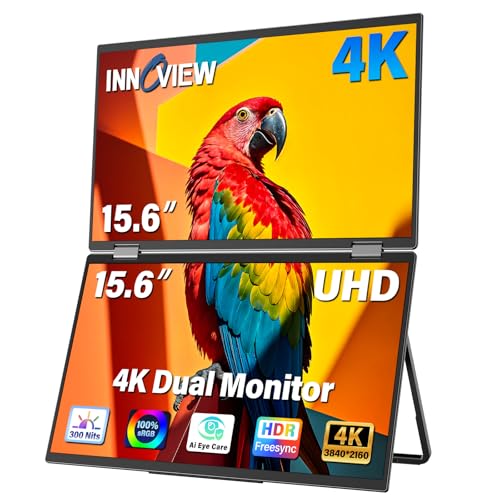
【Stunning 4K UHD Clarity with 100% sRGB Color Gamut】 Immerse yourself in breathtaking visuals on the 15.6-inch 4K UHD (3840x2160) monitor. With 100% sRGB color coverage and 1.07 billion colors, this monitor delivers incredibly accurate and vibrant colors, making it perfect for professional photo editing, graphic design, and enjoying ultra-high-definition movies exactly as the creator intended

27" Large Immersive Monitor: The 27" portable monitor brings a desktop-class, panoramic view to any location. It provides approximately 40% more screen area than a standard 24" model, transforming temporary setups in hotels, co-working spaces, or home offices into a deeply immersive and productive visual workstation

27" QHD IPS display with ultra-slim profile and low weight for effortless portability
DisplayPort vs. Thunderbolt: Which Should You Choose?

DisplayPort vs. Thunderbolt: Which Should You Choose?
So you’re setting up a portable monitor setup and need to figure out which cable standard won’t leave you frustrated six months down the road. The connection you pick matters more than you’d think—it affects everything from how many monitors you can actually plug in to whether you’ll need a separate power cable cluttering your desk.
DisplayPort is the more straightforward choice for most people. It’s everywhere. You’ll find it on laptops, tablets, and monitors from basically every manufacturer. The cables are standardized and affordable, so you’re not overpaying for premium connectors. The real strength? It does video really well without wasting bandwidth on stuff you don’t need. If you’re daisy chaining Full HD monitors with DisplayPort 1.2, you’re looking at solid performance that just works.
Now Thunderbolt is the premium option, and it’s genuinely faster. Here’s the thing: you get way more bandwidth, which means you can run two 4K monitors at once without breaking a sweat. The best part is consolidation—power and data travel through the same cable, so you’re not juggling three different connections for one setup.
But here’s where it gets real: Do you actually need that power and speed, or are you paying extra for features you won’t use?
Try this approach: Ask yourself what you’re really plugging in. If you’re working with Full HD or single 1440p monitors and your devices all have DisplayPort, stick with it. You’ll save money and avoid compatibility headaches. If you’re someone who needs multiple high-res displays and your laptop already has Thunderbolt 3 or 4, then the consolidated setup pays for itself in convenience.
The honest answer is that your current devices should drive this decision. Check what ports you actually have before you buy anything. Frankly, the best cable is the one that matches what you already own.
Recommended Products

Eight Universal 3.5/2.5-inch Drive Bays Use SATA/SAS1 and U.2/M.22 NVMe drives for up to 144TB of capacity and real-world speeds up to 2750MB/s. The top four bays can utilize U.2 SSDs

Eight universal 2.5 or 3.5-inch SSDs/HDDs drive bays w/ Dual Thunderbolt 3 ports (Thunderbolt 2/Thunderbolt backward compatible)

High-capacity desktop RAID, ideal for PC, iPad USB-C, and MAC users with a massive 48TB storage
How Many Screens Can You Connect? (Limits by Resolution)

How Many Screens Can You Connect? (Limits by Resolution)
Want to set up multiple monitors but aren’t sure what your setup can actually handle? The short answer: it depends on your resolution and refresh rate. Your graphics card and connection type are the real gatekeepers here.
The Resolution Reality
So, why does resolution matter so much? Because higher resolution means more data flowing through your cables. If you’re running Full HD (1080p), you’re in luck—you can typically connect up to four monitors without breaking a sweat. Jump up to WQHD (1440p), and you’re looking at around two displays. Want 4K? That’s usually one or two screens, depending on your graphics hardware and whether it supports MST (Multi-Stream Transport).
What Your Connection Type Can Do
Thunderbolt 3 is pretty solid if you’ve got it. You can run two 4K monitors at 60Hz, or if you’re sticking with 1080p, push it to six displays. DisplayPort 1.4 gives you similar flexibility—comparable bandwidth means similar limitations. The cable you’re using genuinely matters.
Honestly, most people don’t realize their bottleneck isn’t the monitor itself. It’s the connection between your device and the display.
Picking the Right Setup for You
Here’s the trick: before you buy those extra monitors, know your limits. Check your graphics card specs and what ports you actually have. Try this: list your resolution, refresh rate, and connection type, then cross-reference with your hardware manual. That five-minute step saves you from buying a monitor that won’t work properly.
The best part is, once you nail this down, you won’t deal with laggy displays or blurry performance during your work sessions.
What resolution are you targeting, and how many screens are you hoping to connect?
Setting Up Your First Daisy Chain: Step by Step
Setting Up Your First Daisy Chain: Step by Step
Want to connect multiple monitors without turning your desk into a cable nightmare? Daisy chaining might be exactly what you need. But before you start plugging things in, you’ve got to make sure your setup actually supports it.
First, check that your computer has a DisplayPort 1.2 or newer with Multi-Stream Transport (MST) capability. Your primary monitor and any monitors in between need both input *and* output ports—this is non-negotiable. Your graphics card or laptop GPU also needs to support MST and have enough bandwidth to handle your target resolution and refresh rate. Skip any of these, and you’re stuck.
The actual wiring is pretty straightforward. Connect your computer’s DisplayPort directly to your primary monitor’s input port. Then take a certified cable (make sure it matches your port version) and run it from the primary monitor’s output to the secondary monitor’s input. Keep going down the chain until you hit your limit, then enable MST in your display settings. Why does this matter? Because MST is what lets multiple monitor signals travel through a single cable—without it, you’re just moving the problem around.
Now for the practical stuff that actually trips people up. You need to think about where you’re physically placing these monitors and whether they have their own power needs. Here’s the trick: leave enough space between them for cables to breathe and make sure you can actually reach the power outlets. If your monitors need external power during operation, don’t position them in some awkward corner where you can’t plug them in.
The whole thing works once you get it right, but honestly, taking five minutes to plan your cable runs saves you a ton of frustration later. What’s your workspace looking like—do you have the space and power sources to make this work?
Recommended Products

Large 4K HDR Display: 31.5-inch 4K (3840 x 2160) LED backlight HDR display with 178 wide-view IPS panel

ACCURATE & CONSISTENT COLORS: 95% P3, 100% sRGB/Rec.709 with an average Delta E ≤ 2 for factory-calibrated color accuracy and intuitive color matching across displays.

VERSATILE TOUCH MONITOR: 24 Inch Full HD (1920x1080p) IPS touch monitor with thin bezels and 60Hz refresh rate
Troubleshooting Your Daisy Chain: Fixes for Common Problems
Troubleshooting Your Daisy Chain: Fixes for Common Problems
Got your monitors all hooked up but something’s not working right? You’re not alone. Daisy-chained monitor setups look great on paper, but they can throw a wrench in your plans when things go sideways.
The truth is, most problems come down to a few usual suspects: bad cables, loose connections, or settings that aren’t configured properly. Your graphics card only has so much bandwidth to work with, and when something’s off, your displays start cutting out or acting weird.
Start with the cables and connections. Check your DisplayPort or Thunderbolt cables first—make sure they’re certified and actually match what your ports need. A frayed or loose cable is often the culprit, so wiggle those connections at both ends. If a cable’s been sitting around for a while, it might be degraded. Swap it out for a fresh one if you’ve got a spare.
Next up: MST settings. Here’s the thing—your monitors won’t talk to each other properly if MST (Multi-Stream Transport) isn’t turned on. You’ll need to dig into your display settings and enable it on every monitor in the chain. Skip this step, and your signal won’t distribute right across the whole setup. Why does this matter? Because without MST, you’re basically asking your monitors to work independently when they’re supposed to work together.
Then there’s the resolution and refresh rate question. Your graphics card has limits on how much data it can push through at once. Crank up the resolution and refresh rate too high, and you’ll exceed those limits—boom, displays drop out. Check your card’s specs and make sure your monitor settings stay within range.
After you’ve made any changes, restart your whole system. Sounds simple, but it works. Your drivers need time to recognize everything and sync up properly across all your monitors.
The beauty of troubleshooting this way? You’re checking things systematically instead of guessing blindly. What problem are you running into right now—is it a complete signal loss, or just flickering?
Recommended Products

HDMI2.1 kvm Switch 2 Monitor 2 Computers 4k 144hz COMPATABILITY: the Kvm switch 2 monitors 2 computers hdmi 5k 144hz supports most major operation systems like Windows, Linux, Mac and more; also support switch between devices without keyboard and mouse like DVR and NVR; Support webcam, speaker / headphone and microphone;
HDMI2.1 kvm Switch 2 Monitor 2 Computers 4k 144hz COMPATABILITY: the Kvm switch 2 monitors 2 computers hdmi 5k 144hz supports most major operation systems like Windows, Linux, Mac and more; also support switch between devices without keyboard and mouse like DVR and NVR; Support webcam, speaker / headphone and microphone;

This package include a Orin Nano development kit with 8GB Jetson Orin Nano Module, and other accessories (5 items)
Frequently Asked Questions
Can I Daisy Chain Portable Monitors With Different Brands or Models Together?
I’ll be candid: yes, you can mix brands, but you’re venturing into potentially challenging waters. Monitor compatibility issues often arise with different models, and daisy chain limitations mean they must all support DisplayPort 1.2+ MST technology for successful linking.
Will Daisy Chaining Portable Monitors Drain My Laptop Battery Faster Than Single Display?
Yes, I’ll tell you straight: daisy chaining portable monitors will drain your laptop’s battery faster than using a single display. Multiple monitors increase power consumption considerably, so you’re looking at reduced battery life unless you’ve got your laptop plugged in.
Can I Use Daisy Chained Portable Monitors While My Laptop Lid Is Closed?
Yes, you can use daisy-chained portable monitors with your laptop lid closed. I’d recommend checking your laptop settings to disable sleep mode and verify monitor compatibility with your system. You’ll also need an external keyboard and mouse for control.
Do I Need Separate Power Adapters for Each Portable Monitor in a Daisy Chain?
Not necessarily. If your portable monitors feature USB-C with DisplayPort Alt Mode, you can power them through a single Thunderbolt dock connected to your laptop. However, monitor compatibility and individual power requirements vary, so I’d recommend checking each model’s specifications first.
What’s the Performance Impact of Daisy Chaining on My Laptop’s Processor and GPU?
Your GPU load increases considerably when daisy chaining, as it must render content for multiple displays simultaneously. However, processor utilization remains relatively modest. You’ll notice the biggest impact on your GPU’s bandwidth and memory rather than CPU performance.


