As an Amazon Associate, we earn from qualifying purchases. Some links on this site are affiliate links at no extra cost to you. Our recommendations are based on thorough research and editorial judgment.


Multi-Monitor vs. Single 49-inch Ultrawide: 2026 Workspace Ergonomics

A 49-inch ultrawide demands 30–36 inches of desk depth to prevent eye strain, while dual monitors require only 20.4 inches, making them suitable for shallow workspaces. Curved ultrawides maintain neutral neck positioning better than dual setups, which promote neck rotation and increased strain during extended work. However, dual monitors provide equipment redundancy; one display failure halts a single ultrawide entirely, whereas you’ll continue functioning with one functioning screen. Your ideal choice depends on available desk depth, task requirements, and failure tolerance considerations worth examining further.
Key Takeaways
- 49-inch ultrawides demand 36-42 inches of desk depth; dual monitors require only 20.4 inches, making them suitable for shallow workspaces.
- Curved ultrawides maintain neutral neck positions and consistent viewing distances, while dual monitors increase neck rotation and strain during multitasking.
- Single ultrawide monitor failure completely halts workflow, whereas dual monitor setups allow continued productivity with one screen malfunctioning.
- 49-inch ultrawides excel for continuous tasks like video editing and spreadsheets; dual monitors better support independent, concurrent multitasking workflows.
- Personal comfort varies significantly; curved ultrawides reduce eye strain through consistent viewing geometry, while dual monitors offer ergonomic flexibility through positioning angles.
How Much Desk Space Do You Actually Have?
How deep is your desk, really? It’s honestly one of those things people don’t think about until their monitor’s basically in their face.
Your desk depth actually makes or breaks whether an ultrawide or dual-monitor setup works for you. A 34-inch ultrawide needs about 30-36 inches of depth so you can sit comfortably without straining your eyes. If your desk is shallow—say, only 18 inches deep—you’re looking at a 9.1-inch shortfall. That forces your screen way too close, and your eyes get tired fast trying to focus.
Dual 27-inch monitors? They’re more forgiving. You only need about 20.4 inches of viewing distance, so even a shallow desk leaves you with just a 2.4-inch gap. And here’s the trick: you can fix that by sliding your keyboard tray back a bit. Problem solved.
Now, bigger ultrawides—the 39-inch ones—sound amazing until you realize they demand a lot of real estate. Put one on a cramped desk and you’ll be whipping your head left and right constantly. That’s a recipe for neck pain and fatigue.
So, why does desk depth matter this much? Because wrong viewing distance compounds over eight hours of work. You’re stuck with either eye strain or neck rotation that’ll catch up with you.
Single ultrawide setups work best when you’ve got the depth and keep cables centered and organized. Dual monitors give you more flexibility—you can position each one independently—but they do need a deeper desk to really shine and keep your neck from twisting too much.
Before you buy anything, measure your actual workspace. It’s the one step that saves you from a pricey mistake.
Recommended Products

Powerful Performance for Work & Everyday Use: Powered by the Intel Core 7 Processor 150U, this Dell All-in-One delivers smooth multitasking for business, education, streaming, and productivity tasks. Paired with 64 GB DDR5 RAM and a fast 2 TB SSD, enjoy quick boot times and responsive performance

Ergotron StyleView Sit-Stand Combo System. Maximum weight (capacity): 13.2 kg, Maximum screen size compatibility: 60.96 cm (24"), VESA mounting interfaces compatibility: 75 x 75, 100 x 100 mm. Height adjustment range: 0 - 640 mm, Tilt angle: -30 - 30, Pan range: 0 - 360. Colour of product: Aluminium, Material: Aluminium. Package width: 94.2 cm, Package depth: 56.1 cm, Package height: 28.2 cm

Quad Motor Lifting System: Each leg is powered by an independent motor, ensuring ultra-smooth, synchronized lifting with increased load support and stability.
Neck Strain in Ultrawide vs. Dual Monitor Setups

Got neck pain after a full workday at your desk? You’re not alone. A lot of people don’t realize that the monitor setup you choose can actually make a big difference in how much your neck hurts by the end of the day.
Here’s what research shows: dual monitors tend to make you rotate and twist your neck more than you’d think. A 2026 study from the University of Arkansas backed this up. Meanwhile, curved ultrawides work differently—they’re designed to match how your eyes naturally move, so your neck stays in a more neutral position throughout the day.
Let’s talk specifics. A 34-inch ultrawide needs to sit about 27.1 inches away from you to hit that sweet spot 60-degree field of view. Dual 27-inch monitors? They only need 20.4 inches. So if your desk is tight on space, dual monitors might actually be the better choice for you.
But here’s the thing—ultrawides aren’t the only consideration. The real advantage of running two separate monitors is flexibility. You can tilt each one independently, adjust them to match your eye height, and keep the distance consistent across both screens. An ultrawide can be trickier because the flat surface means the edges sit at different depths than the center, which can strain your eyes over time.
Truth is, the best setup depends on what your workspace actually allows. Before you buy anything, measure your desk and think about how you work. Does your job require constant side-to-side eye movement, or do you mostly focus on one area? That answer might point you toward the right choice for your neck and your workflow.
Recommended Products

DELL USA AUTHORIZED - Includes Full DELL USA WARRANTY | Dell UltraSharp U3824DW 38" 3840x1600 60Hz 21:9 5ms IPS Curved Monitor

49 inches ultrawide 32: 9 dual QHD (5120 X 1440) Display
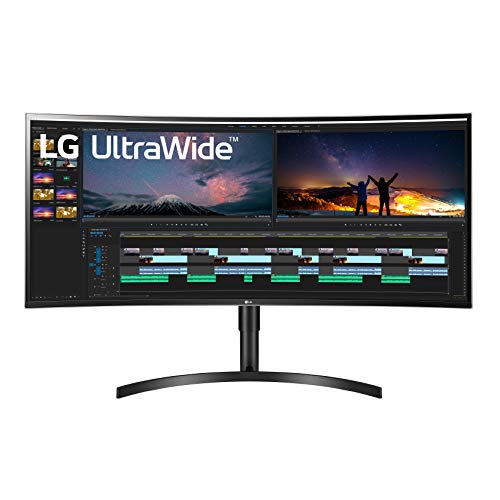
38" Curved UltraWide QHD+ (3840 x 1600) IPS Display
What Happens When One Display Fails

What Happens When One Display Fails
Ever had your monitor die right when you’re in the middle of something important? Yeah, it’s awful. But here’s where ultrawide and dual-monitor setups really show their differences.
With an ultrawide, you’re putting all your eggs in one basket. One 49-inch panel handles everything—your spreadsheets, your email, your design work, all of it. The second a backlight glitches or the panel cracks, you’ve got nothing. Your entire workspace goes dark. No workaround, no backup plan. You’re stuck waiting for a replacement or a repair, and your day pretty much stops there.
Dual monitors tell a different story. Sure, losing one 27-inch panel stings, but you’ve still got the other one. You can shuffle your windows around and keep working. Is it ideal? No. But you’re not completely dead in the water.
So, why does this matter? Honestly, it depends on what you do. If you’re working in finance, design, coding, or anything where downtime costs you money or sanity, redundancy isn’t just nice to have—it’s peace of mind. A single point of failure in those fields can throw off your whole day or even your whole project timeline.
The real takeaway: dual monitors give you breathing room. One fails, and you adapt. An ultrawide fails, and you’re scrambling. Think about your setup and ask yourself: can you afford to lose your entire display in a single moment?
Recommended Products
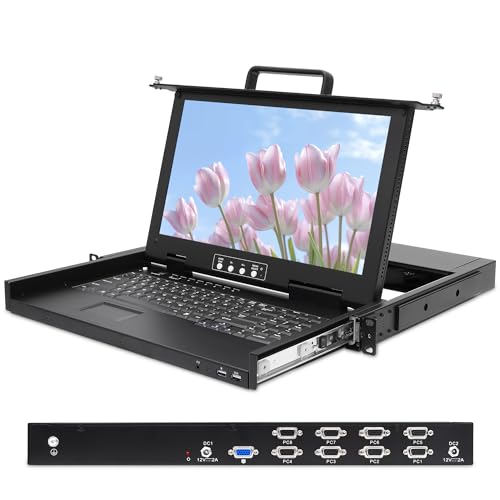
The 1U Rack Mount KVM console is specifically designed for modern, space-constrained 24-inch deep server racks. This integrated solution combines a 15.6-inch Full HD monitor, a full keyboard with touchpad, and an advanced 8-port VGA KVM switch in a compact 1U form factor. Its shallow-depth design makes this 8 Port Rack Mount KVM console an ideal choice for network cabinets, 5G infrastructure, and data centers where rack space is at a premium, providing comprehensive server management capabilities.

FROM WHISPER-QUIET TO EXPLOSIVE — NO CLIPPING – 32-bit float recording with dual AD converters captures massive dynamic range, from whisper-quiet dialogue to explosive sound without clipping.

【Newly Design Industrial+Business Mini PC】➥ This H6 industrial mini pc support Win 11 Pro and is built in 10th Generation Core i7 10510U processor, UHD Graphics, dual Channel DDR4 SODIMM, 12V lower Voltage. High-speed connection options and effortless multi-tasking, stable, strong and high compressive performance, suitable for good operation in various complex working environments.
Where Ultrawide and Dual Setups Outperform

So you’re trying to figure out whether an ultrawide monitor or a dual setup makes more sense for your workflow—and honestly, it depends on what you actually do all day.
When things are running smoothly, performance matters way more than having a backup plan. Each setup crushes it in completely different ways. Ultrawides are your best friend if you’re editing videos, building spreadsheets, or working in CAD. That extra horizontal space keeps everything in one view without your eyes bouncing all over the place. The curved design helps too—your neck stays in a better position since the screen wraps around you naturally.
Now, dual monitors? They’re the opposite approach. Instead of fitting everything into one massive panel, you’re splitting responsibilities. You can throw your editing software on one screen and keep chat or emails running separately on the other. It’s genuinely freeing when you don’t want those things competing for attention.
Here’s the practical difference: A 34-inch ultrawide fits two full-sized windows side by side with zero bezels cutting up the middle. That seamless view is hard to beat for continuous work. Dual setups let you angle each monitor differently—one tilted closer, one farther—so you’re not straining to see everything at the same distance.
Truth is, your job determines which one wins. Are you staring at timelines and spreadsheets for hours? Go ultrawide. Do you need to toggle between totally separate tasks and keep them mentally separated? Dual monitors give you that flexibility.
What matters most to you—pure screen real estate or the ability to mentally compartmentalize your work?
Recommended Products

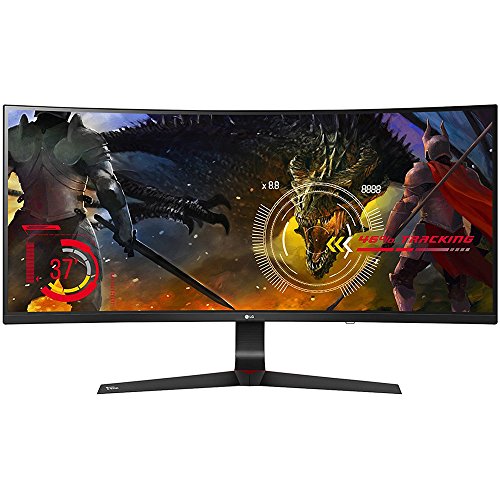
34" UltraWide QHD (3440 x 1440) Widescreen IPS Gaming Zero-Frame Monitor with 1900R Curved Display and 21:9 Aspect Ratio | 2 Speakers, 7 Watts Per Speaker

【Clearer, Smoother and Faster】With AMD FreeSync technology, gamers can experience seamless, fluid movement in hi-resolution and fast-paced games. It virtually reduces screen tearing and stuttering.
What 2026 Ergonomic Research Actually Proves

A 2026 study from the University of Arkansas looked at neck rotation and twisting strain between two common monitor setups—ultrawide displays versus dual monitors. The results? Dual setups actually put more stress on your neck and shoulders than you’d think.
Here’s what the research found: when you’re working with two separate 27-inch monitors, your eyes and neck have to do extra work. You’re constantly shifting focus between two independent panels, and that bezel gap in the middle breaks up your visual flow. With a curved ultrawide display, your eyes stay relaxed because the screen distance stays consistent across the whole thing. Your neck doesn’t have to rotate as much, and your posture stays more neutral over the course of a long workday.
So, why does this matter? Because small postural changes add up. After eight hours of extra neck rotation and accommodation stress, you feel it.
The numbers tell an interesting story:
- A single ultrawide needs about 27.1 inches of viewing distance to give you that ideal 60-degree field of view
- Two 27-inch monitors only require 20.4 inches of viewing distance
- But that closer distance with dual monitors doesn’t offset the strain from jumping between two separate screens
In my experience, the geometry of what you’re looking at shapes how your body responds. When your display setup matches your natural eye movement patterns, your neck doesn’t have to compensate, and you avoid that creeping tension by day’s end.
Truth is, there’s no perfect setup for everyone. If you’re already dealing with neck pain, the ultrawide approach might feel better. If you need specific window layouts side-by-side and don’t mind adjusting your monitor distance, dual displays can work too. What matters most is how *you* feel after a full day of work.
Your Decision: Ultrawide for Depth, Dual for Redundancy
So you’re staring at your desk setup and wondering: do I go big with one screen, or spread across two? Honestly, it comes down to what your workspace actually looks like and how much you can afford to lose if something breaks.
Ultrawide works best if you’ve got the desk space. You need at least 30 inches of depth to make it comfortable—otherwise you’re craning your neck or sitting too far back. The real advantage? No bezels cutting through your spreadsheets or video timeline. Everything flows together. You get a clean, compact footprint that takes up less desk real estate than two separate monitors would. Why does this matter? Because if your desk is deep enough, you’re working smarter, not fighting your setup.
But here’s where dual monitors win: they’re your insurance policy. If one monitor’s backlight goes out, you’re not stuck in the dark. You can still work. Plus, you can mix and match—throw a high-refresh gaming monitor next to a color-accurate panel designed for photo editing. You get flexibility that one ultrawide can’t offer. And if you’re upgrading later? Swapping out one monitor at a time hurts your wallet way less than replacing an entire ultrawide.
Truth is, shallow desks (under 28 inches) pretty much force the dual route. You just won’t have room to sit comfortably with an ultrawide.
What does your desk actually look like right now, and how often are you worried about equipment failing?
Recommended Products

OLED Gaming Monitor with 240Hz & 0.03ms Response: Dominate fast-paced games with ultra-smooth visuals and near-instantaneous response time, backed by NVIDIA G-Sync compatibility for tear-free gameplay.

34-inch 3440 x 1440 QD-OLED gaming monitor with 175Hz refresh rate and 0.03ms response time
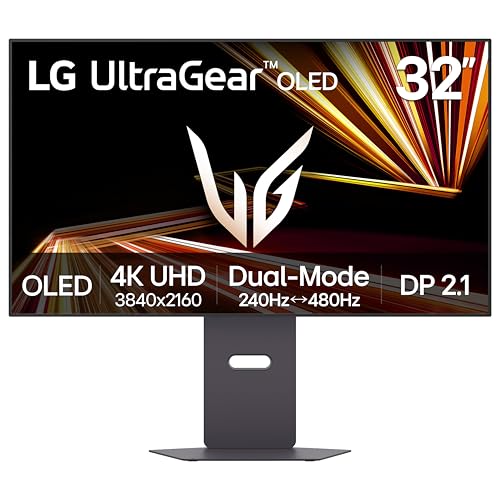
Dual Mode: 4K UHD 240Hz or Full HD 480Hz - LG UltraGear OLED is a VESA Certified Dual Mode gaming monitor. This innovation allows gamers to experience graphically rich, story-driven games in 4K/UHD at up to 240Hz or switch to Full HD at up to 480Hz for fast-paced FPS, MOBA or racing games via hotkey.
Frequently Asked Questions
Can Curved Ultrawides Truly Reduce Neck Strain Compared to Flat Ultrawide Models?
Yes, I’ve found curved ultrawides genuinely reduce your neck strain. The curvature benefits you by aligning screen edges with your natural eye movement, minimizing head rotation. You’ll experience less accommodation stress since the curved design maintains a more consistent viewing distance across the entire panel.
What Viewing Distance Is Ideal for a 49-Inch Ultrawide Display Setup?
I’d recommend positioning your 49-inch ultrawide at 30-36 inches for the ideal viewing distance. This ergonomic consideration reduces neck strain and accommodates the display’s massive width while maintaining comfortable focal alignment across the entire screen.
How Do Split-Screen Software Features on Ultrawides Compare to Physical Monitor Bezels?
I’ll give you the straight dope: split-screen software delivers seamless split screen efficiency without bezel distraction, mimicking dual monitors perfectly. You’re getting the best of both worlds—uninterrupted workflows and flexible app positioning, all on one unified display surface that won’t divide your attention.
Should I Mix Different Display Types Like Gaming and Productivity Monitors Together?
Yes, you should absolutely mix gaming and productivity monitors. Dual setups let you pair a high-refresh gaming display with a 4K color-accurate productivity monitor, maximizing both performance types. Just confirm monitor compatibility through matching inputs and stands for seamless integration.
Is Phased Monitor Upgrading Cheaper Than Replacing a Single Ultrawide Display?
Yes, phased upgrading’s cheaper. You’ll replace individual monitors gradually, spreading costs over time. With an ultrawide, you’re stuck replacing the entire panel at once—no flexibility. My upgrade strategy lets you invest strategically without the expensive ultrawide tax.