As an Amazon Associate, we earn from qualifying purchases. Some links on this site are affiliate links at no extra cost to you. Our recommendations are based on thorough research and editorial judgment.


How Ultrawide Monitors Alter Video Editing Timelines and Workflow Habits

Ultrawide monitors at 3440×1440 resolution fundamentally restructure editing workflows by eliminating constant window toggling, timeline scrolling, and reference material switching that fragment focus. You’ll display full editing interfaces, multi-track arrangements, and color grading panels simultaneously without bezels interrupting visuals. The 21:9 aspect ratio matches cinematic content dimensions, preventing letterboxing while maintaining workspace clarity. Factory-calibrated color accuracy guarantees consistent hue and brightness across the continuous surface, reducing cognitive load during critical decisions. Understanding your GPU’s capability and proper setup configuration determines whether this expanded workspace delivers the seamless efficiency professionals report.
Key Takeaways
- Ultrawide monitors eliminate window toggling by displaying timeline, references, and tools simultaneously on one continuous surface.
- 3440×1440 resolution removes the need for constant zooming and scrolling, keeping more project context visible at once.
- Side-by-side editing arrangement reduces cognitive load by maintaining stable context and enabling faster creative decision-making.
- 21:9 aspect ratio matches cinematic footage dimensions, displaying 4K content at full size without letterboxing or wasted space.
- Single ultrawide setup provides superior color accuracy compared to dual-monitor configurations, which have disruptive bezels between screens.
How Single Monitors Bottleneck Your Timeline Editing
How Single Monitors Bottleneck Your Timeline Editing
Ever find yourself constantly resizing windows while editing video? That’s the reality of working on one monitor with Premiere Pro or After Effects.
The workspace issue hits you fast. You’re cramming multiple tracks, toolbars, and reference materials into limited space, which means you’re constantly zooming in and out just to see what you’re working with. It’s exhausting, and frankly, it kills your momentum.
Here’s the real problem: you’re forced to toggle between windows over and over. One second you’re looking at your timeline, the next you’re hunting for a panel you need. This constant switching breaks your focus and pulls you out of the creative zone.
The preview problem is even worse. You can’t display full-resolution footage and your editing panels at the same time without sacrificing one or the other. So you’re either working blind or stuck with a cramped workspace. Neither option is ideal.
Try this: pay attention to how much time you actually spend moving windows around instead of editing. It’s probably more than you’d think. You’re burning time on window management when you should be making creative decisions.
The bottom line? Working with one monitor forces you to choose between organization and clarity—and that choice adds hours to every project. Once you understand what screen space you’re actually losing, it becomes obvious why this setup holds you back.
Why Ultrawide Resolution Transforms Your Workspace

Ever find yourself juggling three different windows just to color-grade a single shot? Yeah, that gets old fast. An ultrawide monitor fixes this problem in a way that actually matters for your workflow.
When you’ve got a 3440×1440 display, you can finally see everything at once—your editing software, reference materials, playback windows, and color grading tools all on the same screen. No more clicking back and forth between windows every thirty seconds. Your brain doesn’t have to constantly switch gears, which means you stay in the creative zone instead of getting bogged down in logistics.
The physical setup is a game-changer for how you work. Instead of staring at multiple monitor bezels splitting your attention, your eyes stay on one continuous surface. It sounds simple, but trust me—after a week of this, going back to dual monitors feels like a step backward. You actually notice how much faster you work when you’re not hunting for windows.
Here’s the practical side: a 5K ultrawide lets you view 4K footage at full size without shrinking it down. Your toolbars stay visible and organized, so you’re not guessing where buttons are or working blind. Precision matters when you’re editing, and this setup gives you the breathing room to get it right.
Factory-calibrated color accuracy means your entire workspace shows consistent colors. With traditional multi-monitor setups, you’re stuck with slight color shifts between screens—super frustrating when you’re grading. A single ultrawide panel eliminates that headache entirely.
Recommended Products

Rapid IPS Panel – Provides 0.5ms (GtG, Min.) response time, optimizes screen colors and brightness


【Clearer, Smoother and Faster】With AMD FreeSync technology, gamers can experience seamless, fluid movement in hi-resolution and fast-paced games. It virtually reduces screen tearing and stuttering.
How to Edit Side-by-Side Without Window Switching

Tired of constantly juggling windows while you’re trying to edit? An ultrawide monitor might be the answer you’ve been looking for.
When I made the jump to a 34-inch ultrawide at 3440×1440, the first thing I noticed wasn’t the resolution—it was the breathing room. Instead of toggling between Premiere Pro and my reference footage every five seconds, I could just glance over. Your editing software sits on one side, playback and color grading tools on the other, with asset libraries filling in the gaps. Everything you need stays visible without cluttering your workspace.
The math here is pretty straightforward. That 21:9 aspect ratio gives you genuine horizontal space for multi-track arrangements at full resolution. You’re not squinting at tiny timelines or collapsing panels to make room. Details stay sharp and usable, which matters when you’re making precise editing decisions.
So, why does this matter beyond just having more space? It’s about focus. When you’re not constantly switching windows, your brain doesn’t have to keep reloading context. You stay in the zone longer. Fewer distractions means you actually finish projects instead of losing momentum halfway through.
Here’s the trick: position your main editing software roughly in the middle-left, leaving your right side for reference materials and tool panels. This setup minimizes how far your eyes need to travel. The cognitive load drops significantly because all your necessary tools remain in your peripheral vision.
Honestly, the biggest win is workflow consistency. You develop a natural rhythm—editing on the left, checking references on the right—without the friction of window management. It’s not flashy, but it works.
If you’re spending half your day managing windows instead of actually editing, an ultrawide display might be worth the investment. What’s your biggest bottleneck right now—is it screen space or something else?
Recommended Products
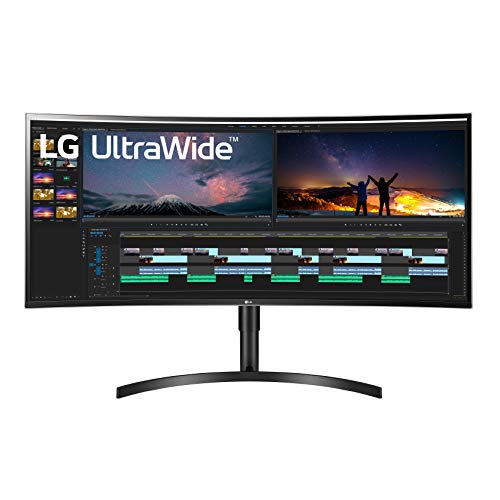
38" Curved UltraWide QHD+ (3840 x 1600) IPS Display

38" Curved UltraWide (21:9) QHD+ (3840 x 1600) IPS Display
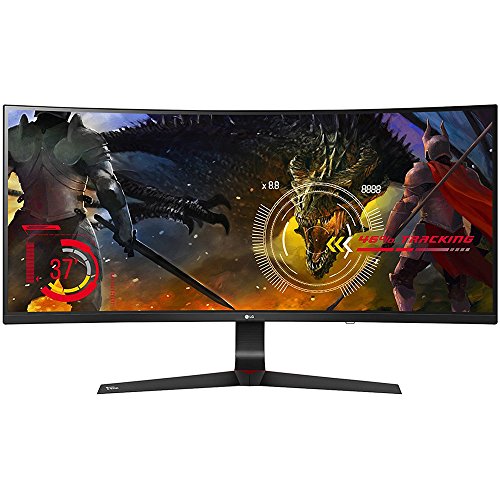
How Ultrawide Monitors Speed Up Timeline Navigation

Ever spent twenty minutes zooming in and out of your timeline, just trying to see where you actually are in your project? That’s the reality for most editors working on standard monitors.
With an ultrawide display at 3440×1440, you get something different. You’re looking at way more of your timeline at once—multiple tracks, your reference materials, and full previews all visible without having to hide anything or spread your work across two screens. No more collapsing panels to squeeze in just a little more space.
Here’s what actually changes in your workflow:
Your navigation gets faster because you can reach timeline shortcuts and scrubbing controls without accidentally covering up the content you need to see. You’re not constantly reconstructing in your head what the timeline looks like three inches to the left. The 21:9 aspect ratio keeps frame sequences visible continuously, which cuts down mental fatigue over long editing sessions.
The best part? Your toolbars stay accessible while you keep the full timeline in view. That means less jumping around and more precision when you’re making edits. So why does this matter? Because editing’s already demanding enough without fighting your screen real estate.
Honestly, the extended horizontal space does something psychological too. When you can see your entire project flow without gaps, you make better creative decisions. You catch timing issues faster. You keep your momentum instead of constantly orienting yourself.
If you’re serious about editing and find yourself frustrated with constant zooming and panning, an ultrawide is worth considering. Does your current setup ever make you feel like you’re working blind?
Recommended Products

Next-Gen QD-OLED Panel – With stunning image quality and fast response time

45" 21:9 800R Curved OLED - With a huge 45” display, 21:9 aspect ratio and a dramatic curved OLED screen, you’ll feel like you’re actually in the game. Experience next-level gaming performance with LG UltraGear OLED.

Revolutionary bendable OLED technology, developed by the OLED experts at LG Display, enables you to set the curve of the display from completely flat to 800R. Go curved with Xeneon Flex for immersive gameplay in simulations or flat for strategy games
Why 21:9 Aspect Ratios Beat Standard Monitors for Widescreen Content

Ever edited video on a standard monitor and felt like you’re constantly zooming in and out, missing the bigger picture? That’s the letterboxing problem most editors deal with every day.
Here’s what happens: when you’re working with cinematic footage shot at 2.35:1, your 16:9 monitor fills the sides with black bars. You lose screen real estate, and suddenly you’re zooming way too much just to see your timeline properly. Your color grading tools get shoved off-screen. Your asset bins disappear. It’s frustrating.
A 21:9 ultrawide monitor fixes this by actually matching how movies are shot. The extra width means no black bars eating up space—your footage displays at full 4K without you having to zoom. So, why does this matter? Because you can now fit everything you need on one screen: your timeline, your reference materials, your toolbars, and your playback window all at once.
The practical benefits are real:
- Multi-track arrangements display clearly without cramming
- Color grading panels stay visible while you edit
- Asset libraries don’t need a separate monitor
- Panoramic and billboard content shows up at usable sizes
- You spend less time zooming and more time actually working
Frankly, once you go ultrawide, the efficiency gain is noticeable. You’re not constantly hunting for panels or breaking your workflow across multiple displays. Everything’s right there in one cohesive workspace.
The bottom line: if you’re working with widescreen content regularly, a 21:9 monitor isn’t just nice to have—it’ll actually speed up your editing. Ready to reclaim your screen space?
Recommended Products

Bundle Items Include: 1 x LG UltraWide 40WP95C-W (5120 x 2160) 39.7" 21:9 Curved FreeSync 5K2K HDR IPS Monitor, 1 x Cleaning Kit, 1 x USBC Cable, 1 x HDMI Cable

LED Monitor offers maximum productivity with added dependability

5K 120Hz Ultra-Wide Display:5120x2160 5K resolution with 21:9 ultra-wide aspect ratio. 120Hz refresh rate ensures fluid motion for gaming and content editing, while 139PPI brings stunningly sharp details. Anti-glare screen effectively reduces reflections for comfortable viewing in any lighting.
Why Single Ultrawide Monitors Beat Dual-Monitor Color Accuracy
When you’re spending hours color-grading footage, the last thing you need is your monitor working against you. So here’s what I’ve learned: a single ultrawide screen actually gives you way better color accuracy than trying to work across two monitors side by side.
The main issue with dual setups? That bezel in the middle. It’s not just annoying to look at—it actually messes with your color work. You’ll notice the brightness and hue shift right at the junction, which sounds minor until you’re trying to match skin tones across scenes. A single ultrawide panel keeps everything consistent from left to right, no interruptions.
Why does this matter so much? Because your eye adapts to what it sees. If one monitor’s slightly warmer and the other’s cooler, your brain tries to compensate, and suddenly your color grades look wrong on other displays. With a single panel, you eliminate that guesswork.
Professional ultrawide monitors built for this kind of work come calibrated right out of the box with specs like:
- 100% Rec. 709 color coverage
- 98% DCI-P3 accuracy
- Factory calibration that holds through long editing sessions
The best part is you’re not fighting monitor-to-monitor variations anymore. You can trust what you’re seeing and move faster through your edit.
Honestly, once you’ve worked on a properly calibrated ultrawide for color-critical projects, going back to dual monitors feels like a step backward. You get consistent color uniformity across the entire screen, which means your grades actually translate when clients view them elsewhere.
Are you doing color work that requires pixel-perfect accuracy? If so, a quality ultrawide might be the upgrade that finally stops you from second-guessing your own eyes.
Can Your GPU Handle True Ultrawide Performance?
Thinking about upgrading to an ultrawide monitor for video editing? Before you do, you need to know if your GPU can actually handle it. Pushing pixels across a 3440×1440 or 5120×1440 display isn’t a small ask—it demands real GPU power.
Here’s what matters: your GPU needs to handle your specific resolution, refresh rate, and the codecs you’re working with. Modern NVIDIA RTX or AMD RDNA cards are your best bet if you want solid performance. Older or budget GPUs? They’ll struggle pretty quickly.
What does “smooth performance” actually look like? You’re looking at 60Hz playback at full resolution while simultaneously rendering effects, color grading, and scrubbing through your timeline without any stuttering. That’s a lot to ask, and frankly, most entry-level cards will choke on it.
Here’s the reality:
- Entry-level GPUs can handle 4K proxies, but they’ll fight you the whole way
- Professional-grade cards deliver native resolution editing at acceptable frame rates
- Mid-range cards? They’re a mixed bag depending on your specific workflow
Why does VRAM matter so much? Because editing software, preview windows, and asset panels all compete for memory at the same time. You’ll want at least 8GB—honestly, I’d recommend 12GB or higher if you’re doing serious work. Anything less, and you’ll hit memory bottlenecks that’ll slow everything down.
Video Editors in Action: Before/After Workflow Comparisons
Once you’ve confirmed your GPU can actually handle ultrawide performance, it’s time to see what this investment does for you in real editing sessions.
Here’s what changes: You’re no longer bouncing between separate windows. Instead, your Premiere Pro timeline, reference footage, and asset bins all sit on screen at the same time. That means less clicking around and more time actually editing. The 3440×1440 resolution kills the scrolling that used to break your focus, so you can see full multi-track arrangements and previews without cramming everything into tiny panels.
So, why does dedicated screen space matter for color grading? Because you’re adjusting colors while keeping your main editing interface right there—no minimizing windows, no hunting for buttons. It’s smoother, faster, and honestly less frustrating when you’re in the zone.
I’ve talked to professionals who switched from single monitors to ultrawide setups, and they consistently report the same thing: the workflow feels like jumping from one monitor to two, except better. You get color accuracy that stays consistent across the whole screen, and you don’t have those annoying bezels cutting through your visuals like they do on traditional dual-monitor rigs.
Does this mean ultrawide is essential? Not necessarily. But if you’re serious about your editing time, it’s worth the consideration.
Your First Week With an Ultrawide: Setup and Adjustment Pitfalls
So you’ve dropped cash on an ultrawide and it’s sitting on your desk—now what? Honestly, just plugging it in and hoping for the best won’t cut it. The first week matters way more than you’d think, and a few tweaks now will save you from headaches later.
Start with the boring stuff: GPU drivers. I know, not exciting. But your graphics card needs the latest drivers to handle that 3440×1440 resolution properly. After you install them, jump into your display settings and confirm you’re actually running at 3440×1440 and 60Hz. It sounds obvious, but I’ve seen people work for days thinking they had the right setup when Windows was defaulting to 1440p. Don’t be that person.
Here’s the thing about positioning—and this one’s not negotiable. Sit down at your desk like you normally would. Your eyes should hit the middle of the screen when you’re looking straight ahead, not down or up. The curved display should sit roughly an arm’s length away. Why does this matter? Because neck and eye strain will creep up on you fast, and by day three of editing, you’ll be miserable. Trust me on this.
Now for the software side. That 21:9 aspect ratio means your toolbars in Premiere Pro and After Effects are going to feel cramped if you don’t reorganize them. Here’s the trick: spend 30 minutes resizing and repositioning your panels so your most-used tools are within reach without constant scrolling. It feels tedious upfront, but you’ll thank yourself every single day.
Color accuracy also deserves attention. Your monitor probably came color-calibrated from the factory, but your editing room’s lighting might be totally different from the factory’s. Check your brightness and contrast settings against the actual light in your space. If you’re editing in a bright room with sunlight pouring in, you’ll need different settings than someone working under studio lights.
These first-week setup decisions aren’t glamorous, but they’re the difference between a workflow that feels natural and one that constantly frustrates you. Spend the time now—it pays off.
Frequently Asked Questions
What GPU Specifications Do I Need to Smoothly Run 3440×1440 Resolution at 144HZ?
I’d recommend a high-end GPU like an RTX 4080 or RTX 4090 for smooth 3440×1440 at 144Hz. You’ll need robust GPU requirements and strong performance benchmarks to handle that demanding resolution and refresh rate without stuttering or frame drops.
How Does Curved Ultrawide Design Affect Viewing Angles Compared to Flat Monitors?
I’ll paint you a picture: imagine sitting before a screen that wraps around your field of vision. Curved ultrawide designs eliminate edge distortion you’d see on flat monitors, creating an immersive experience. You’re getting consistent viewing angles across the entire display, making those curved advantages genuinely transformative for your workflow.
Can I Use KVM Switching to Alternate Between Mac and Windows Simultaneously?
You can’t use KVM to alternate *simultaneously*, but I’ll tell you KVM configurations let you switch seamlessly between Mac and Windows. The switching benefits mean you’re toggling between systems instantly without unplugging cables—perfect for your workflow.
What Is the Typical Cost Difference Between Ultrawide and Dual-Monitor Setups?
I’ll be honest—ultrawide monitors are practically stealing money compared to dual setups! You’re looking at roughly $400-800 more upfront, but here’s where setup advantages shine: you’ll skip extra cables, stands, and GPU strain. That’s a cost comparison that actually favors the ultrawide long-term.
How Long Does Factory Calibration Last Before Recalibration Is Necessary?
I can’t find specific information about factory calibration lifespan or recalibration frequency in my knowledge base. However, most professionals recommend recalibrating color-critical displays annually to maintain accuracy for video editing and design work.