As an Amazon Associate, we earn from qualifying purchases. Some links on this site are affiliate links at no extra cost to you. Our recommendations are based on thorough research and editorial judgment.

High-DPI Scaling in Windows vs. macOS: Why Text Looks Different on 4K Screens

macOS employs HiDPI rendering, doubling resolution on 4K displays before scaling down, which prioritizes print fidelity and applies anti-aliasing that produces thicker, rounder letterforms. Windows enables fractional scaling percentages—125%, 150%—aligning text to pixel grids for crisper, sharper results while maximizing usable workspace. macOS’s integer scaling guarantees polished appearance but demands higher GPU resources; Windows distributes computational load more evenly, enhancing responsiveness. These fundamental rendering philosophies create distinct visual presentations: macOS emphasizes design precision, while Windows prioritizes clarity and multitasking capability. Understanding these technical distinctions reveals why your screen preferences matter substantially.
Key Takeaways
- macOS applies anti-aliasing for print fidelity, creating thicker, rounder text, while Windows prioritizes pixel-grid alignment for crisp, sharp letterforms.
- macOS uses integer 2x scaling on 4K displays, rendering at 1920×1080 then scaling up, ensuring consistent clarity and polished appearance.
- Windows supports flexible fractional scaling (125%, 150%), offering more usable workspace but potentially reducing sharpness in certain applications.
- macOS’s full 4K rendering before scaling demands higher GPU resources, while Windows distributes computational load more evenly for better responsiveness.
- macOS emphasizes visual quality with 1920×1080 usable space on 4K, while Windows maximizes workspace up to 2560×1440 for multitasking.
Why Does Text Look Different on macOS Versus Windows?
Why Does Text Look Different on macOS Versus Windows?
Ever notice how crisp and sharp text looks on your Windows laptop, but then you switch to a Mac and everything feels a bit smoother and softer? There’s actually a real reason for that, and it comes down to how each operating system decides to display letters on your screen.
macOS and Windows take completely different approaches to rendering text. macOS cares more about making fonts look like they do in print—faithful to the original design. It uses anti-aliasing techniques that smooth out the edges, which gives you thicker, rounder letterforms. The downside? Sometimes the text can look a little fuzzy or blocky, especially if you’re reading at smaller sizes.
Windows goes the opposite direction. It prioritizes how text looks on a screen right now, not how a designer originally intended it. Microsoft aligns typefaces to pixel grids, which means every letter snaps to the exact pixels available on your monitor. This approach gives you:
- Crisper, sharper text
- Better legibility across different screen sizes
- Thinner letterforms that feel more precise
So, why does this matter to you? If you’re someone who stares at text all day for work, you’ll probably notice the difference. Windows users tend to get text that’s easier to read quickly, while Mac users get something that feels more polished and designed—even if it’s slightly harder on the eyes.
The truth is, neither approach is objectively better. It just depends on what you value. Are you sitting at your desk for eight hours reading emails and documents? Windows’ sharp rendering might feel less fatiguing. Do you care about the overall aesthetic and print-quality appearance of your screen? macOS delivers that.
Once you understand what’s happening under the hood, you’ll stop wondering if something’s wrong with your eyesight and start appreciating that these platforms simply have different priorities. Which one actually feels better to *you*?
How macOS Doubles Resolution to Sharpen Text?
Ever notice how text on your Mac looks sharper than on a Windows machine, even when they’re sitting right next to each other? There’s actually a clever reason for that.
macOS doesn’t tinker with scaling on an app-by-app basis like Windows does. Instead, it pulls off something different: the whole interface gets rendered at double the resolution, then shrunk down to fit your screen. It’s called HiDPI rendering, and it uses 2x scaling—which means everything stays crisp without getting blurry or pixelated. So, why does this matter? Because when you’re reading small text all day, this approach makes a real difference in eye strain and readability.
On a 4K monitor, here’s what’s actually happening: macOS renders your workspace at 1920×1080 dimensions, but spreads it across the full 3840×2160 pixel grid. That means each piece of text, button, or icon takes up four physical pixels instead of one. The benefit? Font clarity is baked in from the start since everything’s rendered at its native resolution first.
The real trick is in how it scales down. When you shrink something from 2x resolution, you’re not stretching or squeezing pixels unevenly. Instead, you get smoother edges and cleaner lines—way better than trying to split pixels in half or use fractional scaling. Honestly, this is why Mac text feels so effortless to read, even during long work sessions.
The doubled rendering buffer produces those crisp letters and sharp icons you’ve probably taken for granted. It’s pixel-perfect consistency, every single time.
Recommended Products

LED Monitor offers maximum productivity with added dependability

PACK FLAT WITH STAND - This monitor's base stand seamlessly magnetizes onto the back of the screen when collapsed. With a folded unit thickness of just half an inch, packing and traveling have never been more convenient. Experience versatile usage as the monitor functions effortlessly as a stand-alone unit in both landscape and portrait modes, utilizing only the sleek kickstand. Elevate your on-the-go computing with this compact and adaptable monitor.
Why Windows Fractional Scaling Produces Crisper Letters?

Ever notice how your Windows text looks sharper than your friend’s Mac, even on the same 4K screen? There’s actually a reason for that, and it comes down to how each operating system handles scaling differently.
Windows takes a pretty straightforward approach: instead of forcing everything into neat, round number scaling (like 100% or 200%), it lets you dial in whatever percentage works best for your eyes. You can go 125%, 150%, or whatever feels right. The trick is that Windows renders UI elements at their native size first, then scales them up without being locked into integer constraints. So why does this matter? Because when text scales this way, the letters stay aligned to your monitor’s pixel grid, keeping them sharp and readable.
The real difference shows up on high-resolution displays. Microsoft’s strategy focuses on what actually looks good on your screen—they prioritize making text crisp by essentially forcing the outlines to snap to pixels, even if it means the letters don’t match the designer’s original intent perfectly. On a 4K display especially, you’ll notice Windows renders thinner, more defined letterforms compared to the Mac approach.
Here’s the honest part: you’re trading pure design accuracy for screen readability. But frankly, most people care way more about being able to read their screen comfortably than whether the font matches some theoretical ideal. As long as your apps know how to handle DPI awareness (most modern ones do), you won’t get that blurry mess that fractional scaling used to cause on older Windows systems.
The best part is you get actual pixel-perfect scaling without the guesswork. You set your percentage, and Windows handles the rest consistently across all your DPI-aware apps.
The Subpixel Anti-Aliasing Gap: Apple’s Approach Versus Microsoft’s?

If you’ve ever stared at your screen and wondered why text looks different on your Mac versus your Windows laptop, you’re onto something real. There’s actually a technical reason for it, and it comes down to how each company decided to handle something called subpixel anti-aliasing.
macOS ditched this technique in recent versions. Instead of trying to trick your eyes with pixel-level tricks, Apple went all-in on making fonts look the way designers actually intended them to look. The result? Text that feels smoother and rounder, with thicker strokes that respect the typeface’s original design.
Windows takes the opposite route. Microsoft still uses subpixel rendering and anti-aliasing, lining up text outlines to pixel grids for maximum sharpness. It’s a different philosophy entirely—one that prioritizes making text as crisp and clear as possible on your screen.
So why does this matter? Because you probably spend hours reading text every single day. The approach you’re using affects eye strain, readability, and honestly, how the whole experience *feels*.
Here’s the practical difference you’ll notice:
- Windows text tends to look thinner and crisper
- macOS text appears bolder and smoother overall
- Windows prioritizes sharpness through pixel-level optimization
- macOS prioritizes typographic authenticity
Frankly, neither approach is objectively “better”—they’re just different philosophies. Microsoft’s aggressive pixel alignment works great if you want maximum clarity. Apple’s method works better if you care about how the typeface designer intended the letters to actually look.
Which one you prefer often depends on what matters to you: screen clarity or design fidelity. What’s your take—do you find one noticeably easier on your eyes?
Recommended Products
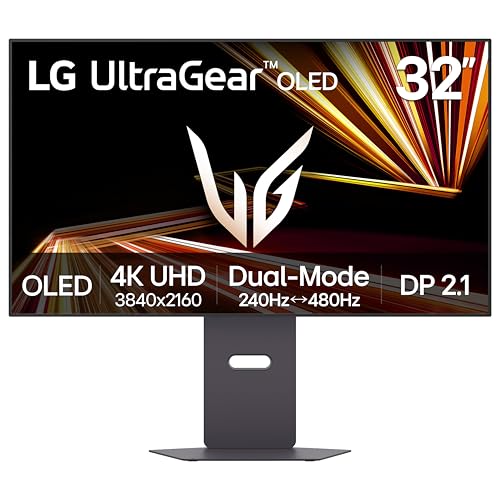
Dual Mode: 4K UHD 240Hz or Full HD 480Hz - LG UltraGear OLED is a VESA Certified Dual Mode gaming monitor. This innovation allows gamers to experience graphically rich, story-driven games in 4K/UHD at up to 240Hz or switch to Full HD at up to 480Hz for fast-paced FPS, MOBA or racing games via hotkey.

26.5-inch 4K (3840 x 2160) QD-OLED gaming monitor with 240Hz refresh rate and 0.03ms response time

【Epic QD - OLED Monitor】 A new generation of gaming monitor is emerging, this new 27 Inch 4K UHD 3840 x 2160p 240hz monitor adopts QD - OLED panel and deliver 99% DCI-P3 color gamut, 1,500,000:1 contrast ratio, 1.07B(10 bit) colors, more detailed quality picture and a lifelike gaming experience.
Font Weight Differences: Why macOS Text Looks Thicker?

Font Weight Differences: Why macOS Text Looks Thicker?
Ever notice how the same website looks bolder on your Mac than on a Windows machine? You’re not imagining things. There’s actually a real technical reason behind it, and it comes down to how Apple and Microsoft decided to handle text on screen.
Apple’s approach prioritizes keeping fonts looking the way designers intended them to look. Their rendering engine applies anti-aliasing—basically smoothing out the jagged edges of letters—without forcing everything to fit perfectly into a pixel grid. The trade-off? Text ends up appearing thicker because the engine preserves the original weight and proportions of the typeface. It’s a choice that values print-faithful typography over pixel-perfect alignment.
Windows does the opposite. Microsoft’s rendering deliberately thins out letterforms to snap them precisely to the pixel grid beneath the surface. Why? Frankly, it makes text crisper and sharper on screen. You get enhanced clarity, but you lose some of the designer’s original intentions in the process.
So, why does this matter to you? If you’re switching between devices or comparing screenshots, you’ll see noticeably heavier strokes on macOS. It’s not a bug—it’s a design philosophy baked into the operating system:
- macOS: Preserves typeface design → thicker appearance
- Windows: Prioritizes on-screen clarity → thinner appearance
The bottom line is that neither approach is wrong. They’re just different priorities. Apple decided that looking beautiful mattered more than pixel-grid perfection, while Microsoft went the other direction. Once you understand what’s happening, those font weight differences start making a lot more sense.
When 4K Triggers HiDPI Mode and Changes Everything?
When 4K Triggers HiDPI Mode and Changes Everything
So you just plugged in a 4K monitor to your Mac. Everything looks crisp, right? But there’s actually something clever happening behind the scenes that makes this possible—and it’s worth understanding.
Your Mac automatically switches into HiDPI rendering mode the moment you connect a 4K display. Basically, your system renders everything at 1920×1080 resolution, then stretches that across your full 3840×2160 pixel grid. You see a 1080p workspace, but it’s packed into way more pixels than that.
Why does this 2x scaling matter? Each interface element uses exactly four pixels instead of one. That means:
- Text stays sharp because it aligns perfectly with the pixel grid—no fuzzy, fractional scaling
- Icons and buttons maintain crisp edges
- Your eyes get less strain from clearer rendering
Honestly, the font rendering alone is worth the switch. When text doesn’t have to squeeze into partial pixels, it just looks cleaner. No weird anti-aliasing artifacts. No blurriness creeping in at smaller sizes.
The flexibility is actually nice, too. You’re not locked into that 2x scaling. You can bump it higher if you want more screen real estate, and everything stays looking sharp because HiDPI handles the math for you. Try adjusting your scaling preferences in System Preferences—you’ll notice the difference immediately.
Truth is, most people obsess over raw screen space, but what actually matters is readability and consistency. A 4K display with HiDPI gives you both.
Why Older Displays Get Blurry on macOS (Not Windows)?
Why does your Mac look so fuzzy when you plug in an older monitor, but Windows machines stay sharp? It comes down to how each system handles scaling on non-Retina displays.
macOS uses what’s called unified scaling. Basically, it tries to fit a virtual resolution to your actual pixels all at once. Sounds efficient in theory, right? But when your monitor doesn’t have enough pixel density (which older, non-Retina displays don’t), the system has to guess and fill in pixels. That guessing creates blurriness across your whole interface.
Windows takes a different approach. Instead of scaling everything together, it renders UI elements at their native size first, then applies scaling separately. You get text and buttons that stay crisp because they’re built at full resolution before any adjustments happen.
The real difference is this: macOS struggles because non-integer scaling factors (like 1.5x or 1.25x) force the system to interpolate pixels inconsistently. Your menu bar might scale differently than your windows, creating that washed-out feeling.
Here’s what actually happens on your screen:
- macOS applies fractional scaling uniformly across all UI elements
- Windows separates the scaling process into layers
- Older monitors lack the pixel density to hide the interpolation artifacts
So why does this matter? Because if you’re using a non-Retina monitor with a Mac, you’re basically fighting the system’s design. It wasn’t built with legacy displays in mind. The blurriness you see isn’t a bug—it’s the cost of trying to make older technology work with a system designed for high-density screens.
If you’re stuck with an older display on macOS, your best option is accepting limited scaling options or upgrading to a Retina-compatible monitor. Frankly, that’s frustrating, but it’s how Apple chose to prioritize their ecosystem.
Does your older Mac display feel like it’s working against you?
How to Choose Integer Scaling Versus Fractional Scaling?
Stuck squinting at your monitor or constantly rearranging windows because there’s not enough space? The integer versus fractional scaling choice might be exactly what’s holding you back.
Here’s what’s really happening: integer scaling (like 2x on a Mac with a 4K display) makes everything crisp and sharp. Each UI element gets rendered across multiple pixels, so you get that pixel-perfect look with zero blurriness. Fractional scaling, which Windows uses at 125% or 150%, takes the opposite approach. It gives you more room to work with on your screen, but the tradeoff is that things don’t look quite as clean because of how the system handles subpixel rendering.
Why does this split exist in the first place? macOS designed their system around integer scaling to keep everything consistent and looking polished. Windows went the other direction—they let you scale at whatever percentage you want because they figured workspace flexibility mattered more than absolute sharpness.
So which one’s right for you?
If you’re doing text-heavy work**, integer scaling wins. Think writing, coding, spreadsheets—anything where you’re reading small text for hours. You want maximum legibility**, and integer scaling delivers that without any compromise.
If you need more screen real estate, fractional scaling is your answer. You’re dealing with design software, video editing, or juggling multiple windows at once? That extra space fractional scaling gives you actually matters for productivity. Honestly, the slight loss in sharpness becomes less noticeable once you’re focused on your work.
The trick is being honest about what you actually do on your computer most of the time. Don’t just pick what sounds better—test both if your system lets you, and see what makes your workday easier.
Recommended Products

Powered by 7nm Radeon rdna architecture

32 Inch Widescreen 4K UHD: View documents & webpages w/ less scrolling, work more comfortably w/ multiple windows & toolbars, and enjoy photos, videos & games in stunning 4K.

WIDESCREEN UHD: With 4x the pixels of Full HD, get more screen space (vs 16:9 screen) and UHD images; View documents & webpages w/ less scrolling, work more comfortably w/ multiple windows & toolbars, and enjoy photos, videos & games in stunning 4K
Performance Trade-Offs When Scaling Virtual Workspaces on 4K?
Performance Trade-Offs When Scaling Virtual Workspaces on 4K?
Ever notice how your Mac or Windows machine suddenly feels sluggish when you bump up to 4K? There’s actually a real reason for that, and it comes down to how each system handles scaling.
On macOS, the way scaling works is kind of inefficient. Your Mac renders everything at the full 4K resolution—that’s 3840×2160 pixels—and then shrinks it down to fit your virtual workspace. That’s basically double the processing power compared to working on a 1440p display. If you’re using a non-integral scaling factor (meaning the numbers don’t divide evenly), macOS will even throw a warning at you in Settings about potential performance issues. So why does this matter? Because all that extra GPU work adds up, especially when you’re juggling multiple windows and apps at once.
Windows handles this differently—and frankly, better in this case. Instead of rendering at native resolution and downsampling, Windows lets you adjust resolution and scaling independently. This spreads the computational load more evenly, so fractional scaling doesn’t tank your performance the way it does on macOS.
The real-world impact? If you’re doing sustained multitasking on a 4K display with macOS, you’ll notice slowdowns during heavy work sessions. Here’s the trick: be aware of this limitation when choosing your platform, especially if you’re considering a 4K setup. And if you’re already on macOS with 4K, try sticking to whole-number scaling factors instead of tweaking it to get that “perfect” fit.
What matters most to you—having the flexibility of Windows scaling, or are you willing to work within macOS’s constraints for other reasons?
Usable Workspace on 4K: macOS HiDPI Versus Windows Native Rendering?
Usable Workspace on 4K: macOS HiDPI Versus Windows Native Rendering?
Trying to squeeze maximum screen real estate out of a 4K monitor? Here’s what you need to know: macOS and Windows handle scaling in totally different ways, and it actually changes how much workspace you get to play with.
macOS takes a particular approach with its HiDPI system. It renders everything at the full 4K resolution, then scales it down by half. What you see is 1920×1080 of usable space, but with incredibly crisp pixels and consistent scaling across the board. Everything looks sharp because the math works out perfectly—it’s all based on clean 2x multiplication.
Windows, on the other hand, gives you more options. You can work at the native 3840×2160 resolution and adjust the UI scaling independently. This means you typically get around 2560×1440 of actual workspace without being locked into whole-number scaling. So why does this matter? Because more screen real estate means you can fit more windows side by side or see more of your spreadsheet without scrolling.
Here’s the trade-off, though. macOS’s pixel density is genuinely beautiful—no question about it. But you’re giving up screen space to get that beauty. Windows lets you stretch further, especially if you’re willing to tweak fractional scaling settings. Some apps handle this better than others, which is something to keep in mind.
Honestly, if you work with text, spreadsheets, or design work where clarity matters, macOS wins. But if you’re someone who lives in multiple windows at once and wants to see as much as possible, Windows native rendering gives you more breathing room.
What matters most to you—razor-sharp pixels or maximum elbow room?
Frequently Asked Questions
Do macOS Apps Need to Restart After Changing Display Resolution Settings?
I’ve found that many macOS apps need you to close and reopen them after changing display resolution settings. This guarantees they properly adapt to your new macOS resolution, which affects display performance and how they render content at the updated scale.
Which Operating System Handles Non-Dpi Aware Applications Better Overall?
I’d say macOS handles non-DPI aware applications better overall. It applies uniform scaling across all apps consistently, whereas Windows historically struggles with DPI awareness. You’ll notice macOS performance remains stable even when applications aren’t optimized for high-resolution displays.
Can I Achieve Windows-Style Scaling Flexibility on macOS 4K Displays?
I’ll be candid: you can’t truly replicate Windows’s fractional scaling flexibility on macOS 4K displays. macOS locks you into integer scaling methods that prioritize display compatibility over customizable granularity, unlike Windows’s adaptive approach to different resolutions.
Why Does macOS Avoid Subpixel Anti-Aliasing in Modern Text Rendering?
I’ll tell you: Apple ditched subpixel rendering because it doesn’t work well on high-DPI displays where pixels are tiny. Modern font smoothing prioritizes accuracy over that technique, giving you smoother letterforms that look better at any resolution.
How Much Workspace Do I Actually Lose Using macOS Hidpi Scaling?
You’re basically surrendering half your screen real estate! With macOS HiDPI impact on 4K displays, you’ll get roughly 1920×1080 usable workspace instead of native pixels. However, your scaling preferences can reveal higher resolutions that match or exceed 1440p default performance.