As an Amazon Associate, we earn from qualifying purchases. Some links on this site are affiliate links at no extra cost to you. Our recommendations are based on thorough research and editorial judgment.

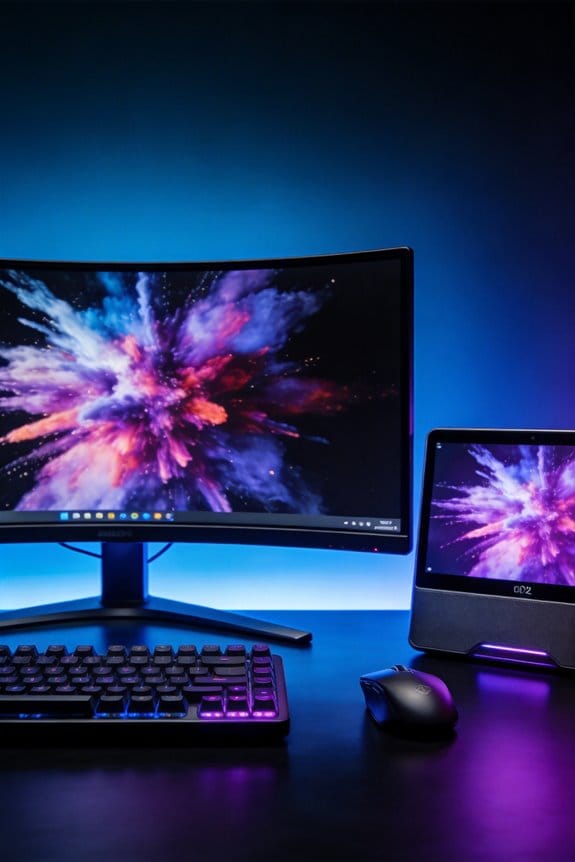
How Displayport 2.1 Is Changing Bandwidth Limitations for Next-Gen Panels

DisplayPort 2.1 elevates bandwidth from 32.4 Gbps to 80 Gbps, tripling throughput capacity and enabling 16K at 60 Hz, 8K at 60 Hz, and 4K at 240 Hz without compression. The 128b/132b encoding achieves 96.7% efficiency versus the prior 8b/10b standard’s 80%, reducing overhead and delivering 77.37 Gbps of usable data across four lanes in UHBR 20 mode. This directly surpasses HDMI 2.1‘s 48 Gbps maximum, eliminating previous resolution and refresh-rate bottlenecks that constrained next-generation panel technology. Specific implementation details and compatibility considerations warrant further exploration.
Key Takeaways
- DisplayPort 2.1 triples bandwidth to 80 Gbps, enabling 16K at 60 Hz and 4K at 240 Hz without compression.
- The 128b/132b encoding achieves 96.7% efficiency, reducing overhead waste compared to previous 80% efficiency standards.
- Panel Replay technology reduces data transmission by over 99% by only sending frame differences to displays.
- DisplayPort 2.1 surpasses HDMI 2.1’s 48 Gbps capability, providing greater flexibility for gamers and creative professionals.
- Multi-monitor daisy chaining maintains full 80 Gbps bandwidth while supporting dynamic resource allocation across displays.
From 32.4 Gbps to 80 Gbps: The Bandwidth Problem DisplayPort 2.1 Solves
From 32.4 Gbps to 80 Gbps: The Bandwidth Problem DisplayPort 2.1 Solves
Are you tired of your display setup struggling to keep up with what you’re trying to do? DisplayPort 2.1 fixes a real problem that’s been holding things back—the cables and connections just weren’t fast enough.
The jump from DisplayPort 1.4 to 2.1 is massive. You’re going from 32.4 Gbps all the way to 80 Gbps. That’s roughly 3 times faster, and it actually matters whether you’re gaming hard or doing professional video work. With 77.37 Gbps of usable data moving through UHBR 20 mode, you finally get enough speed for higher resolution displays and smoother refresh rates without compromise.
So, why does this speed bump help you? Better encoding efficiency, for one thing. DisplayPort 2.1 uses 128b/132b encoding that hits 96.7% efficiency, compared to the older 8b/10b standard that only got 80%. Translation: more of that bandwidth actually does useful work instead of getting wasted on overhead.
Now, cable choice matters here—don’t grab just any DisplayPort cable at the store. You’ll want DP80 cables if you want the full UHBR 20 speed. The good news? Older cables still work with newer devices, so your equipment won’t become instantly obsolete. That’s how the tech world should work.
Honestly, the real benefit is future-proofing. You’re investing in a connection standard that’ll support whatever comes next without another major overhaul. Between better performance today and protection against tomorrow’s demands, this upgrade handles both at once.
Is your current setup feeling limited? This might be the fix you’ve been waiting for.
Recommended Products
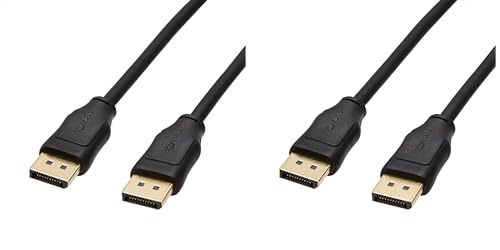
The information below is per-pack only

8K Fiber Displayport Cable 2.1 -- Display port to display port cable 50ft supports High-speed 54Gbps, 8K@60Hz, 4K@240Hz, 2K@360Hz, HDR, HDCP, DSC 1.2a etc. Backward compatible with DisplayPort 2.0, 1.4, 1.3, 1.2. Please Note: Only for DP to DP connections, NOT HDMI or Mini DP.

Service Support: If there are any issues with Fiber Optic DisplayPort Cable 2.1, we will provide after-sales service support.
Understanding UHBR 10, 13.5, and 20: What Each Transmission Mode Delivers
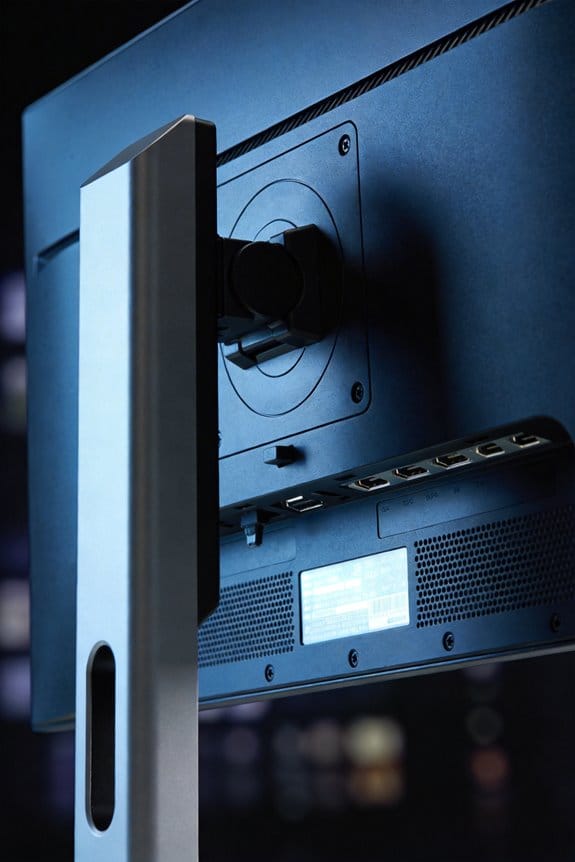
So you’ve got a DisplayPort 2.1 cable, and it’s supposed to handle 80 Gbps. But how does that actually work? That’s where UHBR modes come into play, and honestly, understanding them makes a real difference when you’re picking gear.
Let me break down the three modes you’ll encounter. UHBR 10 runs at 10 Gbps per lane, UHBR 13.5 bumps that up to 13.5 Gbps per lane, and UHBR 20 pushes all the way to 20 Gbps per lane. Put four lanes together, and you hit that full 80 Gbps total. These three completely replaced the older standards—RBR, HBR, HBR2, and HBR3 are done.
Why does this matter? It comes down to efficiency. The real jump here is the encoding method. The old 8b/10b encoding only squeezed out 80% efficiency, meaning you lost 20% of your bandwidth to overhead. The new 128b/132b encoding hits 96.7% efficiency. That’s a huge gain in actual usable bandwidth without needing a bigger pipe.
Think of it this way: you’re getting way more out of the same connection. Less wasted space means more real data moving through, which is exactly what you want when you’re running high-resolution displays or transferring large files.
The takeaway? If your device supports UHBR 20, you’re getting the best efficiency available today. Just make sure your cables match what your hardware can actually handle.
Recommended Products

IN THE BOX: 6-foot 8K DisplayPort to DisplayPort 1.4 cable; Case of 92
Service Support: If there are any issues with Fiber Optic DisplayPort Cable 2.1, we will provide after-sales service support.
![Silkland 80Gbps DisplayPort Cable 2.1 16.5FT/5M, [16K@60Hz, 8K@240Hz, 4K@540Hz 360Hz] DP 2.1 Cable 16K, DP80 HDR DSC Display Port Cord Compatible DP 1.4 FreeSync G-Sync Gaming Monitor 5090 9700XT](https://m.media-amazon.com/images/I/41updv75mML._SL500_.jpg)
【80Gbps 16K DisplayPort Cable 2.1】Silkland Display Port 2.1 cable delivers 80Gbps bandwidth, supporting uncompressed 4K@240Hz, 8K@60Hz and 2K@540Hz resolution. Up to 16K@60Hz, 8K@240Hz, 4K@540Hz 480Hz 360Hz with DSC enabled. DP80 cable compatible with UHBR20, dynamic HDR10+, 3D, and HDCP 2.3 for superior visuals. Backward compatible with DP 2.0, and DP 1.4, and supports flawless 7.1/5.1/2.0 uncompressed audio pass-thru
Pick the Right Cable: DP80 vs. DP40 and What You Actually Need

So you’re standing in front of two DisplayPort 2.1 cables, and the price tags are wildly different. What’s actually going on here?
DP80 vs. DP40: The Real Difference
DP80 cables handle the full 80 Gbps bandwidth using UHBR 20 mode, which means you’re getting 16K resolution at 60 Hz. DP40 cables top out at 40 Gbps with UHBR 10 support. Honestly, that’s a lot of numbers, but here’s what it boils down to: DP80 is the premium option for people who want absolute maximum performance, while DP40 handles 4K and 8K just fine for most people.
Cable Length Actually Matters More Than You Think
Why does this matter? Because shorter cable runs keep your signal clean and strong. Push your DisplayPort cable past 3 meters, and you’re asking for trouble—signal interference creeps in, and your data transmission starts getting spotty. Stick with runs under 3 meters whenever possible, especially if you’re going with a DP40 cable.
What You Should Actually Buy
Here’s the trick: grab a certified cable. This isn’t about brand snobbery; certified cables guarantee they’ll deliver the speeds they’re supposed to. DP40 cables cost significantly less and work perfectly fine for 4K and 8K setups. If you’re planning to run 16K or you just want to future-proof your setup, DP80 cables justify the premium price tag.
The Budget Question****
Truth is, most people should go with DP40. You’ll save money and get everything you need right now. Only jump to DP80 if you’re actually running 16K displays or you know you’re going to upgrade your monitor setup soon.
What resolution are you currently running? That’s really the deciding factor here.
Recommended Products

Dual-Mode High-Performance Display: 26.5-inch QHD OLED gaming monitor with versatile dual mode (QHD @ 540Hz or HD @ 720Hz) and 0.02ms response time

3rd Gen QD-OLED Panel – With stunning image quality and fast response time

UNIDIRECTIONAL HDMI TO DISPLAYPORT CABLE: fairikabe HDMI 2.1 to DisplayPort 1.4 Cable allows to transfer video and audio from HDMI source to DisplayPort input monitors. Such as connect HDMI laptop/PC/computer to display on DP monitors. Cannot be used as DP source to HDMI display
Why 128b/132b Encoding Doubles Your Efficiency
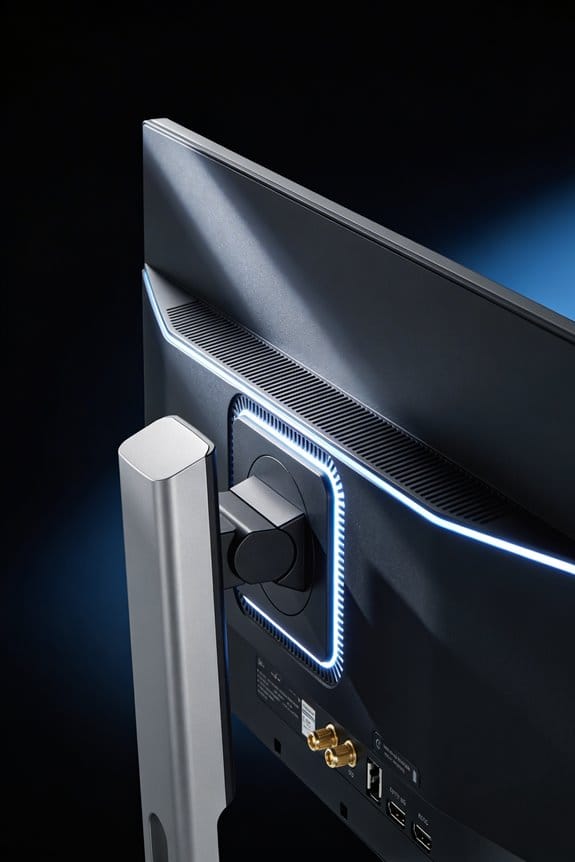
When you’re pushing 80 Gbps through a cable, the encoding method you choose makes a real difference in what actually gets to your screen. Think about it—does all that bandwidth really do you any good if half of it gets eaten up by overhead?
DisplayPort 2.1 switched to 128b/132b encoding, which pulls off 96.7% efficiency. Compare that to DisplayPort 1.4’s 8b/10b encoding at 80%, and you’re looking at a meaningful gap. That might sound like tech speak, but here’s what it means for you: you’re getting around 77.37 Gbps of usable data from that full 80 Gbps pipe, instead of watching significant throughput disappear just to keep the signal organized.
So why does this matter? Because more usable bandwidth means your system can handle sharper images and higher refresh rates without breaking a sweat. You can run 16K at 60 Hz without any compression squashing your picture quality. That’s something competing standards like HDMI 2.1 just can’t deliver while keeping the same performance headroom.
Honestly, if you’re building a setup for professional work or gaming at high resolutions, this efficiency difference isn’t just a number on a spec sheet—it directly affects what your display can actually show you. Better encoding means less strain on your hardware and more stable performance when you’re pushing the limits.
Does your current setup take advantage of this, or are you still working with older standards?
16K, 8K, and 4K at High Refresh Rates: What DisplayPort 2.1 Enables
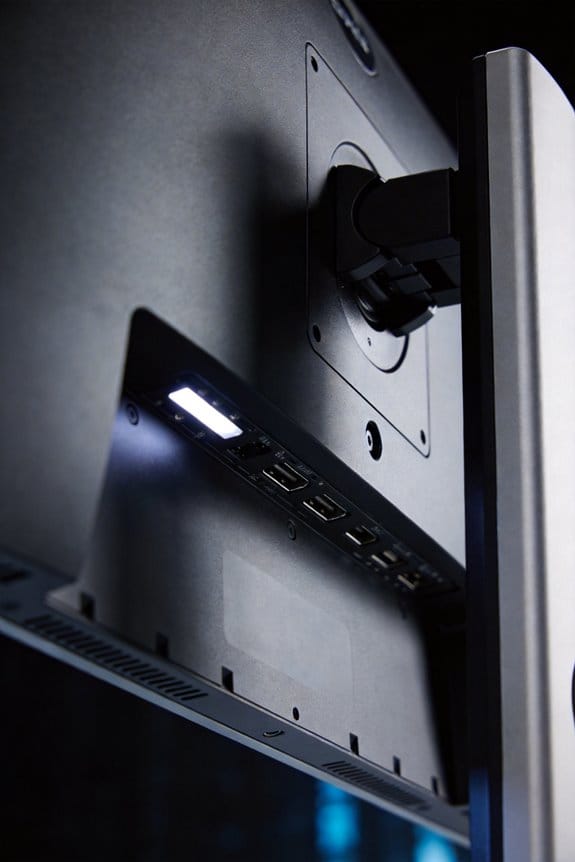
All that encoding efficiency I mentioned translates into real performance gains you’ll actually notice. DisplayPort 2.1 can handle 16K at 60 Hz, 8K at 60 Hz, and 4K at 240 Hz without needing to compress your image. That’s a big deal if you’re doing content creation, running professional workstations, or just want buttery-smooth gaming.
So, why does this matter to you? The honest answer is bandwidth. DisplayPort 2.1 gives you 77.37 Gbps of usable bandwidth with 128b/132b encoding efficiency. Compare that to HDMI 2.1’s 48 Gbps maximum, and you’re looking at substantially more headroom for demanding visual work.
What you get out of this is flexibility. Gamers benefit from those high refresh rates paired with sharp resolution. Creators working on video or 3D projects get stable, high-fidelity outputs. Even if you’re just streaming content, you’re future-proofing your setup without buying new cables every couple of years.
The best part is this: the combination removes previous bottlenecks that used to slow things down. You’re not compromising on visual quality to hit higher refresh rates anymore. It works across gaming, streaming, and professional applications simultaneously, so whether you’re a casual user or someone with serious computing demands, there’s something here for you.
Display Stream Compression and Panel Replay: How to Push 3X More Data
Display Stream Compression and Panel Replay: How to Push 3X More Data
You’re probably wondering why you can’t just crank up your monitor resolution without running into bandwidth headaches. Well, DisplayPort 2.1 gives you 77.37 Gbps of usable bandwidth, which sounds like a lot—but it gets eaten up fast when you’re pushing 4K or higher resolutions at high refresh rates.
Here’s where two smart technologies step in: Display Stream Compression and Panel Replay. They don’t add bandwidth; instead, they cut down the amount of data that actually needs to travel through your cable.
Display Stream Compression cuts what you send by over 67%.
This one’s pretty straightforward. Imagine you’re streaming a video—it doesn’t send every single pixel detail in full quality. Instead, it uses compression that your monitor can decompress on its own end. The result? You get visually lossless content (meaning you won’t see the difference) while using way less bandwidth. For demanding resolutions, this is a real help.
Panel Replay goes even further—we’re talking over 99% reduction.
So, why does this matter? Because most of what you see on screen from one frame to the next barely changes. Panel Replay figures this out and only sends the new stuff. Your monitor caches (stores) the previous frame and just fills in what’s different. It’s efficient in a way that actually works in the real world.
The best part is how these work together. When you combine Display Stream Compression with Panel Replay and pair them with UHBR 20 transmission modes, you’re moving way more visual data through your DisplayPort 2.1 connection without needing to upgrade your cable or expect anything crazy from your hardware.
Honestly, if you’re thinking about a new setup, these technologies mean you don’t have to choose between high resolution and high refresh rates anymore. You get both.
Will Displayport 2.1 Work With Your Current Monitor? Backward Compatibility Explained
Got an older monitor sitting on your desk? Good news—it’ll still work with DisplayPort 2.1 devices. But here’s the catch: you won’t get the fancy new stuff.
Your current monitor will plug in just fine and operate exactly as it always has. It’ll use the older RBR, HBR, or HBR3 modes instead of the newer UHBR 20 transmission or that 128b/132b encoding efficiency you’ve probably heard about. Think of it like putting regular gas in a car designed for premium—it runs, but you’re not getting peak performance.
So, why does this matter? Because DisplayPort 2.1 is built to work backwards with older hardware. You don’t need to replace anything to keep using your monitor. The device will automatically adjust and talk to your screen in a language they both understand.
That said, here’s what you’re actually missing:
- 80 Gbps bandwidth (instead of what your older monitor supports)
- Features like Panel Replay and Display Stream Compression
- Better encoding efficiency that helps with higher resolutions and refresh rates
The trade-off is straightforward. Your monitor stays functional without any tweaks or upgrades. Want those new features and the extra speed? You’d need to buy a DisplayPort 2.1-native monitor—there’s no way around that one.
Honestly, unless you’re chasing ultra-high resolutions or need those advanced compression features, your current setup will work fine. Just don’t expect it to perform like a brand-new display would.
Multi-Monitor Setups Without Performance Loss: Daisy Chaining Reimagined
When you’re trying to hook up multiple monitors to a single DisplayPort 2.1 source, you’re dealing with something pretty different from what came before. The good news? You can actually daisy chain displays without losing that full 80 Gbps bandwidth or any of the fancy stuff like Panel Replay and Display Stream Compression. That’s huge if you’ve been worried about performance taking a hit.
So, why does this matter? Because the bandwidth management system doesn’t just throw everything at each monitor equally—it’s smarter than that. The system looks at what each display actually needs (resolution, refresh rate, all that) and divides up the resources accordingly. You’re not wasting speed on a 1080p monitor when you could be using it elsewhere.
Here’s the trick: DisplayPort 2.1 uses UHBR 20’s four lanes, and they’re not locked into place. They adjust dynamically depending on how many monitors you’ve connected and what they’re doing at any given time. It’s the bandwidth equivalent of carpooling—everyone gets where they need to go without clogging up the highway.
Then there’s the compression tech doing the heavy lifting:
- Panel Replay cuts down redundant data by more than 99 percent. In plain terms, it doesn’t send the same information over and over.
- Display Stream Compression shrinks the data by over 67 percent without making things look worse.
Frankly, these two features working together mean you can run multiple high-res displays without watching your performance tank. You’re not choosing between more monitors or keeping your quality high—you get both.
The best part is that you aren’t sacrificing any features to make this work. Your displays stay fully supported, everything runs smoothly, and you don’t have to stress about bottlenecks. Does that change how you think about your setup?
Recommended Products

PREMIUM MONITOR: 27 Inch 4K UHD (3840x2160p) IPS monitor with thin bezels and 60Hz refresh rate

4K UHD IPS Black Display with Factory Calibration: 3840 x 2160 resolution and 99% DCI-P3 color coverage calibrated to Delta E less than 1.5 for professional color accuracy.

【Intel Core Ultra 7 256V – AI-Ready Performance】: Powered by the latest Intel Core Ultra 7 256V processor (8 cores, up to 4.8GHz), delivering 115 TOPS total AI performance for intelligent computing. Ideal for office mini PC tasks and AI-enhanced workflows.
DisplayPort 2.1 vs. HDMI 2.1: Why Professionals Are Switching
Daisy-chaining is cool and all, but it’s honestly just the tip of the iceberg when it comes to why pros are ditching HDMI 2.1 for DisplayPort 2.1. The real difference? Bandwidth. DisplayPort 2.1 gives you 80 Gbps total, with 77.37 Gbps you can actually use. HDMI 2.1 tops out at 48 Gbps. That’s a huge gap.
So, why does this matter to you? If you’re working with video, design, or anything that demands crisp, high-res output, those extra gigabits mean you can push sharper images, higher frame rates, and more complex data without breaking a sweat. You’re not bottlenecking your equipment.
Here’s the trick: efficiency matters just as much as raw speed. DisplayPort uses 128b/132b encoding, which gets you 96.7% efficiency. HDMI can’t match that. What does that mean in real terms? Less wasted bandwidth, less heat, more stable performance over longer sessions.
Cable quality is another thing people overlook. DP80 cables come with certified specs that guarantee what you’re getting. You know the connector will work, the data will flow reliably, and you won’t run into surprises mid-project. That consistency is worth its weight in gold if you’re billing clients by the hour.
Honestly, the industry’s moving toward DisplayPort because it’s built for the future. Uncompressed 16K resolution, consistent performance metrics, better support for professional standards—these aren’t gimmicks. They’re real features that make your workflow smoother and your output better.
The bottom line: if you’re serious about your work, DisplayPort 2.1 isn’t just a nicer option—it’s the smarter choice. Have you actually tested both on your current setup?
Recommended Products

Spectacular Visual Delights--【Upgraded】Seal is opened for upgrade only, 1-Year warranty on Upgraded RAM/SSD, and original 1-Year Manufacture warranty on remaining components.【16" WQXGA IPS 240Hz Display】 Experience vibrant and consistent colors with an IPS panel that delivers true-to-life visuals from any angle. Start an adventure across expansive landscapes and thrilling gameplay, where every visual detail is vividly rendered with clarity and vibrant colors.

LG USA AUTHORIZED - Includes 26 Months Extended Protection in ADDITION to the Included FULL Manufacturer Protection | LG UltraGear 45" OLED 5K2K (5120x2160) 330Hz G-sync Curved Gaming Monitor
[AI-Enhanced Multitasking] Intel Core Ultra 5 Processor 235V Pro (12 Cores, 14 Threads, 18MB Intel Smart Cache, Base Frequency at 1.4 GHz, Up to 4.6 GHz Max Turbo Frequency), featuring Integrated Intel Arc Graphics and Built-in Intel AI Boost for faster, smarter on-device AI performance across productivity, content creation, and collaboration tasks.
Should You Upgrade Right Now? A Practical Decision Framework
So you’re looking at DisplayPort 2.1 hardware and wondering if it’s actually worth your money right now. That’s smart—it’s easy to get caught up in new tech specs without stopping to ask if you actually need it.
Let’s break this down honestly. DisplayPort 2.1 gives you 80 Gbps of total bandwidth, with about 77.37 Gbps you can actually use. That’s a lot of data moving through a cable. But here’s the real question: does your current setup struggle with what you’re doing today?
If you’re gaming at 4K and pushing 240 Hz, or you’re doing serious video editing and color work, this upgrade makes sense. The extra throughput helps those workflows feel smoother and faster. Most people, though? You’re probably fine with what you’ve got.
The tricky part is thinking ahead. DP80 cables are becoming the standard, and eventually, you’ll want to upgrade anyway. But that doesn’t mean you need to do it next month. Here’s the trick: give yourself an honest assessment of what you actually do with your displays.
Try this framework:
- Do your current monitors max out your existing connection?
- Are you planning to buy new displays in the next year or two?
- Is your work getting more demanding, or staying pretty stable?
Frankly, if you answered “no” to the first question and “no” to the second, hold off. You’ll save money and avoid buying certified gear that supports UHBR 20 modes just because it exists.
The investment makes sense for future-proofing your setup—just not before you’re ready to actually use it. So what does a typical day of work look like for you? That’ll tell you whether this upgrade is worth doing now or whether you can wait another year or two.
Frequently Asked Questions
What Is the Actual Real-World Performance Difference Between UHBR 20 and UHBR 13.5 Modes?
I’d say UHBR 20 is practically a million times faster for demanding tasks. In real world comparisons, you’re looking at 20 Gbps versus 13.5 Gbps per lane—bandwidth benchmarks show roughly 48% higher throughput, enabling 16K displays versus 8K limitations.
How Does Displayport 2.1 Handle Legacy Monitors Without Requiring Expensive Upgrades?
I’m glad you’re asking about this. DisplayPort 2.1 offers legacy compatibility through backward compatibility with DisplayPort 1.4 hardware, providing versatile solutions that let you keep existing monitors without costly upgrades while enjoying future capabilities.
Will Existing Displayport Cables Damage New Equipment if Used Incorrectly?
I’ll tell you directly: older cables won’t damage your new equipment, but they’ll limit your performance. Cable compatibility matters for equipment safety—I’d recommend certified DP80 cables to make sure you’re protected and getting the speeds you’ve paid for.
What’s the Power Consumption Impact of Running Displayport 2.1 at Maximum Bandwidth?
I don’t have specific power consumption data in my knowledge base, but I can tell you that DisplayPort 2.1’s 128b/132b encoding actually improves power efficiency compared to older standards. You’re getting maximum throughput without proportionally increased power demands.
How Does Panel Replay Actually Work to Reduce Bandwidth Requirements so Dramatically?
I’ll show you how Panel Replay’s a game-changer for bandwidth optimization. It’s like having a photographic memory—the display remembers previous frames and only transmits pixel changes, dramatically reducing data flow by over 99% when content barely shifts.