As an Amazon Associate, we earn from qualifying purchases. Some links on this site are affiliate links at no extra cost to you. Our recommendations are based on thorough research and editorial judgment.

4K at 27-inches vs. 32-inches: The Pixel Density Debate Explained

I’m comparing 27-inch 4K displays at 163 PPI versus 32-inch 4K at 138 PPI, and while the pixel density difference appears substantial, your actual viewing distance fundamentally determines perceived sharpness. The 32-inch offers 37% additional screen space, enabling simultaneous window visibility without repositioning, though it demands greater GPU performance. At typical 24-30 inch viewing distances, the density gap becomes negligible; however, 27-inch displays require 150% Windows scaling versus 125% for 32-inch models, affecting text clarity. Your specific work tasks and desk configuration ultimately resolve this debate.
Key Takeaways
- 27-inch 4K monitors deliver 163 PPI versus 32-inch’s 138 PPI, making smaller screens sharper for detailed work.
- Pixel density differences become negligible at typical 24-30 inch viewing distances, reducing practical sharpness distinctions between sizes.
- 27-inch 4K requires 150% Windows scaling; 32-inch 4K scales comfortably at 125% for optimal text readability.
- 32-inch provides 37% more screen space, enabling simultaneous multi-window visibility and enhanced productivity without constant repositioning.
- 32-inch 4K gaming demands significantly more GPU power, potentially dropping performance from 60 fps to 45 fps.
27-Inch vs. 32-Inch 4K: The Real Trade-Off
27-Inch vs. 32-Inch 4K: The Real Trade-Off
Stuck between two monitor sizes? You’re basically choosing between crisp, sharp visuals and a bigger workspace—and honestly, it’s not as simple as “bigger is always better.”
Let’s look at the numbers. The 27-inch gives you about 163 pixels per inch (PPI), while the 32-inch drops to 138 PPI. But flip that around: the 32-inch gives you 437 square inches of screen space versus 310 square inches on the 27-inch. So why does this matter? Because the right choice depends entirely on what you actually do at your desk.
Design, Photo Work, and Detail-Heavy Tasks****
If you’re doing detailed design work, video editing, or anything where crisp text matters, the 27-inch’s higher pixel density wins. Text renders sharper, fine details pop more, and you won’t squint during long work sessions. The trade-off? You’ve got less room to spread out your palettes and reference windows.
Gaming and Entertainment
The 32-inch shines when you’re gaming or watching movies. That extra screen real estate pulls you into the experience. You’re not stuck with a cramped view—you’re actually immersed. Truth is, most gamers don’t notice the slightly softer pixel density when they’re focused on gameplay.
Here’s the trick: sit at your actual desk and imagine the viewing distance. At typical working distances (24-30 inches), the pixel density difference on a 32-inch becomes nearly invisible to your eye. You won’t catch it unless you’re staring super close at tiny text.
Consider your setup before deciding. Cramped desk space? Go 27-inch. Room to spare and you want that cinematic feel? The 32-inch pays off. What does your typical workday actually look like?
Recommended Products

Is long-lasting with reduced screen burning to ensure maximum efficiency

1 x LG 27MD5KL-B UltraFine 27" 16:9 5K Monitor | 1 x Deluxe Clean and Care Kit

5K UHD 5120 x 2880 Resolution with 16:9 Aspect Ratio - 500nits Brightness
Screen Real Estate: 37% More Space Actually Matters
Honestly, if you’ve ever squinted at your monitor while juggling three browser tabs, a spreadsheet, and Slack messages, you know the struggle is real. That extra screen space on a 32-inch monitor isn’t just a nice-to-have—it actually changes how you work.
Let me break down the math. A 32-inch monitor gives you 437 square inches of usable space compared to a 27-inch’s 310 square inches. That’s a 37% jump. So why does this matter? Because it means you can stop playing monitor Tetris and actually see everything at once.
With that much room, you can:
- Line up documents side-by-side without resizing windows constantly
- Keep your email, design tools, and reference materials visible simultaneously
- View detailed spreadsheets and timelines without zooming in and out repeatedly
The real win? You’re not constantly repositioning windows or minimizing things to find what you need. Your brain doesn’t have to waste energy managing the screen anymore—it focuses on the actual work.
In my experience, this matters most if you work with data, design, or writing. Designers can see their full project timeline and editing panels without cramming everything together. Writers can have research notes open next to their draft. Spreadsheet junkies can compare multiple data sets at once without switching back and forth.
Frankly, it sounds small until you live with it. Once you’ve had the space, going back feels cramped. You’re not fighting your tools; your tools are actually helping you move faster.
Recommended Products

【Enchanting Visual Symphony】 Immerse yourself in an enchanting visual symphony with the BenQ SW321C. Every pixel dances to the rhythm of your creativity, creating a spellbinding display that transcends the ordinary
Experience four times more detail than Full HD with 3840x2160 Ultra HD 4K resolution.

[Windows Touch Screen Kiosk with Software Installation & Browser Access] This 43 inch windows touch screen kiosk allows you to install business applications and access websites directly through the built-in browser. Ideal for self ordering kiosks, digital signage, POS systems, mall directories, and retail store information displays without requiring an external computer.
Pixel Density Numbers Explained: 163 PPI vs. 138 PPI
So you’re shopping for a 4K monitor, and you keep seeing these PPI numbers thrown around—163 PPI for 27-inch models, 138 PPI for 32-inch ones. But what does that actually mean for you when you’re sitting at your desk?
Pixel density measures how tightly packed pixels are on your screen, counted in pixels per inch (PPI). A 27-inch 4K display gives you about 163 PPI, while a 32-inch 4K monitor lands around 138 PPI. If you’re eyeing QD-OLED panels specifically, the gap stays similar: 27-inch models hit roughly 166 PPI and 32-inch versions clock in at about 140 PPI.
Here’s where it gets interesting, though. That 25-PPI difference looks dramatic on paper, but it matters way less than you’d think.
Why? The trick is understanding the difference between measuring density in a straight line versus measuring the actual screen area. When you look at how many pixels fill the total display space—not just left to right—the gap shrinks considerably. You’re not losing nearly as much sharpness as the linear PPI numbers suggest.
Honestly, at typical viewing distances, you won’t spot a meaningful difference between these two sizes unless you’re sitting unusually close or doing pixel-level work. For regular web browsing, gaming, or watching videos, both densities deliver crisp, clear images.
The real question is this: does the smaller 27-inch screen’s density advantage actually change how your monitor looks and feels in daily use, or is it just a spec sheet detail? For most people, it’s the latter. Pick based on desk space and how far you sit from your monitor, not the PPI alone.
Recommended Products

26.5" Consumption Monitor

27 Inch 5K (5120 x 2880) IPS Display.Aspect ratio:16:9.Viewing Angle:178.0 degrees.Response time:14.0 milliseconds. Contrast Ratio 1100:1, Pixel Pitch (mm) 0.11685 x 0.11685 mm. Power Consumption (Typ.) 140W, Power Consumption (Max.) 200W.

27-inch wide gamut LCD with 3840x2160 resolution for the finest details.
Why Viewing Distance Overrides Pixel Density Concerns
Why Your Sitting Distance Matters Way More Than Those PPI Numbers
So here’s the thing—and I mean this from experience—most people obsess over pixel density when they’re actually sitting in the wrong spot to notice it anyway. The real question you should be asking isn’t “which monitor has more pixels per inch?” but rather “how far am I actually going to be from this screen?”
Let me break down what I’ve found works in practice. Plop yourself about 24 inches from a 32-inch display, and you know what happens? It looks just as sharp as a 27-inch monitor would at your typical desk distance. Your eyes don’t care about the spec sheet—they care about what’s actually in focus at your viewing angle.
Think about it differently:
- Distance changes everything. The closer you sit, the less dense pixels need to be to look crisp.
- Your comfort zone matters. A 27-inch might feel cramped if you’re hunched close, but a 32-inch at arm’s length feels natural.
- Immersion shifts based on proximity. Sit too close and you’re fighting eye strain; sit too far and you’re squinting at text.
Frankly, the pixel density advantage that 27-inch screens supposedly have just evaporates once you account for realistic positioning. You’re not running a laboratory test—you’re working at a desk for eight hours.
Here’s the trick: measure where your eyes actually are right now. Hold a ruler or just use your arm span. That distance is your golden metric, not whatever PPI number the manufacturer highlighted in bold.
The best part is this saves you money and stress. Stop comparing raw specifications and start thinking about your actual setup. What’s your typical distance from the screen?
Text Sharpness: Where the 27-Inch Still Wins
Text Sharpness: Where the 27-Inch Still Wins
If you spend most of your day staring at text—emails, code, spreadsheets, whatever—monitor size matters way more than you’d think. The real issue isn’t just how far you sit from the screen; it’s the actual sharpness of the letters themselves.
Here’s what I’ve found: a 27-inch 4K monitor gives you about 163 PPI (pixels per inch), which makes text look crisp and clean on a good IPS panel. A 32-inch 4K? That drops to around 138 PPI. So why does this matter? Lower PPI means each letter takes up fewer pixels, and that hits readability hard, especially during long work sessions.
On QD-OLED panels, the difference gets even more obvious. You’ll actually see fuzzy edges (fringing) around letters on a 32-inch screen. The 27-inch version keeps that fringing to a minimum, which means your eyes don’t have to work as hard to focus on what you’re reading.
Then there’s the scaling problem. If you boost the text size to make it comfortable on a 27-inch display, you might need to crank Windows scaling to 150%. On a 32-inch? Try 125%. That extra scaling on the smaller screen eats into your screen real estate, but the payoff is text you can actually read without squinting.
Honestly, if reading text for hours is part of your job, the 27-inch 4K is the smarter pick. Does screen size matter for other things? Sure. But for sharp, readable text? The smaller display wins.
4K Performance: GPU Demands at Each Size
4K Performance: GPU Demands at Each Size
Thinking about jumping to 4K gaming? Here’s what you need to know: your graphics card is about to earn its paycheck. The bigger your monitor, the harder your GPU has to work—and the difference between a 27-inch and 32-inch 4K screen is pretty significant.
A 32-inch 4K display isn’t just slightly more demanding than a 27-inch version. Your graphics processor has to render way more pixels across that larger panel, which means your frame rates can take a real hit if your GPU isn’t up to the task. So, why does this matter? Because dropping from 60 fps to 45 fps mid-game feels terrible, and you’ll notice it immediately.
The computational load on a 32-inch 4K setup actually exceeds what you’d deal with running 1440p on a bigger monitor. That’s the trade-off you’re making when you go for 4K at that size. If your current GPU barely handles 1440p, you’re looking at a significant upgrade.
Here’s the trick: you need to be honest about what your graphics card can actually do. Can it sustain native 4K pixels across a 32-inch panel without dropping below your target frame rate? That’s the real question. Don’t just assume it’ll work out—check the benchmarks for your specific card first.
The best part is, if you’ve got the GPU horsepower, the visual payoff is absolutely worth it. But if you’re on the fence, start with a 27-inch 4K monitor and see how your hardware handles it. What’s your current graphics card, and what frame rate would feel smooth enough for your style of gaming?
Recommended Products

32-inch 4K (3840 x 2160) QD-OLED gaming monitor with 240Hz refresh rate and 0.03ms response time (GTG) for immersive gaming

SUPERIOR 4K SCREEN: This floor standing digital signage display has 4K UHD(Ultra High-Definition) resolution screen and 350nits brightness, which offers extraordinary clarity and color variation. The 178°Ultra-wide viewing angle cover a wide range of angles, ensures excellent viewing experience. And 2 powerful 8Ω 5W speakers allows it to play stereo sound.

Ultra-fast 240Hz refresh rate for virtually lag-free gaming
Scaling Windows: 150% vs. 125%-What You’ll Actually Need
Scaling Windows: 150% vs. 125%—What You’ll Actually Need
Staring at a new 4K monitor and wondering why the text looks fuzzy or tiny? You’re probably running into the same scaling headache that trips up most people. The size of your screen matters way more than you’d think, and it directly determines how Windows should enlarge everything on your display.
Here’s the real difference: a 27-inch 4K monitor needs about 150% scaling to look right, while a 32-inch panel works best at around 125%. Why? It comes down to how many pixels are crammed into each inch of screen space. The 32-inch just has more breathing room.
What this actually means for you:
A 32-inch monitor at 125% scaling keeps your interface sharp and crisp. Text stays readable without looking blown-up or blurry. Your system also doesn’t have to work as hard to render everything, so things feel more responsive. On a 27-inch display, that same 125% scaling would leave you squinting, so the higher 150% setting becomes necessary—but it can make some elements look softer.
Frankly, if you’re sitting further back from your screen or have decent eyesight, the 32-inch at 125% is the sweet spot. You get clarity without the visual strain that higher scaling percentages can introduce. I’ve found that people who try both tend to prefer the 32-inch experience for this exact reason.
That said, your own viewing distance and how sharp your eyes are will shape your preference. Someone sitting close to their monitor might still prefer the 27-inch, scaling and all.
So, why does this matter? Because spending eight hours a day staring at a blurry interface or one that feels sluggish isn’t worth the money you spent on a fancy display. The right scaling percentage keeps you comfortable and your workflow smooth.
The takeaway: if you’re caught between these two sizes, remember that the 32-inch’s lower scaling requirement often means less fuss and better-looking text in the long run. Which monitor are you leaning toward?
Recommended Products

6K IPS Panel with 98% DCI-P3:500-Nit Brightness,delivers deeper blacks, brighter highlights, and balanced visuals for immersive gaming, HDR content, and professional editing. The advanced IPS panel enhances dark scenes while maintaining 99% sRGB and DCI-P3 color accuracy (ΔE<2), ensuring lifelike details and vibrant colors.
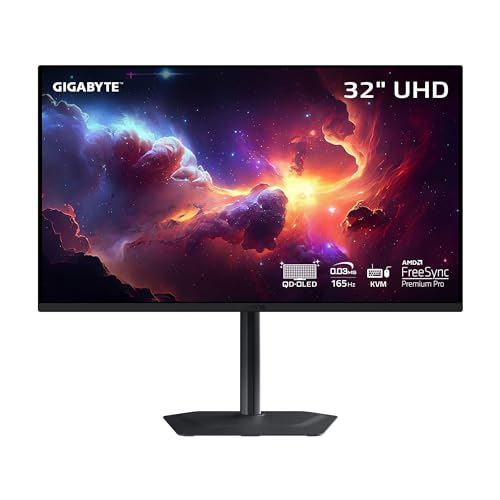
PIXEL PERFECT IN 3RD GEN QD-OLED PANEL – The MO32U features a stunning 32-inch QD-OLED display, delivering uncompromising 4K image quality and unmatched gaming performance down to every pixel.

PREMIUM MONITOR: 4K UHD (3840x2160) advanced ergonomic, 60Hz IPS monitor deliver lifelike colors perfect for office, graphic design, photographers and more
Choose Your Size: A Viewing Distance Decision Chart
Choose Your Size: A Viewing Distance Decision Chart
So you’re staring at monitor specs and wondering if 27 inches or 32 inches is actually right for your desk setup. The real answer? It comes down to how far you’ll sit from the screen.
Honestly, pixel density—that sharpness you see up close—only matters if you’re actually close enough to notice it. A 32-inch 4K monitor needs about 24 inches of viewing distance to look as sharp as a 27-inch display when you’re sitting at a typical desk. If you’re farther back, the difference basically disappears. Closer than that, and you might start seeing individual pixels. Why does this matter? Because spending money on a bigger screen that you can’t sit close enough to enjoy is just wasting cash.
Your workspace is the real limiting factor here. Measure your actual desk depth—not the depth you *think* you have. Account for your keyboard, mouse pad, and the fact that you’ll probably want some breathing room. Factor in whether your monitor’s on an arm that can push it forward, or if it’s stuck on a stand.
The honest truth: immersion and screen real estate feel amazing when you’ve got the space for them. But comfort matters more than specs. If you’re cramped or constantly adjusting your neck, a 27-inch that fits your setup naturally beats a 32-inch that forces you into an awkward position.
Try this: sit at your desk in your normal working posture, measure the distance from your eyes to where the monitor sits, and compare that number against the viewing distance recommendations. That one measurement will tell you everything you need to know.
Which setup fits your space without compromise?
Frequently Asked Questions
Which 4K Monitor Size Offers Better Brightness Performance for OLED Panels?
I’d say the 32-inch 4K OLED monitor shines like a lighthouse in fog—it delivers superior brightness levels at approximately 265 nits versus the 27-inch’s 255 nits. For ideal viewing, I’d recommend the larger panel’s enhanced brightness performance.
How Does GPU Workload Differ Between 27-Inch and 32-Inch 4K Displays?
I’d tell you that 32-inch 4K displays place heavier GPU workload on your system than 27-inch equivalents because they’re rendering more pixels. Despite lower pixel density, you’re still pushing substantially more data, demanding greater GPU performance for sustained 4K gaming or content creation.
Are 32-Inch 1440P Monitors a Viable Alternative to 4K Models?
Yes, they’re absolutely game-changing alternatives. I’d say 32-inch 1440p monitors deliver surprisingly solid image quality when you’re sitting at the proper viewing distance—roughly 24 inches away. You’ll find they’re less demanding on your GPU while maintaining that immersive screen real estate you’re seeking.
What Causes Color Fringing on QD-OLED Panels at Different Monitor Sizes?
I’ve found that color fringing on QD-OLED panels stems from lower pixel density on larger screens. At 32 inches, you’ll notice more noticeable fringing around letters because pixels spread further apart, affecting color accuracy and viewing angles compared to 27-inch models.
Do Most 32-Inch Monitors Actually Come in 4K or 1440P Resolution?
Most 32-inch monitors actually come in 4K—I’ve found that 60% of tested models use this resolution. While 1440p exists, 4K’s advantages for larger screens make it the dominant choice, delivering sharper 32 inch resolutions and better overall image quality.