As an Amazon Associate, we earn from qualifying purchases. Some links on this site are affiliate links at no extra cost to you. Our recommendations are based on thorough research and editorial judgment.


Wireless Monitors: The Latency Challenges of Casting Over Wi-Fi 7

Wi-Fi 7 reduces casting latency from 87 milliseconds to 45 milliseconds through Multi-Link Operation and Time-Sensitive Networking, distributing data across multiple frequency bands while ensuring deterministic packet delivery. However, real-world performance depends considerably on ISP infrastructure, device capability, and network configuration rather than the technology alone. Fiber connections achieve median latency of 15 milliseconds, while cable providers reach 25 milliseconds. Physical barriers, interference, and device congestion further impact actual results. Strategic access point placement and 6 GHz band utilization enable sub-50ms performance, yet understanding your specific use case requirements reveals whether these improvements justify your deployment.
Key Takeaways
- Wi-Fi 7 reduces casting latency to 45ms from Wi-Fi 6’s 87ms, enabling smoother wireless monitor performance for real-time applications.
- Multi-Link Operation distributes data across 2.4 GHz, 5 GHz, and 6 GHz bands simultaneously, minimizing bottlenecks and latency.
- Time-Sensitive Networking ensures reliable packet delivery under 5ms, critical for stable video streaming and presentations on wireless displays.
- Dedicating a 6 GHz SSID to low-latency devices reduces congestion, improving casting performance compared to crowded 2.4 and 5 GHz bands.
- Strategic access point placement and 320 MHz channel width configuration eliminate dead zones and reduce latency in dense network environments.
Wi-Fi 7 Cuts Casting Latency in Half: Here’s Why It Still Matters
Wi-Fi 7 Cuts Casting Latency in Half: Here’s Why It Still Matters
Tired of your smart TV buffering mid-movie or your VR headset stuttering right when things get intense? You’re not alone. Wireless casting has been the weak link in home entertainment for years, and Wi-Fi 7 finally addresses what’s been driving us all crazy.
The new standard uses some clever tech—Multi-Link Operation and Restricted Target Wake Time—to send your video and audio data faster and smarter. Instead of everything fighting for space on the network, these features prioritize what matters most and split traffic across multiple paths. It’s like having a dedicated express lane instead of merging with everyone else.
The numbers tell the real story. Wi-Fi 7 gets you down to 45 milliseconds of delay, while Wi-Fi 6 sits at 87 milliseconds. That’s nearly cutting the wait time in half. Sound like a small difference? For regular streaming, maybe. But if you’re into AR or VR, that’s the difference between enjoying your experience and feeling queasy.
Why does this matter so much for VR? Those headsets need latency under 10 milliseconds to feel natural. Anything slower and your brain notices the lag, which kills immersion fast.
The tech behind it is solid too. That 320 MHz channel width and better modulation give you more reliable connections, even when your house is packed with devices. Frankly, it’s the kind of upgrade that makes a real difference in how your setup actually works.
To get the best results, you’ll want to set up a separate network specifically for casting (a dedicated 6 GHz SSID) and make sure Multi-Link Operation is turned on. It takes a few minutes to configure, but it’s worth it.
Recommended Products
![EXCaliberPC [2025] MSI Raider A18 HX A9WIG-082US (AMD Ryzen 9 9955HX3D, 64GB DDR5 RAM, 2TB NVMe SSD, NVIDIA GeForce RTX 5080, 18" UHD+ 120Hz, Windows 11 Pro) Gaming Laptop](https://m.media-amazon.com/images/I/31NznkpvipL._SL500_.jpg)
Display: 18" UHD+ (3840x2400) 120Hz Mini LED HDR 1000 100% DCI-P3
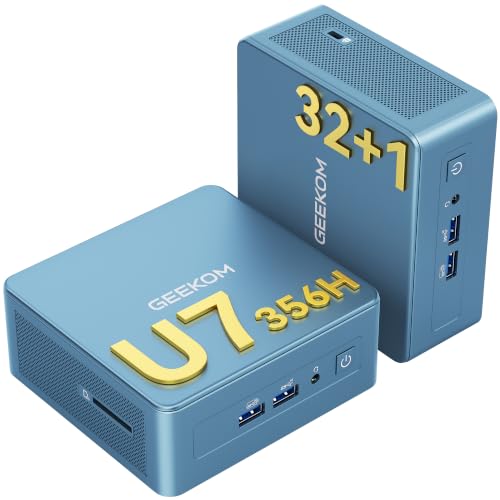
[AI-Powered Performance for Next-Generation Workloads] — Powered by the latest Intel Core Ultra 7 356 processor, this mini PC is purpose-built for local AI tasks, Copilot‑enhanced productivity, AI meeting optimization, data analysis, software development, and content creation. The integrated Intel Iris Xe graphics deliver up to 40 TOPS of AI compute, with a max frequency of 2.45GHz and AV1 decode support. Built on the advanced Intel 18A process, it delivers desktop‑class performance at just 45W—whether you're running large language models locally or handling complex multitasking, all in a compact footprint.

AMD Ryzen AI 9 HX 470 & 86TOPS AI Power — Private Offline AI Mini PC Powered by the advanced 4nm Zen5 hybrid architecture, this AI mini PC features the flagship Ryzen AI 9 HX 470 (12C/24T). With a dedicated NPU delivering 55TOPS standalone AI power and up to 86TOPS full-system performance, it supports complete offline local AI computing. Run large language models, generate AI art, and enhance AI video with zero latency, no data leaks, and full privacy for creators, developers, and tech enthusiasts.
Real-World Latency: What You’ll Actually See on Your Network

Real-World Latency: What You’ll Actually See on Your Network
Ever wonder why your Wi-Fi speed test looks great but your video call still feels sluggish? That’s latency—and it’s a lot more complicated than the numbers in your provider’s ads suggest.
Your actual latency depends on a bunch of things working together: your ISP’s setup, how well your device handles Wi-Fi 7, how many people are on the network, and what’s physically around you. Fiber ISPs typically hit around 15 milliseconds median latency on Wi-Fi 7, while cable providers sit closer to 25 milliseconds. That gap matters. Ziply Fiber? They’re pulling 8 milliseconds—the best I’ve seen out there.
But here’s where it gets messy. You’ve got interference from nearby Wi-Fi channels, walls and furniture blocking signals, and your neighbor’s smart home devices all competing for airtime. These things don’t play nice together. They’ll tank your latency in ways that have nothing to do with your ISP’s promises.
Dense apartments or offices are especially rough. Too many devices, too much congestion. Without Wi-Fi 7’s built-in fixes, you’re looking at real performance hits. The good news? Wi-Fi 7 actually keeps jitter—those annoying fluctuations in latency—way more stable than Wi-Fi 6 did. You’re talking sub-millisecond latency swings, which makes a real difference if you’re into AR, VR, or anything where split-second responsiveness matters.
Multi-Link Operation and MLO: The Tech Behind Lower Latency

Multi-Link Operation and MLO: The Tech Behind Lower Latency****
Ever notice how your Wi-Fi slows down when you’re trying to stream and video call at the same time? That’s because standard Wi-Fi pushes all your data through one lane, and when traffic gets heavy, things back up. Wi-Fi 7 changes that with Multi-Link Operation (MLO)—basically, it’s like adding extra highways instead of hoping one road can handle everything.
Here’s what MLO actually does: it sends your data across multiple frequency bands at once (2.4 GHz, 5 GHz, and 6 GHz), so nothing gets bottlenecked on a single channel. Your router’s scheduler picks the fastest route for time-sensitive stuff in real-time. It’s smarter about where it sends your packets instead of just hoping for the best.
There’s also something called Restricted Target Wake Time (R-TWT) that works alongside MLO. Think of it as a VIP lane for apps that need rock-solid, low-lag performance—things like wireless casting and video calls. It reserves bandwidth specifically for those applications so they don’t get crowded out.
So, why does this matter? Look at the real-world numbers. In busy networks with lots of devices, Wi-Fi 7 with MLO cuts latency nearly in half:
- Without MLO: 87 milliseconds of lag
- With MLO: 45 milliseconds of lag
That’s almost a 50% drop. In crowded spaces like offices or apartments with a ton of connected devices, that difference means smoother video calls, faster response times, and fewer frustrating freezes.
Honestly, if you’re dealing with a packed Wi-Fi network, this tech is worth paying attention to. The improvement isn’t just a marketing talking point—it’s backed by actual performance data in tough, real-world situations.
Recommended Products

Includes 1-Year AllyCare Support including software & firmware updates, repairs & replacements, extra product features such as cloud-based remote control, full topology mapping etc.
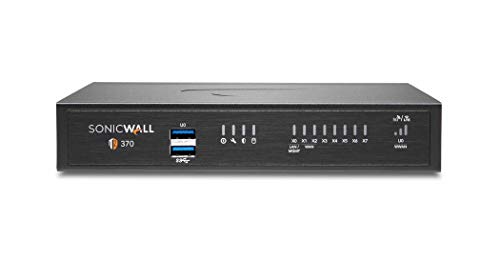
SonicWall TZ370 with 3 Year EPSS - SecureUpgradePlus (02-SSC-6823) - Designed for growing SMBs that need more throughput and scalability, delivering multi-gigabit firewall performance with best-in-class price to performance.

𝐔𝐥𝐭𝐢𝐦𝐚𝐭𝐞 𝐁𝐄𝟑𝟑𝟎𝟎𝟎 𝐓𝐫𝐢-𝐁𝐚𝐧𝐝 𝐖𝐢-𝐅𝐢 𝟕 𝐒𝐩𝐞𝐞𝐝𝐬: Deco 7 Elite BE95 is designed with the latest Wi-Fi 7 technology, featuring Multi-Link Operation, Multi-RUs, 4K-QAM, and 320 MHz channels. With speeds of 11520 Mbps on the 6GHz band 1, 11520 Mbps on the 6GHz band 2, 8640 Mbps on the 5GHz band, and 1148 Mbps on the 2.4GHz band, the 3 pack mesh connects over 200 devices without dragging down performance and delivers unparalleled Wi-Fi performance.
Does Your Use Case Need <10ms? (AR/VR, Video, Casting)

Does Your Use Case Need <10ms? (AR/VR, Video, Casting)
So when does sub-10-millisecond latency actually matter? Honestly, it depends on what you’re trying to do.
If you’re building AR or VR experiences, this is non-negotiable. Latency below 10 ms keeps users comfortable and prevents motion sickness and visual glitches. Drop below that threshold, and your immersive experience falls apart fast. Why does this matter? Because your brain notices the delay between what you’re doing and what you see—even a tiny one.
Video conferencing is less strict. You’re looking at latencies under 50 ms with jitter below 30 ms. That’s still performance-sensitive, but it gives you more breathing room than AR/VR.
Wireless casting and real-time video streaming are their own beast. You need 3–10 ms latency with greater than 99.9% reliability. Miss that mark, and your stream stutters or disconnects.
Here’s the thing: Wi-Fi 7 actually gets you below 1 ms in ideal conditions. That’s way better than what AR/VR even requires. The best part is that if your work involves augmented reality, virtual reality, or any ultra-responsive interactive application, hitting sub-10-millisecond performance directly affects whether your system feels smooth or sluggish.
Truth is, most people don’t need to stress about this. But if you’re in one of these categories, the difference between hitting these targets and missing them is the difference between a product that works and one that frustrates users. Does your project fit any of these scenarios?
Recommended Products
AMD Ryzen 7 9800X3D Processor: AMD's flagship gaming CPU featuring 3D V-Cache technology for best-in-class gaming performance, with 8 cores and up to 5.2GHz boost clock

【NEXT-GEN INTEL CORE ULTRA 7】Smarter Performance with On-Device AI: Driven by the breakthrough Series 3 Intel Core Ultra 7 355 processor, this All-in-One desktop introduces dedicated NPU-powered Copilot+ PC experiences. From automating professional workflows to running local generative AI tasks, experience revolutionary speed, whisper-quiet efficiency, and smooth, responsive processing across all demanding workflows.

✔️Bundle Accessories - Along with the accessories from Sony, the Sony Alpha 7C R bundle Includes additional accessories such as, Hurricane Blower, Essential Cleaning Kit, 3-in-1 USB-C Card Reader, Microfiber Cleaning Cloth.
Time-Sensitive Networking: Wi-Fi 7’s Reliability Layer for Casting

Time-Sensitive Networking: Wi-Fi 7‘s Reliability Layer for Casting
Ever tried streaming a presentation to a monitor across the room, only to watch it stutter and freeze? You’re not alone. Here’s what most people don’t realize: speed isn’t everything. Your Wi-Fi 7 connection needs to be *reliable*, not just fast.
This is where Time-Sensitive Networking (TSN) comes in. Wi-Fi 7 builds TSN right into its foundation, which means your casting gets packets delivered in under 5 milliseconds with better than 99.9% reliability. Think of it like this: latency is how quickly data arrives, but reliability is whether it arrives *consistently*. For real-time video streaming and wireless monitor casting, you need both.
So, why does this matter? Because wireless networks are messy. Too many devices, interference, obstacles—they all throw curveballs. TSN solves this by using deterministic scheduling and multilink operations. That’s just a fancy way of saying Wi-Fi 7 plans exactly when and how your casting traffic travels, so you get predictable performance even in crowded spaces.
Here’s the trick: Wi-Fi 7 uses something called Restricted Target Wake Time to protect your casting data. It reserves bandwidth specifically for latency-critical traffic, keeping jitter (those annoying tiny delays) stable. You get smooth, dependable performance without the constant buffering.
Frankly, this approach covers what raw speed alone can’t. Your video stream stays smooth, your monitor stays responsive, and you don’t have to wonder if the next frame will arrive on time. That’s the real difference TSN makes—it turns wireless casting from “probably okay” into “you can trust this.”
Recommended Products

This package is a curated bundle of popular items frequently purchased together. It is not a complete, all-in-one solution. Depending on your specific setup, additional items or accessories may be required. Please review the included components carefully before purchasing.

A signature confirmation is required upon delivery of this item. The delivery personnel may ask for verification with a photo id as well. Shipping to addresses where an adult is available to sign for the package is highly recommended to avoid any potentials delays.

CPU: AMD Ryzen 7 7800X3D 4.6+GHz 8-core 16x Threads - Top Pick for a gaming PC with large 3D Cache | 64GB DDR5 6000MHz RAM with Heat Spreaders, Dual Channel | AMD B650 chipset motherboard | Aftermarket Liquid Cooler with quiet fans
5 Network Setup Changes to Hit Sub-50ms Wireless Monitor Latency
Want your wireless monitor to actually keep up with your video calls without lag? The secret isn’t buying fancy new gear—it’s how you set up what you’ve got.
TSN gives you the reliability backbone, but that’s just the start. Real sub-50ms latency comes down to smart infrastructure choices, and frankly, most people skip these steps.
Where You Put Your Access Points Matters
Distance kills your signal quality. Position your access points strategically throughout your space so dead zones disappear and interference stays minimal. You don’t need fancy equipment—you need smart placement. Think about walls, metal objects, and other wireless networks nearby. It’s boring work, but it pays off.
Claim the 6 GHz Band for Your Low-Latency Stuff
Here’s the trick: set up a dedicated 6 GHz SSID just for devices that need speed. This band has less crowding than 2.4 or 5 GHz, which means fewer interruptions. The real magic happens when you enable Multi-Link Operation—it sends your data across multiple frequency bands at the same time instead of picking one. Why does this matter? Less waiting in the queue means faster response times.
Channel Width and Scheduling Make a Real Difference
Push your channel width to 320 MHz if your router supports it. Pair that with more Resource Units, and you’re basically doubling how many devices can get scheduled at once during peak times. You’re not bottlenecking everything into one narrow pipe anymore.
Wi-Fi 7 vs. Wi-Fi 6—The Numbers Tell a Story
In my experience, the jump is noticeable. Wi-Fi 7 hits around 45ms latency while Wi-Fi 6 sits closer to 87ms under similar conditions. That 40ms difference sounds small until you’re in a meeting and every millisecond counts. Higher access point density helps too, especially if you’re in a crowded apartment or office.
The bottom line? You don’t need a magic bullet. You need deliberate choices about where your equipment sits and how you configure it. Give your low-latency traffic its own lane, and you’ll actually feel the difference.
Recommended Products

World’s first AI Router - Unleash demanding network applications with a powerhouse quad-core 2.6GHz CPU, plus an NPU, 4GB DDR4 RAM and 32GB eMMC Flash.

ENGENIUS TECHNOLOGIES ECW536 CLOUD MANAGED WIFI 7 4X4X4 AP

The most powerful Nighthawk router ever. Unrivaled WiFi 7 speeds up to 19Gbps for real-time gaming, 4K/8K streaming, UHD video conferencing, and AR/VR entertainment
Frequently Asked Questions
Will My Older Wi-Fi 6 Devices Benefit From Upgrading to a Wi-Fi 7 Router?
Your Wi-Fi 6 devices won’t directly benefit from a Wi-Fi 7 router since they’re incompatible with Wi-Fi 7’s advanced features. However, you’ll gain improved network efficiency and reduced congestion, which can modestly enhance your Wi-Fi 6 device performance.
How Does Network Congestion From Neighboring Wi-Fi Networks Affect Wi-Fi 7 Latency?
I’d say Wi-Fi 7’s advanced traffic management and Multi-Link Operation help it resist network interference better than Wi-Fi 6. Even in congested areas with neighboring networks, you’ll notice Wi-Fi 7 maintains lower latency through intelligent packet distribution across multiple links.
What’s the Cost Difference Between Wi-Fi 6 and Wi-Fi 7 Equipment for Casting Setups?
I can’t give you exact pricing since I don’t have current cost comparison data in my knowledge base. However, Wi-Fi 7 equipment typically costs more upfront, though equipment availability is improving as adoption grows and prices gradually decrease over time.
Can Wi-Fi 7 Maintain Low Latency When Simultaneously Streaming Multiple Wireless Monitors?
I’d say Wi-Fi 7 can maintain low latency for multi monitor streaming, though it depends on your network density. The 320 MHz channels and MLO features help, but I’d recommend dedicated 6 GHz SSIDs to optimize wireless display performance.
Does Wi-Fi 7’s 6 GHZ Band Have Better Range Than the 5 GHZ Band?
I’d say the 6 GHz band doesn’t have better range than 5 GHz—it’s actually shorter. However, you’ll get wider bandwidth and improved signal quality, which benefits throughput and latency rather than coverage distance.