As an Amazon Associate, we earn from qualifying purchases. Some links on this site are affiliate links at no extra cost to you. Our recommendations are based on thorough research and editorial judgment.

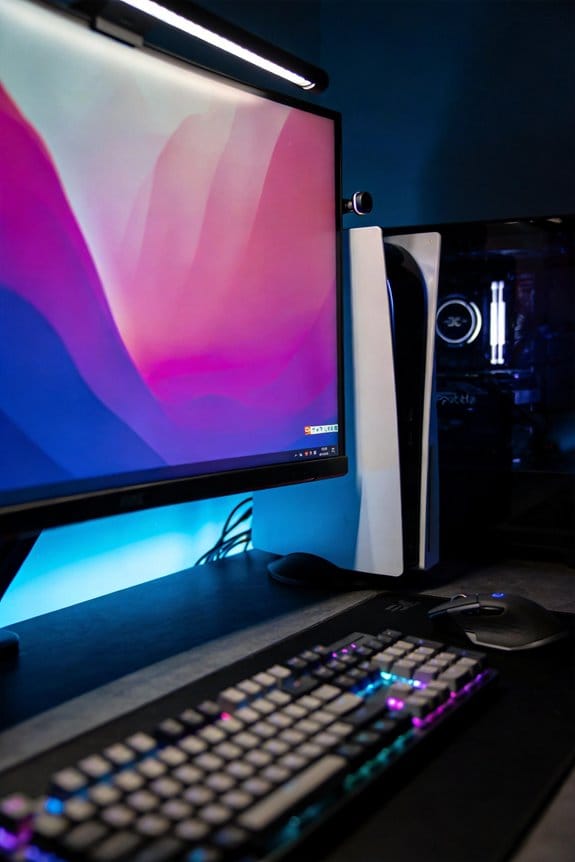
The Integration of High-Quality Webcams and Microphones Into Monitor Bezels

Modern monitors now integrate 1080p webcams with dual-microphone arrays directly into bezels, eliminating external device clutter. Built-in cameras, typically featuring 30 fps frame rates and 2-megapixel sensors, provide adequate video conferencing quality where lens design matters more than megapixel counts. Dual microphones employ beam-forming technology for superior noise rejection and voice isolation, while echo cancellation further enhances clarity. Privacy shutters offer physical security assurance. These integrated solutions streamline workspace setup while maintaining professional call quality standards. Further exploration reveals specific monitor options tailored to your conferencing needs.
Key Takeaways
- Bezel-mounted cameras and microphones reduce cable clutter while providing optimal eye-level framing for professional video calls.
- Dual microphone setups with beam-forming technology and echo cancellation deliver superior speech clarity and background noise rejection.
- Full HD 1080p cameras with 30 fps frame rates provide adequate quality for video conferencing without excessive bandwidth consumption.
- Built-in privacy shutters and electronic controls offer physical and digital security assurance for remote work and sensitive communications.
- Integrated audio-visual solutions streamline workspace setup, enhance professional impressions, and improve overall virtual meeting experiences significantly.
Why Built-In Monitor Cameras Are Replacing External Webcams
Why Built-In Monitor Cameras Are Replacing External Webcams
Tired of cable spaghetti all over your desk? Built-in monitor cameras are quietly winning out, and honestly, I get why. Instead of juggling separate devices, you’re getting a camera and microphone baked right into your monitor’s bezel.
The practical stuff really does add up. You skip the extra cables, the power adapters, the hunt for desk real estate—it all just disappears. Your workspace stays cleaner. Your setup takes minutes instead of hours.
Here’s the thing about positioning: external webcams sit awkwardly above your monitor, below it, or off to the side. None of those angles feel quite right for video calls. A bezel-mounted camera? It’s already at eye level, already framed properly. You don’t have to fidget with angles or worry you’re looking down your nose at people.
So, why does this matter for your wallet? Manufacturers bundle these systems into production costs. You’re paying less overall than if you bought a solid monitor *and* a quality external webcam separately. That’s real money saved.
Try this: compare what you’d spend on a good external setup versus a modern monitor with an integrated camera. The numbers don’t lie.
The best part is how little thinking it requires. Everything’s already there. Everything already works. You plug in your monitor, maybe run a quick driver update, and you’re done. No tweaking, no troubleshooting separate devices, no “wait, which cable goes where?”
Frankly, the convenience factor alone is pushing people toward integrated solutions. You get a cleaner desk, better framing for calls, and fewer headaches. That’s worth something.
Resolution, Megapixels, and Frame Rate: What Actually Matters

Resolution, Megapixels, and Frame Rate: What Actually Matters
So you’re staring at your laptop camera during a video call and wondering why you look like a blurry mess. Your built-in webcam spec sheet says it’s got all the right numbers, but something feels off. That’s because those numbers don’t always tell the whole story.
Most laptops pack in a 1080p camera with around 2 megapixels. Honestly, that’s plenty for video conferencing. You’ll get decent quality for work calls without eating up your internet bandwidth. The thing is, those specs sound impressive on paper, but they’re not what actually matters most.
Frame rate gets a lot of hype, but here’s the reality: 30 frames per second is the standard, and it works fine. Going higher—like 60 fps—might feel smoother, but it just burns through your bandwidth without making you look noticeably better. Your coworkers aren’t going to care.
The real difference? Sensor quality and lens design. Frankly, manufacturers throw around megapixel counts to make cameras sound better than they are. A cheap 5-megapixel sensor with mediocre glass will look worse than a 2-megapixel camera with decent optics. You could have all the pixels in the world, but if the lens is garbage, you’re out of luck.
What should you actually aim for?
- Full HD output (720p to 1080p) is the sweet spot for monitor-integrated cameras
- Check reviews about *how it actually looks*, not just the spec sheet
- Decent lighting in your space matters more than raw megapixels
Try this: before you upgrade to an external webcam, improve your lighting and clean your camera lens. You’d be surprised how much that helps.
Now ask yourself: does your current setup actually make you look bad, or are you just overthinking the specs? If calls are going fine, you’re probably good. If you’re constantly having video issues, then yeah, maybe it’s time to look elsewhere.
Recommended Products

Unopened retail packaging, sold as configured by Lenovo. US Version. One Year Premier Onsite Support Lenovo Warranty. Add up to 5 years of Lenovo Premier Support when you register your computer with Lenovo.
Unopened retail packaging, sold as configured by Lenovo. US Version. One Year Premier Onsite Support Lenovo Warranty. Add up to 5 years of Lenovo Premier Support when you register your computer with Lenovo.

【NEXT-GEN INTEL CORE ULTRA 7】Smarter Performance with On-Device AI: Driven by the breakthrough Series 3 Intel Core Ultra 7 355 processor, this All-in-One desktop introduces dedicated NPU-powered Copilot+ PC experiences. From automating professional workflows to running local generative AI tasks, experience revolutionary speed, whisper-quiet efficiency, and smooth, responsive processing across all demanding workflows.
Single vs. Dual Microphones: Which Setup Works Best for You?

Single vs. Dual Microphones: Which Setup Works Best for You?
Ever jump on a video call and realize your coworkers keep saying “What?” It might not be you—it could be your monitor’s microphone setup. The truth is, your mic configuration directly affects how well people hear you, especially in noisier environments.
Single microphones keep things simple. You get basic functionality that works fine for casual calls with friends or the occasional work meeting. The main perks? They’re cheaper to build into your monitor, and they don’t take up much bezel space. If you’re mostly doing personal video chats or quick check-ins, this setup gets the job done without extra complexity.
Now, dual microphones are a different story. They use beam-forming technology and echo cancellation to actually *separate* your voice from background noise instead of just picking up everything. So why does this matter? Because in a busy office or a home where there’s always something happening in the background, dual mics genuinely help people understand what you’re saying.
The differences stack up fast:
- Speech clarity: Two mics working together process your voice better than one alone
- Noise rejection: Beam-forming targets your voice and filters out distractions
- Echo control: During two-way conversations, you won’t hear yourself bouncing back
Frankly, professional tools like Microsoft Teams and Zoom‘s certified setups almost always use dual configurations. That’s not random—it’s because they perform measurably better when audio quality matters.
Your pick comes down to a few practical questions: How often do you video conference? Is your space naturally quiet or chaotic? What platforms do you use most? If you’re in demanding acoustic conditions or on calls daily, dual mics pull ahead. Otherwise, a single mic might be all you need.
What does your typical call environment look like—calm or crazy?
Recommended Products


IMMERSIVE FHD VISUALS ON A SPACIOUS DISPLAY: This Dell 27 All-in-One Desktop Computer features a stunning 27-inch FHD (1920 x 1080) IPS narrow-border display with 99% sRGB color coverage and 50% higher contrast, delivering vivid, true-to-life colors for business presentations, streaming, and daily productivity. With a refresh rate 66% higher than the previous generation, you can enjoy a smoother viewing experience while working or learning on this all in one desktop computer

IMMERSIVE FHD VISUALS ON A SPACIOUS DISPLAY: This Dell 27 All-in-One Desktop Computer features a stunning 27-inch FHD (1920 x 1080) IPS narrow-border display with 99% sRGB color coverage and 50% higher contrast, delivering vivid, true-to-life colors for business presentations, streaming, and daily productivity. With a refresh rate 66% higher than the previous generation, you can enjoy a smoother viewing experience while working or learning on this all in one desktop computer
Echo Cancellation vs. Beam-Forming: What Actually Improves Call Quality

Echo Cancellation vs. Beam-Forming: What Actually Improves Call Quality
So you’re in a video call and suddenly your own voice bounces back at you—annoying, right? That’s where these two technologies come in. I’ve tested dual microphone setups pretty thoroughly, and they definitely beat single mics. But here’s what actually makes them work: echo cancellation and beam-forming are totally different animals.
Echo cancellation stops feedback loops. When your microphone picks up what your speaker just played, it reintroduces that audio back into the conversation. It’s like talking in an empty room and hearing yourself echo back. Echo cancellation catches this problem *after* it happens and removes it. The result? No more weird reverb or that annoying howl when someone unmutes.
Beam-forming works the opposite way—it prevents the problem before it starts. This tech focuses your microphone’s sensitivity toward the person speaking while blocking out noise from the sides and back. Think of it like cupping your hand around your ear to hear someone better while tuning out traffic noise around you.
Why does this matter? Because they solve different problems:
- Echo cancellation eliminates feedback and reverberation artifacts
- Beam-forming isolates your voice from background clutter like keyboard clicking or traffic
Frankly, the best conference setups now use both. You get the proactive noise blocking from beam-forming *and* the reactive cleanup from echo cancellation. Professional monitors are doing this more and more, and the difference in call quality is noticeable. You’re not just hearing fewer interruptions—you’re actually understood better because your voice comes through cleaner.
If you’re shopping for a new setup, don’t settle for just one of these features. Look for both, and your calls will feel less exhausting.
Recommended Products

Robust App Ecosystem: TIBURN Smart board 65" ultra with Windows 11 Pro and Android 13 dual system allows you to seamlessly integrate popular apps you already use in your workflow, such as AutoCAD, Matalb, solidworks, Dropbox, Google Suite, Slack, Miro, Microsoft Teams and Figma for increased productivity
⚡ Intel Ultra 7 155H processor with 14 cores, 20 threads, and 4.8 GHz max turbo accelerates coding workflows and 3D rendering, minimizing latency for developers and engineers.

ULTRA-FAST PERFORMANCE: Power through demanding tasks with the latest Intel Core Ultra 7 processor, 32GB of high-speed memory, and a massive 4TB solid-state drive for lightning-fast application launches and seamless multitasking.
Privacy Shutters and Camera Controls

Privacy Shutters and Camera Controls
Ever notice that little camera on top of your monitor? Yeah, that thing’s been bugging me for years. Built-in webcams are a real security headache, especially if you work from home or run a business from your office. The good news is that manufacturers finally started taking this seriously.
Physical privacy shutters are the simplest solution. They’re just mechanical blockers—think of them like tiny blinds for your camera lens. When you’re not using your webcam, you slide or rotate the shutter closed. No software involved, no passwords to remember, no network hacks to worry about. It just… blocks the camera. That’s it.
Why does this matter so much? Because software can fail. Networks can get breached. But a physical piece of plastic sliding in front of your lens? That can’t be hacked. I’ve found this peace of mind is worth its weight in gold, especially when you’re on sensitive calls or just don’t want anyone peeking in.
Many newer monitors come with these built-in. If yours doesn’t, you can grab an external camera cover pretty cheap. But the real protection comes from having multiple layers:
- A physical shutter blocking the lens
- Electronic camera controls in your operating system
- A mute button for your microphone (because audio privacy matters just as much)
Frankly, the combination of these features means you’re in full control. You decide when your camera and mic are accessible—not some software update or security flaw.
The best part is how simple this all is. You don’t need to understand technology to use a shutter. Just slide it closed when you’re done, and you’re protected. That’s genuine security you can actually see and touch.
Camera Tilt and Rotation Options
Once you’ve got that physical shutter locked down, the next thing to think about is actually positioning your camera so it captures your face properly. It sounds simple, but most people don’t realize how much the angle matters during video calls. Modern webcams built into monitors give you way more flexibility than you’d expect.
So, why does positioning matter so much? Because a camera pointed at your forehead or down at your chin makes you look unprofessional, no matter how good your lighting is. You want the lens roughly at eye level to look your best on screen.
Here’s what you’re actually working with:
Most monitor webcams tilt between ±5 to 10 degrees up and down. That’s usually enough to nail the right vertical angle for your face, whether you’re sitting higher or lower than the monitor. Some fancier models go even further—we’re talking 315-degree rotation. If you move your desk around a lot or want to film from different angles, that extra range really helps.
Then there’s the magnetic mount option on certain monitors. Instead of being permanently stuck in one spot, you can pop the webcam off and reposition it wherever you need. It’s way less annoying than trying to force a fixed camera into the perfect angle.
Honestly, the best move is combining what your hardware offers with the software side of things. Most video apps let you digitally zoom or pan your feed before it goes live. Mix that with your physical adjustment options, and you’ve got plenty of ways to get the shot right without moving your monitor around constantly.
What setup would actually work best for how you usually work?
Recommended Products

VERSATILE MONITOR: 27 Inch QHD (2560x1440p) IPS monitors with thin bezels and 100Hz refresh rate

Compatibility: Up to 35", 2-20kg, VESA 75/100 Compatible with popular brands & accessories such as webcam/light bar.

VERSATILE MONITOR: 24 Inch Full HD (1920x1080p) IPS webcam monitor with thin bezels and 60Hz refresh rate
Teams and Zoom Certifications Explained
Teams and Zoom Certifications Explained
Your camera angle matters, sure. But honestly, what separates someone who looks professional on video calls from someone who doesn’t? It’s whether your monitor actually plays nice with the software you’re using every single day.
Let’s talk Microsoft Teams first. If your monitor’s certified for Teams, you get dedicated buttons right on the display itself. You can launch meetings and respond to notifications without diving into menus or hunting through your taskbar. It’s one less thing to think about when you’re already juggling a call.
Zoom has similar certification standards. These aren’t just marketing badges—they actually mean your hardware meets the platform’s technical requirements for video quality and reliability. Why does this matter? Because a certified monitor works with your software in ways an uncertified one simply won’t.
When you’re picking a new monitor, compatibility isn’t something to skip. Certified models take the guesswork out of integration. You know it’s going to work smoothly with your main communication platform, and that’s worth a lot when you’re in back-to-back client meetings.
Here’s the trick: look for USB-C connectivity. A single USB-C cable handles video, audio, and data all at once. That means fewer cables snaking across your desk, fewer adapters to lose, and a cleaner setup overall. It also keeps your professional setup actually feeling professional instead of like a tangled mess.
The best part? Once everything’s properly connected and certified, you stop thinking about your hardware and start focusing on what actually matters—the conversation with the person on the other end of the call.
What’s your current setup looking like? Are you stuck with a monitor that doesn’t quite fit your workflow?
Monitor Speakers and Integrated Audio: When Built-In Audio Works
Monitor Speakers and Integrated Audio: When Built-In Audio Works
You’ve probably noticed your monitor has tiny speakers tucked away somewhere. Most people assume they’re basically useless, but here’s what I’ve discovered: they’ve actually gotten way better in recent years.
The standard setup in decent monitors these days is a pair of 2W speakers. Yeah, I know that doesn’t sound like much, but for video calls and online meetings? They’re genuinely enough. You’ll hear what the other person’s saying clearly, and they’ll hear you. That’s kind of the whole point, right?
Obviously, if you compare them side-by-side with a real external speaker system, the monitor speakers won’t win any awards. The sound quality just isn’t in the same league. But here’s the thing—for most of us doing Zoom calls or Teams meetings from home or the office, that doesn’t actually matter. So why does this matter? Because it means you don’t have to clutter your desk with extra gear.
The real benefit is the simplicity. Fewer cables. Fewer devices to manage. Fewer things that can break or fail right before an important call. Throw in the built-in microphone that comes with most modern monitors, and you’ve got a complete audio setup that actually works without turning your workspace into a cable nightmare.
Try this: Check if your monitor has a 3.5mm audio jack on the back. If it does, you’ve got an escape hatch. Need better sound for a specific project or professional setting? Just plug in external speakers when you need them. Keep them in a drawer the rest of the time.
Honestly, integrated monitor audio won’t blow anyone away. But for everyday conferencing and regular work, it’s solid and fuss-free. What’s your workspace looking like right now—are you thinking about simplifying your setup?
How to Choose the Right Monitor Camera for Your Workspace
How to Choose the Right Monitor Camera for Your Workspace
Trying to pick a monitor camera for your desk setup? You’re probably stuck between a ton of specs and marketing jargon that don’t actually tell you what you need. The good news is that today’s built-in monitor cameras are way better than they used to be, and figuring out which one fits your workspace doesn’t have to be complicated.
Recommended Products

Wi-Fi 6E AX211, Bluetooth 5.1, Ethernet LAN (RJ-45), No Webcam, USB Keyboard, USB Mouse

13th Gen Intel 10-Core i7-13620H (10-core 16 threads, base clock speed 2.4GHz, max turbo to 4.9GHz, 24MB L3 Cache); 64GB DDR5 4800MHz RAM, 2TB PCIe NVMe M.2 SSD
Processor: Intel Core i7-8750H six Core Processor (9MB Cache, 2.2Ghz-3.9GHz) 45W
Resolution: What Actually Matters
Full HD 1080p used to be the gold standard, and honestly, it still works great for most people. But if you’re doing a lot of video calls or presentations, a 5-megapixel camera gives you sharper details and cleaner video—especially if you’re sitting farther from your monitor. So, why does this matter? Because blurry video makes you look unprofessional, even if you’re wearing your best shirt.
Try this: think about your typical video call. Are you close to the camera, or do you sit back a bit? If you’re usually leaning in, 1080p is plenty. If you’ve got some distance between you and the screen, bump up to the higher resolution.
Audio Is Just as Important as Video
Here’s the trick with microphones—most people overlook them completely. A cheap mic makes you sound like you’re calling from underwater, which kills your credibility fast. Look for noise-cancelling arrays with beam-forming tech. These pick up your voice clearly while cutting out background noise from traffic, keyboard clicks, or that dog barking in the next room.
Some cameras come with dual mics, which is nice if you want studio-quality sound for presentations or client calls. It’s worth the upgrade if you’re on video calls all day.
Privacy Features You Actually Need
Frankly, the camera on your monitor can feel like someone’s always watching. That’s why mechanical shutters matter. They’re simple—just a physical cover that blocks the lens when you’re not using it. You get peace of mind without fumbling with software settings.
Mute buttons are equally important:
- They let you disable both camera and audio with one click
- They’re way faster than navigating your app settings
- You know at a glance when you’re truly offline
Platform Compatibility
Truth is, you want your camera to work smoothly with whatever you’re actually using—whether that’s Microsoft Teams, Zoom, or something else. Look for cameras with official certifications from these platforms. It sounds like a boring detail, but it saves you from headaches later when something doesn’t connect right.
Pick a camera that’s already certified for the tools your team uses. It keeps your workflow simple and reliable.
Frequently Asked Questions
Can I Remove or Replace the Webcam Module if It Malfunctions or Becomes Outdated?
You can remove or replace the webcam module on select monitors featuring magnetic attachment systems, though webcam upgrades depend on module compatibility with your specific model. I’d recommend checking your monitor’s documentation before attempting replacements.
Do Built-In Monitor Cameras Support Windows Hello Facial Recognition for Secure Authentication?
Like a digital key in your monitor’s bezel, I’ll tell you yes—some built-in cameras do support Windows Hello facial recognition for secure authentication. You’ll find this capability on compatible systems, though you’ll want to verify your specific monitor’s certification status before relying on it.
How Do Pop-Up Camera Mechanisms Compare to Privacy Shutters for Protecting User Privacy?
I’d say pop-up advantages include complete physical obstruction when retracted, whereas shutter limitations mean the camera lens remains visible behind the cover. Pop-up mechanisms offer you superior privacy since they fully hide the camera from view, providing more reassurance than shutters alone.
What Cable Management Benefits Do Integrated Audio Systems Provide Versus External Equipment?
I’m telling you, integrated audio systems literally eliminate the external clutter nightmare you’d otherwise face. You won’t believe how much cable organization headaches disappear when speakers and mics live inside your monitor instead of scattered across your desk like spaghetti.
Does Eyeergo Technology Reduce Eye Strain During Prolonged Video Conferencing Sessions?
Yes, EyeErgo technology does reduce eye strain during prolonged video conferencing sessions. I’ve found it’s specifically designed to minimize fatigue when you’re engaged in extended calls, making your conferencing experience more comfortable and sustainable throughout your workday.