As an Amazon Associate, we earn from qualifying purchases. Some links on this site are affiliate links at no extra cost to you. Our recommendations are based on thorough research and editorial judgment.


The 32:9 Super Ultrawide Lifestyle: Massive Productivity Boost or Screen Fatigue?

A 32:9 ultrawide monitor delivers genuine productivity gains—developers and analysts report 40% reductions in administrative tasks, recovering approximately 48 minutes daily through eliminated window management. The bezel-free 5120×1440 display provides seamless multitasking, yet demands significant physical adjustment, substantial GPU resources, and deliberate workflow restructuring. While the 6-to-12-month payback period justifies investment for compatible workflows, neck strain and window management challenges present legitimate trade-offs worth evaluating against dual-monitor alternatives before committing.
Key Takeaways
- 32:9 ultrawides deliver substantial productivity gains for multitasking professionals, potentially saving 48 minutes daily through reduced window management.
- Extended horizontal screens cause neck and eye strain, requiring an adjustment period and physical ergonomic considerations for comfortable use.
- Bezel-free ultrawide experience surpasses dual monitors for seamless workflows, though window management demands more manual effort than separate screens.
- ROI typically ranges from 6-12 months for professionals, with continuous time savings enhancing efficiency after the payback period.
- Workflow compatibility determines success; ultrawides benefit developers and analysts but may waste space for applications not optimized for wide dimensions.
Who Benefits From a 32:9 Ultrawide?
Who Benefits From a 32:9 Ultrawide?
If you’re drowning in browser tabs and constantly alt-tabbing between windows, a 32:9 ultrawide might be exactly what you need. But before you drop $500+ on one, let’s be honest about who actually gets real value from this investment.
Data analysts, developers, and researchers**** are the biggest winners here. You can keep Slack, VSCode, Postman, and your database client all visible at the same time without constantly switching between windows. No more losing your train of thought because you had to close one app to see another.
Video editors and content creators find the horizontal space genuinely useful. Timeline visibility gets way better—you’re not constantly panning left and right just to see your clips. Project management dashboards can live on one side while your design software takes up the other, keeping everything in view without the mental load of juggling apps.
Gaming on a 32:9 setup with a 240 Hz refresh rate? That’s where the immersion really kicks in. The ultra-wide field of view pulls you into the action. Just know that your GPU is going to work harder, and you’ll need the hardware to back it up.
Now here’s the catch: if you work in a single application most of the day or you’re perfectly happy with two standard monitors, you’re probably throwing money away. Honestly, unused screen space just becomes a productivity drain when you’re constantly managing oversized windows. The learning curve of window management can actually slow you down at first.
Where a 32:9 Ultrawide Shines

Once you’ve figured out that you actually need to multitask across multiple apps all day, a 32:9 ultrawide starts making real sense. Think about it—how much time do you waste scrolling horizontally when you’re analyzing data? With a spreadsheet on one side and a database on the other, you’re done scrolling. You just see everything.
Video editors especially notice the difference. Your timeline, preview window, and color-correction tools all sit in front of you at once. No more switching between windows and losing your train of thought.
Developers get something similar. VSCode, terminal, Postman, and your documentation? They’re all visible simultaneously. That constant context-switching that eats up your day just… stops.
The resolution matters too. At 5120×1440 and 140 PPI, your text stays sharp whether you’re reading code or checking documentation across the entire screen. No squinting, no zooming in and out.
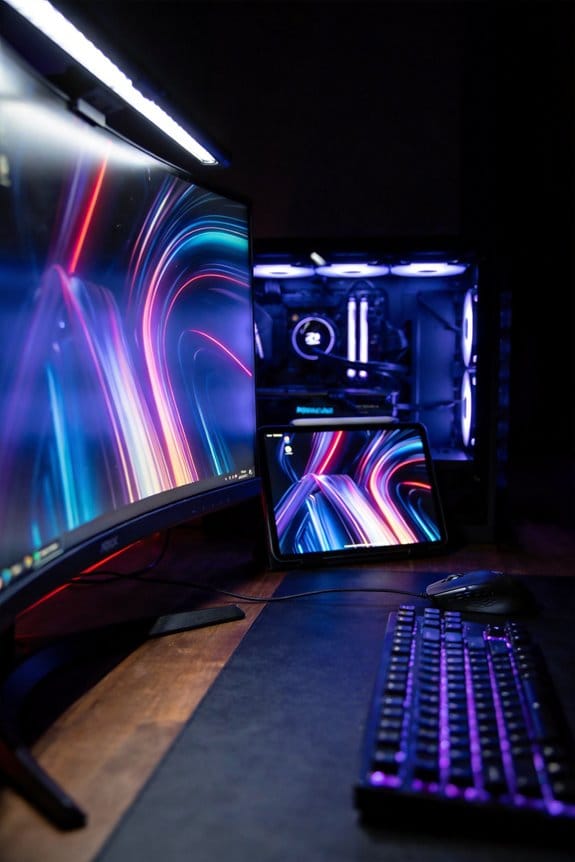
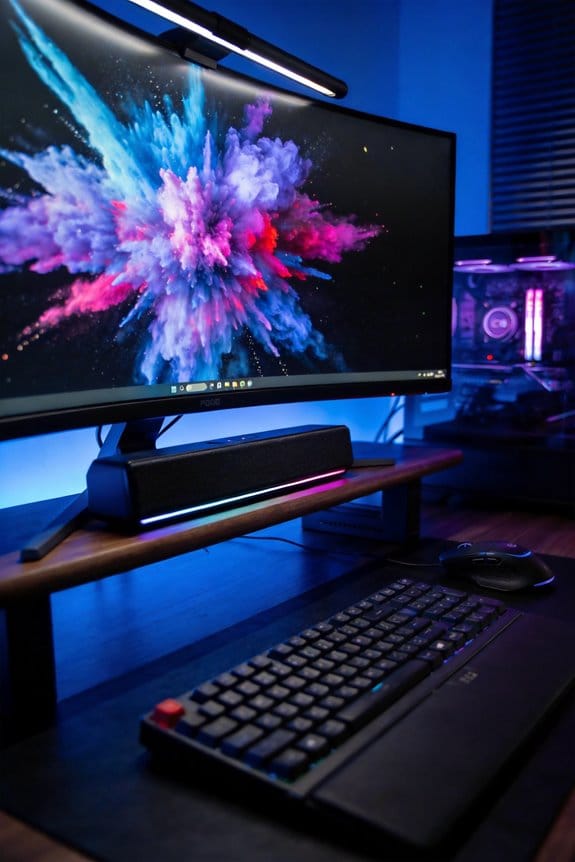
Here’s the thing about research work—and honestly, this is where I’ve seen the biggest payoff. You’ve got browser windows, notes, and reference materials spread across the display. There’s no bezel (that annoying black line) cutting up your information like you’d get with two separate monitors. Everything flows together, and your brain doesn’t have to work as hard to piece things together.
The 32:9 Trade-Off: Fatigue and Hidden Costs

The 32:9 Trade-Off: Fatigue and Hidden Costs
Thinking about jumping to a 32:9 ultrawide? Hold up. I’m not saying don’t do it, but there’s a real cost-benefit conversation you need to have with yourself first.
The biggest issue I see people overlook is the physical toll. Your neck’s going to work harder on a 32:9 because you’re constantly turning your head left and right to take in the whole screen. Dual monitors? They sit side-by-side naturally, so your eyes and neck don’t have to go on a journey just to see what’s happening. That sounds minor until you’re eight hours into your workday feeling like you’ve been at the gym.
Here’s what actually happens with your workflow: not every app plays nicely with ultrawide real estate. You open Slack, Chrome, and Spotify—suddenly you’ve got this dead space where nothing’s happening. Your brain sees wasted screen, but you’re not gaining any multitasking advantage. Why does that matter? Because you’re paying premium money for something that doesn’t always earn its keep.
Then there’s the shuffle factor. Managing windows on a 32:9 takes more effort than just smacking the maximize button on separate monitors. You’re dragging, resizing, positioning. That time adds up, and it’s time you could’ve spent actually working instead of playing screen tetris.
Try this reality check: curved ultrawides look cool, but they distort precision work. If you’re doing detailed photo editing, video color grading, or any task requiring accuracy, that curve works against you. Fast-moving objects on screen also get a little blurry—motion smearing—even with high refresh rates handling the load.
Frankly, there’s an adjustment period too. You don’t just plug one in and suddenly work at peak efficiency. It takes weeks to find your groove. And if you spend most of your time in single-window tasks (writing, coding, design in one app), you’re actually *losing* productivity compared to what you’d get from a standard setup.
32:9 Ultrawide vs. Dual Monitors: Real Differences

32:9 Ultrawide vs. Dual Monitors: Real Differences
Stuck deciding between an ultrawide monitor and a dual-monitor setup? You’re not alone—it’s one of those choices that seems simple until you actually try to work with it.
The Workspace Question
An ultrawide gives you one seamless, bezel-free screen. No interruptions, no visible lines cutting through your workspace. Dual monitors, on the other hand, have those bezels right in the middle of your view—which honestly gets annoying when you’re trying to focus on something that spans both screens.
Cable management is another thing to consider. A single ultrawide means one cable running to your GPU. Dual monitors? You’re dealing with two separate inputs, synchronized refresh rates, and extra clutter behind your desk. In my experience, fewer cables mean fewer headaches.
How You’ll Actually Work on Them
Here’s where things get interesting. On a ultrawide, you have to manually position and resize your windows. You’re dragging things around yourself. With dual monitors, each screen can run its own full application—you can have your main work on one display and reference material on the other without any fussing.
So, why does this matter? Because your workflow is different depending on what you do. Designers need different setups than writers. Coders have different needs than video editors.
The Curve Problem
Ultrawide curved panels look slick, but they can distort images at the edges—which is a real problem if precision matters to you. Flat dual monitors? They stay perfectly straight and accurate. Truth is, if you’re doing detail work, that matters.
Performance and Power
Both setups will eat up GPU resources. A 5120×1440 ultrawide typically demands about 1.5 times more processing power than a standard setup. Dual monitors aren’t necessarily lighter on your system either. Before you choose, make sure your graphics card can actually handle it.
Which setup fits your actual work better—one continuous canvas or dedicated screens for different tasks?
Is Your Workflow Built for 32:9?

So you’re thinking about dropping $500+ on a 32:9 ultrawide monitor. Before you do, here’s what actually matters: will it make *your* work faster, or will it just sit there looking impressive?
Honestly, it depends almost entirely on what you do all day. A developer juggling Slack, VSCode, Postman, and database clients? That 5120×1440 resolution is basically built for them. They’re constantly switching between windows, and having everything visible at once cuts down on mental friction. But if you’re the type who works in one app at a time, you’ll end up with a ton of wasted black space on the sides.
Data analysts and spreadsheet junkies get real value here. No more horizontal scrolling through 50 columns—you just *see* everything. Video editors feel the same way about timelines; panning back and forth constantly is annoying, and a wider screen eliminates that. The best part is these folks actually notice a productivity bump within the first week.
Now, the catches. Graphic designers often complain about curved distortion messing with their precision work. And if you’re someone who’s always juggled two separate monitors side-by-side, switching to one ultrawide actually *increases* your window-management hassle. Why? Because your brain’s already trained for that two-screen layout, and retraining takes time.
So here’s the real question: does your daily workflow actually need continuous horizontal space? Or would you be better off sticking with what you have?
The decision comes down to your specific tasks and habits, not the monitor’s specs. If horizontal real estate actually solves a problem you face every single day, it’s worth considering. If not, save your money.
Calculate Your ROI: When the Upgrade Pays for Itself
Here’s the thing—if you’re spending two hours every day just shuffling windows around and hunting through spreadsheets, that’s money walking out the door. Let’s actually figure out what an ultrawide monitor could be worth to your wallet.
The math is pretty straightforward. You need to look at how much time you’re currently wasting on window management, app switching, and scrolling. A 32:9 display cuts that administrative stuff by about 40%. So if you’re losing two hours daily to these tasks, you’d reclaim roughly 48 minutes per workday. That’s real time back in your pocket.
Now convert those minutes into dollars. Multiply your hourly rate by the number of minutes you’re recovering, then multiply that by your workdays per year. Honestly, for people whose time is worth something—developers, data analysts, content creators—this adds up fast.
Here’s the trick: don’t just guess at your time savings. Actually track it for a week. Write down how long specific tasks take you right now. Then think hard about what changes with a wider screen. Are you really spending five minutes per task toggling windows? Is context switching costing you focus time that compounds throughout the day?
The real payoff hits when your job involves serious multitasking. If you’re constantly moving between spreadsheets, code windows, design files, and communication tools, an ultrawide lets you see everything at once. So, why does this matter? Because you stop losing your place. You stop breaking your focus. That’s where the productivity gains actually happen.
For most professionals in data-heavy or creative work, you’re looking at a 6-12 month payback period. That means the monitor essentially pays for itself through recovered hours. After that, it’s pure time savings that improves your quality of life and bottom line.
The real question is: what’s your time actually worth to you?
Frequently Asked Questions
What Graphics Card or GPU Power Is Required to Run a 32:9 Ultrawide Display Smoothly?
You’ll need 1.5 times more graphics power than standard setups for smooth 32:9 performance. I’d recommend a high-end GPU like RTX 4080 or RTX 4090 for gaming performance and video editing. For multitasking efficiency and productivity, mid-range cards work fine.
How Does Curved Versus Flat Panel Technology Affect Precision Work on Ultrawide Screens?
I’d love to tell you curvature helps precision work—it doesn’t. Curved screens distort lines in detailed tasks, making them inferior for precision. You’ll want flat panels instead; they maintain geometric accuracy across your entire workspace without optical warping.
Can Existing Software and Applications Automatically Optimize for 32:9 Aspect Ratio Displays?
Most software doesn’t automatically optimize for 32:9 displays, so I’ve found you’ll need manual adjustments. Application compatibility varies—some tools like VSCode handle it well, while others require window positioning tweaks to maximize your ultrawide’s potential effectively.
What Desk Space Dimensions Are Needed to Accommodate a 49-Inch Ultrawide Monitor Setup?
I’d recommend a desk layout with at least 55-60 inches of width for your 49-inch ultrawide. You’ll want proper monitor placement with 20-24 inches of depth to accommodate the curved screen’s footprint and maintain comfortable viewing distance.
How Long Does the Adjustment Period Typically Take Before Experiencing Full Productivity Benefits?
You’re staring at that sprawling display, wondering when it’ll click. I’ve found you’ll need two to four weeks—that’s your adjustment timeline. Once productivity peaks hit, you’ll forget you ever worked smaller. Trust me, patience pays off here.