As an Amazon Associate, we earn from qualifying purchases. Some links on this site are affiliate links at no extra cost to you. Our recommendations are based on thorough research and editorial judgment.

Daisy-Chaining 4K Displays via DisplayPort MST: The Technical Realities

Daisy chaining 4K displays via DisplayPort MST requires DP 1.2 or newer graphics cards with MST support and updated drivers. DisplayPort 1.2 bandwidth maxes at 17.28 Gbit/s, practically supporting two 4K@60Hz monitors consuming approximately 8.6 Gbit/s each, while a third display creates performance issues. DisplayPort 1.4 expands capability; DP 2.1 handles three 4K@144Hz displays simultaneously. High-quality cables, proper connection sequencing from computer through input/output ports, and compatible monitors with both input and output ports prove essential. Understanding bandwidth constraints and configuration specifics determines successful implementation.
Key Takeaways
- DisplayPort 1.2 supports maximum two 4K@60Hz displays; adding a third causes performance degradation due to 17.28 Gbit/s bandwidth limits.
- DisplayPort 1.4 and DP 2.1 offer increased bandwidth, enabling three or more 4K displays at higher refresh rates without compromise.
- All monitors except the last require both input and output ports; graphics cards must support MST (Multi-Stream Transport) technology.
- Outdated GPU drivers frequently cause recognition and compatibility issues; regular updates from NVIDIA or AMD are essential for functionality.
- High-quality cables, proper resolution configuration, and hardware compatibility checks prevent signal loss and ensure optimal daisy-chaining performance.
How to Daisy Chain 4K Displays Over DisplayPort
Thinking about running multiple 4K monitors but stuck with just one DisplayPort? Daisy chaining might be your answer—and it’s way simpler than you’d think.
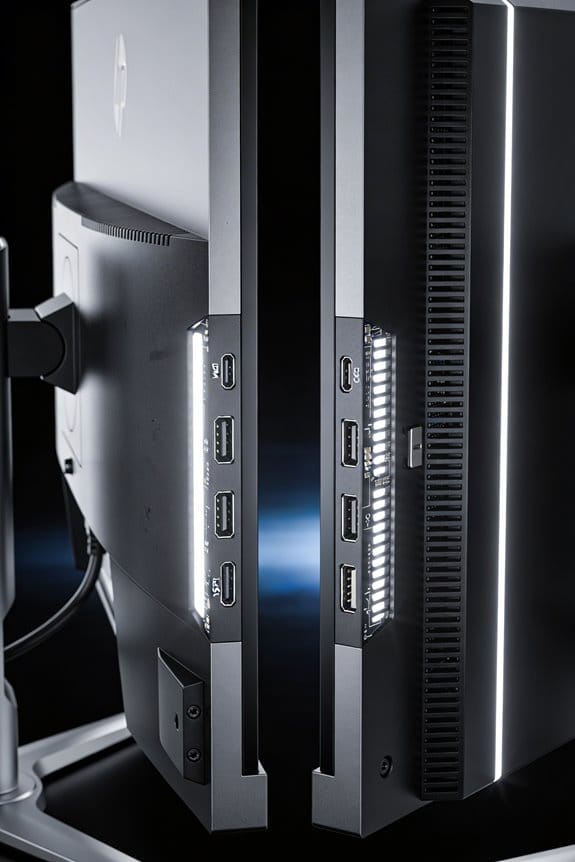
The basic setup is straightforward. You’ll plug your computer’s DisplayPort (DP 1.2 or newer) into the first monitor, then connect that monitor’s output port to the next monitor’s input, and keep going from there. It’s like a chain reaction—hence the name. The trick is that every monitor in the chain except the last one needs to have both an input *and* an output port. Only your final display needs just an input connection.
Before you start connecting cables, do a couple of quick checks on your end. Make sure your graphics card actually supports MST technology (that’s Multi-Stream Transport—the tech that makes this whole thing work). You’ll also want to update your GPU drivers to the latest version. Honestly, most modern cards handle this fine, but it’s worth confirming.
Here’s where bandwidth comes into play. DP 1.2 caps out at two 4K monitors running at 60Hz. So why does this matter? Because if you’re trying to daisy chain three or four displays at full 4K resolution, you’re going to hit a wall with older standards. If you’ve got DP 1.4 or higher, you’re in much better shape—that extra bandwidth lets you add more displays without sacrificing refresh rates.
The best part is you don’t need special adapters or expensive hubs. Just plug in your cables and let your system handle the rest through MST. Have you checked what DisplayPort version your monitor actually supports? That’s usually the real limiting factor most people overlook.
Recommended Products

HDMI2.1 kvm Switch 2 Monitor 2 Computers 4k 144hz COMPATABILITY: the Kvm switch 2 monitors 2 computers hdmi 5k 144hz supports most major operation systems like Windows, Linux, Mac and more; also support switch between devices without keyboard and mouse like DVR and NVR; Support webcam, speaker / headphone and microphone;
HDMI2.1 kvm Switch 2 Monitor 2 Computers 4k 144hz COMPATABILITY: the Kvm switch 2 monitors 2 computers hdmi 5k 144hz supports most major operation systems like Windows, Linux, Mac and more; also support switch between devices without keyboard and mouse like DVR and NVR; Support webcam, speaker / headphone and microphone;

hdmi displayport kvm Switch 2 Monitors 2 Computer 240Hz :the dp kvm switch support hotkey switching , you can use hotkey to switch between 2 computers,Right Control two times and number 1 and Enter(Right Ctrl+Right ctrl+1+Enter),you will switch to PC-A, and (Right Ctrl+Right ctrl+2+Enter) you will switch to PC-B. You can use Keyboard Hotkey (Right Ctrl+Right ctrl+B+Enter) to turn off or turn on the Beep for the dual monitor kvm switch.
Check Your GPU and Monitor for MST Support
Before you plug in that first cable, you’ve got to make sure your gear actually supports MST. Skip this step, and you’ll waste time troubleshooting a setup that was never going to work in the first place.
Start by checking your GPU. Head to Intel, AMD, or NVIDIA’s documentation and confirm two things: MST compatibility and DisplayPort 1.2 or higher. Don’t just assume your graphics card can do this—it matters.
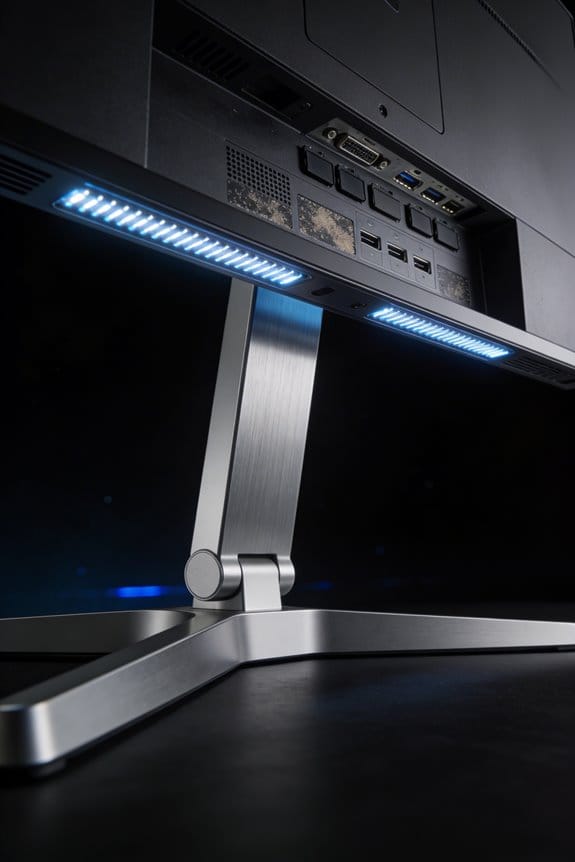
On the monitor side, things get a bit trickier. You’ll need to dig into the manufacturer’s spec sheet or user manual to see which models have MST input ports. This is especially important for your upstream monitors (the ones in the middle and end of the chain). So, why does this matter? Because a monitor without an output port can’t pass the signal down the line.
Here’s the trick: update your GPU drivers before you do anything else. Seriously. Compatibility issues often come down to outdated software, and the latest driver version can be the difference between everything working smoothly and spending hours pulling your hair out.
Do a quick checklist:
- Your computer’s DisplayPort output supports MST
- Your first monitor has a DisplayPort input
- Any intermediate monitors have both input *and* output ports
Honestly, most modern displays support this, but older ones sometimes don’t. It’s worth five minutes of checking now instead of discovering the problem after you’ve already bought cables.
Recommended Products

Quad Display KVM Switch: Effortlessly switch between 4 PCs with a single key. Utilize MST technology for a seamless 4-screen extended or mirrored display. Simplify your home office multimedia workstation management with screen-splicing and matrix-like usage, ideal for both workstations and gaming PCs

The First DisplayLink MacBook KVM Switch– Solve macOS multi-display limits: DisplayLink lets M-series MacBooks drive three independent 4K@60Hz external monitors for real workstation productivity

【Dual USB-C Connections Required】Control 2 computers across 4 monitors using two full-featured USB-C cables for each computer. Designed for professional multitasking, trading, surveillance, and productivity workflows.
Bandwidth Limits of DisplayPort Daisy Chaining

Bandwidth Limits of DisplayPort Daisy Chaining
Want to connect multiple 4K monitors but not sure what your setup can actually handle? The answer comes down to one thing: your DisplayPort version’s bandwidth ceiling. It sounds technical, but it’s really just about how much data can flow through that cable.
DisplayPort 1.2 maxes out at 17.28 Gbit/s. Frankly, that’s enough for two 4K@60Hz monitors before things start getting cramped. Add a third display, and you’ll run into serious slowdowns. DP 1.4 bumps things up considerably—you’re looking at six 1080p@60Hz displays, though that’s a step down in resolution. Want sharper images? DP 2.1 lets you connect three 4K@144Hz setups without breaking a sweat.
So, why does this matter? Because the moment you daisy-chain monitors, you’re forced to make trade-offs. Higher refresh rates eat up bandwidth. Sharper resolutions do too. You can’t have everything maxed out on a single chain.
If Thunderbolt connections are an option for you, that’s genuinely your best move. You can run two 4K@60Hz displays plus six 1080p@60Hz monitors at the same time. It’s basically the premium option.
There’s also Display Stream Compression (DSC) technology, which works like a smart filter for your signal. It shrinks the data without losing quality, so you can fit more monitors into your chain without sacrificing resolution or refresh rates. It’s not magic, but it’s pretty close.
The bottom line: check what DisplayPort version your monitor and graphics card support, then plan your setup around those real numbers. What resolution and refresh rate matter most to your workflow?
Recommended Products

NVIDIA Ada Lovelace Streaming Multiprocessors: Up to 2x performance and power efficiency

NVIDIA Ada Lovelace Streaming Multiprocessors: Up to 2x performance and power efficiency

1big Dock is an external hard drive and laptop docking station for filmmakers looking to centralize their desktop peripherals and store a massive portfolio of work with high-performance Thunderbolt 4 compatible technology
Why Two 4K@60Hz Is the Practical Ceiling on DP 1.2?
So you’ve got your fancy DisplayPort 1.2 setup ready, and you’re wondering how many 4K monitors you can actually hook up? The answer might disappoint you: two, and that’s it.
Here’s why. DisplayPort 1.2 maxes out at 17.28 Gbit/s of bandwidth. That sounds like a lot until you do the math. A single 4K display running at 60Hz eats up about 8.6 Gbit/s. Two of them? You’re sitting at roughly 17.2 Gbit/s—basically maxed out. What’s left is basically crumbs for error correction, protocol overhead, and auxiliary channels that keep everything running smoothly.
Want to add a third 4K monitor? You’ll blow right past the limit, and something’s gotta give.
Now, video compression technologies like Display Stream Compression exist and could theoretically let you do more. But here’s the thing—most DP 1.2 setups don’t actually use DSC by default. So while the tech *could* help, it’s not a practical solution for most people.
The real world is simpler: two 4K@60Hz displays is your practical limit with DP 1.2. Push beyond that, and you’re looking at dropping resolution, cutting your refresh rate, or dealing with performance issues across your whole setup. Honestly, it’s just not worth the headache.
Still thinking about upgrading your monitor setup? Make sure you know what your actual bandwidth ceiling is before you buy.
Wiring Your First Daisy Chain: Connection Order and Cables
So you’re ready to connect multiple monitors but aren’t sure where to start? The good news is that daisy chaining isn’t as complicated as it sounds—you just need to follow the right order.
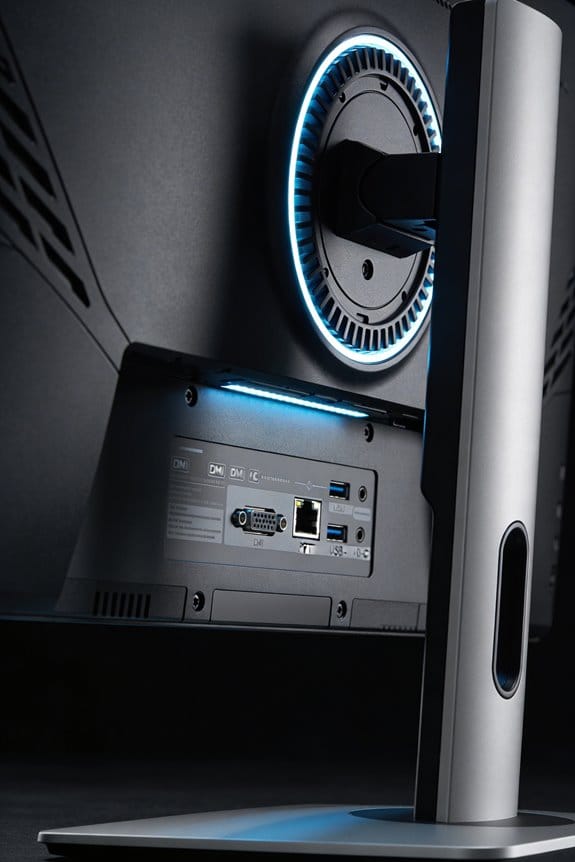
Your computer’s DisplayPort 1.2 (or newer) output is where everything begins. Plug your first cable directly into your monitor’s DisplayPort input. Then take that monitor’s output and connect it to your second monitor. Keep going down the line with each additional display. It’s really that straightforward.
When you’re picking cables, don’t cheap out here. DP 1.2 or higher is the minimum, but honestly, if you’re running a bunch of monitors or doing bandwidth-heavy work, Thunderbolt 4 cables will give you better performance. Why does cable quality matter so much? Poor cables can cause flickering, resolution drops, or dropped connections—annoying stuff that wastes your time troubleshooting.
Try this: For a four-monitor setup, you need one primary cable running from your computer to monitor one, then three additional DP cables linking the rest in sequence. That final monitor at the end of your chain? It doesn’t need an output port, since nothing connects after it.
The whole setup takes maybe five minutes once you’ve got your cables ready. After that, you’re done—no extra software to install or settings to tweak. Does daisy chaining sound like something you’re ready to tackle?
Recommended Products

Eight universal 2.5 or 3.5-inch SSDs/HDDs drive bays w/ Dual Thunderbolt 3 ports (Thunderbolt 2/Thunderbolt backward compatible)

With 99% sRGB color coverage, and a factory color calibration report to certify that each monitor arrives at a deltaE of <3, youcan be sure that colors are as accurate as they can be

In-plane switching (IPS) Technology
Troubleshooting Daisy Chain Setup Failures
Your daisy chain setup looks perfect on paper—all the cables plugged in, monitors powered up—but then nothing shows up on screen, or you’re stuck with a weird resolution that looks like it’s from 2005. What gives?
The frustrating truth is that daisy chaining monitors involves a lot of moving parts, and when one thing goes wrong, it’s not always obvious which thing that is. You could be dealing with a hardware mismatch, not enough bandwidth to push all those displays, a cable that’s seen better days, or drivers that are just plain outdated. The good news? You can usually figure it out without calling tech support.
Start with what the devices actually support.
Pull up your monitor manual and your GPU specs. Make sure every single monitor in your chain supports MST (that’s Multi-Stream Transport—basically the tech that makes daisy chaining possible). Honestly, this is where a lot of people slip up. They assume if one monitor works, they all will. They don’t always.
Next, look at your cables.
A frayed or kinked DisplayPort 1.2+ cable might work fine for one monitor but tank when you’re pushing data through multiple displays. Try this: swap out your cables one at a time and see if the problem clears up. It’s tedious, but it works. If you see visible damage, replace the cable. Don’t wait.
Your display settings might also be working against you. Open your display preferences and check if the resolution is actually supported by your monitors—some older displays max out at 1080p or 1440p, and forcing a higher resolution will cause the signal to drop. Why does this matter? Because bandwidth is real, and you can only push so much data through a cable before it gives up.
Finally—and I can’t stress this enough—update your GPU drivers. In my experience, this fixes more daisy chain headaches than anything else. Outdated drivers don’t recognize the daisy chain setup properly, even when the hardware is solid and everything’s connected right. Grab the latest driver from NVIDIA or AMD, install it, and restart.
If you’ve worked through these steps and things still aren’t clicking, you’re probably looking at a hardware incompatibility that’s specific to your setup. But most of the time, one of these fixes will get your monitors talking to each other again.
Recommended Products

Drives eight (8) displays simultaneously

Multi-Display Splitter/Extender splits or expands a DisplayPort Cable's signal to two HDMI equipped monitors (DP, DP++, Display Port++)
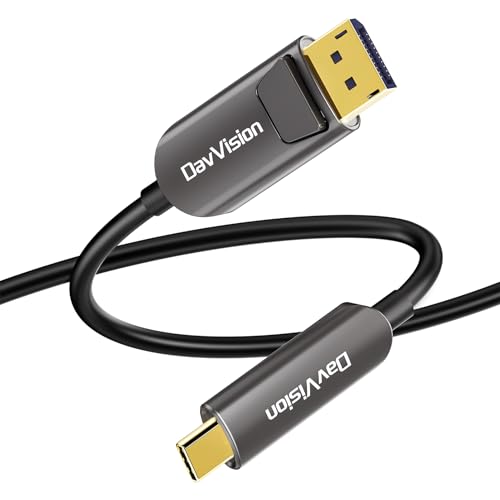
Fiber USB C to DisplayPort Cable: Idea for USB-C laptop computer/tablet/Android phone to a DisplayPort port monitor/projector at resolutions up to 4K@60Hz with no additional drivers, just plug and play.Fiber transmission for zero data loss & zero EMI/RFI.
Frequently Asked Questions
Can I Mix Displayport Versions in a Single Daisy Chain Setup?
I’d recommend against mixing DisplayPort versions in your daisy chain setup. You’ll likely encounter compatibility issues since older monitors may not recognize newer protocol features. I’d suggest keeping all monitors on the same DP version for reliable performance.
What’s the Difference Between Displayport and Thunderbolt for Daisy Chaining Displays?
I’d say Thunderbolt’s main advantage is higher bandwidth—it’ll handle six 1080p displays versus DisplayPort’s four. However, DisplayPort benefits from wider compatibility and lower costs. Your choice depends on whether you’re prioritizing performance or affordability.
Does Daisy Chaining Provide Power Delivery to Connected Monitors?
No, I’m telling you that daisy chaining doesn’t provide power delivery capabilities through DisplayPort. You’ll need separate power cables for each monitor to address monitor compatibility issues with your setup.
Can I Daisy Chain 4K Displays Using USB-C With Displayport Alt Mode?
Yes, you can daisy chain 4K displays using USB-C with DisplayPort alt mode. I’d recommend ensuring your USB-C port supports DisplayPort requirements and that your monitors have USB-C compatibility for MST support. You’ll need DP 1.2 or higher.
How Does Display Stream Compression Enable More Monitors on DP 1.2?
You might think display compression sacrifices quality, but it doesn’t. Display Stream Compression reduces data size, letting you bypass monitor limitations on DP 1.2. I’ve found it effectively multiplies your screen count without upgrading your port’s bandwidth capacity.