As an Amazon Associate, we earn from qualifying purchases. Some links on this site are affiliate links at no extra cost to you. Our recommendations are based on thorough research and editorial judgment.


Prolonging Monitor Lifespan: Software Pixel Refreshers and Screen Savers

I’ve implemented software pixel refreshers every eight hours, which send compensatory current through degraded pixels, and screen savers that vary content to prevent static image dominance. ASUS ROG runs six-minute cycles; Corsair Xeneon Flex executes five-minute refreshes; GIGABYTE activates protection after four hours. I find that combining manufacturer-specific auto-refresh mechanisms with manual overrides during intensive gaming sessions greatly extends monitor longevity, though understanding your display’s unique maintenance requirements reveals additional protective strategies.
Key Takeaways
- Use built-in pixel refresh cycles every 4–8 hours of use to compensate for uneven pixel wear and degradation.
- Enable automatic screen savers and vary displayed content to prevent static UI elements from causing permanent burn-in damage.
- Take regular breaks during extended gaming sessions to allow cooling periods and reduce cumulative pixel stress.
- Verify manufacturer-specific refresh settings, as ASUS, Corsair, GIGABYTE, MSI, and Dell offer different automated protection mechanisms.
- Combine software refreshers with brightness adjustments and UI rotation to maintain display quality and extend monitor lifespan significantly.
How OLED Burn-In Happens and Why Prevention Matters
Ever notice those ghost images that stick around on your phone or TV screen? That’s burn-in, and it’s a real headache if you own an OLED display.
Here’s what’s actually happening: OLED pixels create their own light, which is pretty cool—but it also means each pixel wears out over time. When you leave static images on screen for hours (think gaming HUDs or always-on app icons), those pixels degrade faster than others. The result? Permanent dark or discolored patches that don’t go away.
There’s a difference between two types of burn-in you should know about:
- Image persistence (the temporary kind): Your screen shows ghosting effects when pixels get tired from holding the same image too long. The good news? This usually clears up on its own.
- True burn-in (the permanent kind): Pixels have actually degraded unevenly, and that damage is stuck there for good.
So why does this matter? Because once you hit that permanent stage, no software fix brings your display back. You’re looking at a repair or replacement.
The thing that actually helps is pixel refresh. Your phone or TV runs this automatically every 8 hours—basically pushing extra current through pixels to even out the wear. It’s not flashy, but it works. Try this: rotate what apps and games you use regularly, lower brightness when you can, and keep that auto-refresh feature turned on.
Honestly, the best part is that most modern OLEDs handle this pretty well if you’re not gluing the same static image to your screen 24/7. Just be mindful of what you’re displaying, and your display should stick around for years.
What’s the one app or game you use most on your device? That’s probably where you should start paying attention.
Pixel Cleaning vs. Pixel Refresh: Understanding the Difference
Your phone or TV screen’s been looking a bit off lately—maybe you’ve noticed a faint ghost image that won’t go away, or colors seem stuck in one spot. That’s where pixel cleaning and pixel refresh come in, but here’s the thing: they’re not the same thing, and knowing the difference actually matters for keeping your display healthy.
Pixel cleaning is the quick fix. It runs for just a few minutes and works by rapidly switching your pixels on and off, cycling through different colors to clear out any leftover electrical charge. Think of it like shaking out a rug—it’s fast and targets that annoying ghosting problem caused by heat or your screen being on too long. You’re basically resetting the pixels to their neutral state.
Pixel refresh, on the other hand? That’s the long-term health plan for your display.
It can take up to an hour to run, and it’s doing something totally different. Instead of just toggling pixels, it’s actually measuring which ones have degraded over time and then pushing extra current through the worn-out ones to balance things out. Frankly, this is the process that keeps your screen from developing permanent damage after months or years of use.
So why does this matter to you? Because skipping refresh while relying only on cleaning is like brushing your teeth every day but never getting them professionally cleaned. You’re handling the surface problem, but missing the deeper issue.
Here’s what you need to know:
- Cleaning prevents temporary image burn-in and ghosting
- Refresh prevents *permanent* damage from uneven pixel wear
- Both protect your display, just in different ways
The best part is, most modern displays run these automatically in the background, so you don’t have to think about it. But if your screen’s showing signs of wear, understanding what each process does helps you know whether to let your device run a refresh cycle or just do a quick clean.
Your display’s longevity depends on both working together—are you letting your device run its maintenance routines, or have you been ignoring those notifications?
Recommended Products

High Image Quality featuring a New 45 Megapixel Full-frame CMOS Sensor.

Bundle Items Include: 1 x Canon EOS R5 Mirrorless Digital Camera with 24-105mm f/4L Lens, 1 x SanDisk SecureDigital 64GB Extreme PRO Memory Card, 1 x Camera Bag, 1 x Corel Photo Software With PhotoMirage, AfterShot, Painter Essentials, PaintShop Pro, and Video Studio, 2 x LPE6 Battery, 1 x Rapid Charger For LPE6, 1 x Memory Card Reader, 1 x Mini Portable LED Video Light , 1 x 3 Piece Filter Kit , 1 x 77mm Graduated Color Filter Kit, 1 x Micro HDMI Cable, 1 x Cleaning Set and more...

Bundle Includes: 1 x Canon EOS R5 Mirrorless Digital Camera with 24-105mm f/4L Lens, 1 x SanDisk SecureDigital 64GB Extreme PRO Memory Card, 1 x Camera Bag, 1 x Corel Photo Software With PhotoMirage, AfterShot, Painter Essentials, PaintShop Pro, and Video Studio, 1 x LPE6 Battery, 1 x Rapid Charger For LPE6, 1 x Memory Card Reader, 1 x Deluxe Cleaning Set, 1 x 12 Inch Flexible Tripod, 1 x Memory Card Wallet
OLED Monitor Protection by Brand

OLED Monitor Protection by Brand
Ever bought a premium OLED monitor only to worry about burn-in? You’re not alone. The good news is that manufacturers actually built in protection—but they all do it differently, and knowing your specific monitor’s system matters more than you’d think.
ASUS ROG OLED Care works pretty straightforwardly. After you’ve used the monitor for eight hours straight, it automatically runs a six-minute cleaning cycle when you shut down. You don’t have to do anything—it just happens.
Corsair takes a slightly different approach with the Xeneon Flex. It kicks off five-minute refresh cycles after shutdown, but here’s the thing: it does this every eight hours of use. So if you’re a heavy gamer, you’ll notice these cycles running pretty regularly.
GIGABYTE’s system is more aggressive. Protection activates after just four hours of use, which means your monitor’s working harder to keep those pixels fresh. The bonus? You get manual override options if you want to run the cycle on your own schedule instead of waiting for the automatic trigger.
MSI OLED Care and Dell Alienware handle things a bit differently. MSI activates its Panel Protect refresh automatically while you’re actually using the monitor, not just at shutdown. Dell Alienware is flexible—it’ll either prompt you to run a cycle or handle it on its own during sleep or shutdown modes.
So why does this matter? Frankly, if you’re dropping money on an OLED monitor, understanding when and how it protects itself helps you use it smarter. You’re not stuck with one-size-fits-all protection; you’re getting a system designed specifically for how that manufacturer built your screen.
The takeaway is simple: check your monitor’s manual or settings to know exactly when protection kicks in. Want to maximize your display’s lifespan?
Recommended Products

Far Field Microphone: Use your voice to control your TV and connected devices | One Wall Design & Always Ready: When you are not watching, display paintings, photos and other content to blend the LG OLED evo G4 into your surroundings

[Upgraded] Seal is opened for Hardware/Software upgrade only to enhance performance. 14.0" OLED 2.8K (2880x1800) 120Hz Display; 802.11ax Wifi, Bluetooth 5.3, Integrated Webcam, RGB Backlit Standard Keyboard

LG USA AUTHORIZED - Includes 26 Months Extended Protection in ADDITION to the Included FULL Manufacturer Protection | LG UltraGear 45" OLED 5K2K (5120x2160) 330Hz G-sync Curved Gaming Monitor
How to Set Up Manual Pixel Refresh on Your Display
How to Set Up Manual Pixel Refresh on Your Display
Tired of waiting around for your monitor to run its automatic maintenance on its own schedule? You don’t have to. Most modern gaming and professional displays let you kick off a pixel refresh whenever you want, which honestly is way more convenient than sitting around wondering if the timing works for you.
The process differs depending on what brand you’ve got. Dell Alienware users need to dig into the menu system to find the refresh settings. If you’re rocking a Philips Evnia, you’re in luck—their Precision Center app makes it stupid simple with basically a one-click solution. ASUS ROG and MSI both build toggle switches right into their monitoring software, so you can start a refresh cycle without any fuss.
Here’s the thing to remember: don’t yank the power or force shut down while a cycle’s running. You’ll just waste the time you’re trying to save, and the refresh won’t work properly. Let it finish.
Depending on your specific display, the whole thing takes somewhere between 5 to 15 minutes. You’ll know it’s done when you see a status message pop up or an LED indicator tells you the cycle finished.
So why does this matter? Because you’re in control. You’re not stuck waiting for a predetermined schedule that might hit right in the middle of your gaming session or work project. That flexibility adds up over time.
What’s your display brand? Once you know, the setup takes maybe two minutes to figure out.
Recommended Products

Is long-lasting with reduced screen burning to ensure maximum efficiency

Vibrant, jitter free graphics, Fully adjustable setup, Premium support and reliability

31.5 inches WQHD (2560 x 1440) 1800R curved Widescreen VA monitor
Gaming Habits That Cause Burn-In
Gaming Habits That Cause Burn-In
You’ve probably noticed that after a marathon gaming session, your screen looks a little… off. That’s burn-in creeping in, and it happens because of how you’re actually playing.
Static UI elements are the real culprits here. When you’re staring at the same score counter, minimap border, or health bar for hours, those pixels are working overtime while the rest of your screen gets a break. High-contrast HUDs make it worse—bright numbers on dark backgrounds basically spotlight which pixels are going to wear out first. The uneven wear concentrates in specific areas, and that’s when you start seeing permanent ghost images on your display.
So, why does session length matter so much? Because anything over 4–8 hours without a break pushes your pixels past their comfort zone. Throw in a competitive game where you’re locked in on the same corner of the screen, and you’re basically speed-running your display toward permanent damage. Your eyes might be fine, but your monitor’s definitely suffering.
Here’s the trick: set up pixel refresh cycles every 8 hours of use. This isn’t some magic fix—it’s preventive maintenance. The refresh works by sending extra current to the pixels that have already taken a beating, which helps compensate for uneven wear and keeps burn-in from becoming permanent.
Try this approach:
- Take breaks between long sessions (seriously, your eyes need it too)
- Use your display’s built-in refresh settings if available
- Vary what’s on your screen—don’t let static images dominate your playtime
The best part is that these habits protect your investment without much effort on your end. Small changes to how you game add up to years of extra display life. What’s one gaming habit you could swap out today to give your monitor a fighting chance?
Recommended Products

Customizable Display: Graphics tablet features 8 ExpressKeys, adjustable on-screen menus, and improved multi-touch and pen gestures; ideal for creative professionals like graphic designers
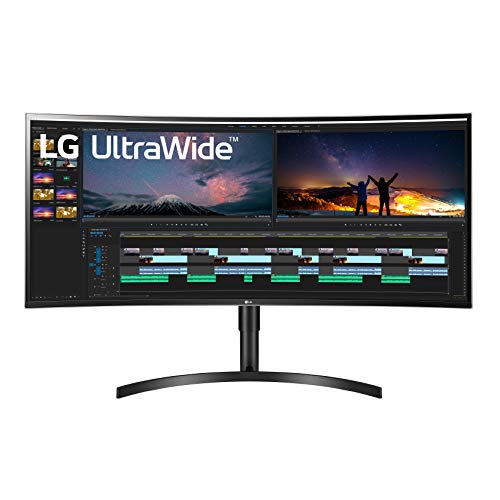
38" Curved UltraWide QHD+ (3840 x 1600) IPS Display

OLED Refresh Cycle Schedule: When and How Often
Your OLED screen is basically a ticking clock once you start gaming heavily. Pixel degradation speeds up during those marathon sessions, and uneven wear is what actually causes that dreaded burn-in you can’t fix. So what’s the solution? You need a refresh cycle schedule that actually works.
Think of it this way: run refresh cycles every 8 hours of continuous use, or bump it down to every 4 hours if you’re really pushing your display hard. Honestly, the 4-hour mark is where you’ll sleep better at night knowing you’re taking real precautions.
Different manufacturers handle this differently, which is worth knowing:
- ASUS ROG automatically runs 6-minute refresh cycles after you shut down
- Corsair Xeneon Flex triggers 5-minute auto-refresh sequences on its own
- GIGABYTE waits until you’ve racked up 4 hours of use, then kicks in protection
Here’s the trick: the longer refresh processes—some stretch up to a full hour—actually measure where your pixels are wearing unevenly and then hit those degraded pixels with extra current to even things out. The best part is these heavy-duty maintenance cycles run during standby periods, so you’re not sitting there waiting. You can just let your monitor do its thing overnight and wake up to a healthier display.
Why does this matter? Because pixel degradation compounds over time. Catching uneven wear early with consistent refresh schedules is what keeps your screen looking sharp for years instead of months.
Bottom line: check what your monitor brand offers, and don’t skip these cycles even if it seems like overkill. What’s your current gaming routine looking like—are you hitting those 8-hour sessions regularly?
Frequently Asked Questions
Can Pixel Refresh Cycles Damage My OLED Monitor if Interrupted Mid-Process?
I’d advise against interrupting your refresh process—doing so risks forcing a shutdown that could cause pixel damage. The refresh process needs to complete fully, so I recommend letting it finish uninterrupted to protect your OLED monitor’s longevity.
What LED Indicators or Notifications Show When Pixel Refresh Is Actively Running?
I’ve got news that’ll surprise you: most monitors don’t actually tell you much! You’ll find pixel refresh notifications through software apps or menu displays, while visual indicators—like LEDs or on-screen messages—vary by manufacturer. I’d recommend checking your device’s manual for specifics.
Does Pixel Refresh Consume Significant Electricity or Increase My Monthly Power Bill?
I’ll assure you that pixel refresh won’t meaningfully impact your electric bill. Its power consumption comparison to normal display operation is negligible, lasting only minutes. The pixel refresh efficiency means you’re getting burn-in protection without worrying about substantial energy costs.
Can I Manually Adjust Refresh Cycle Intensity Based on My Specific Gaming Habits?
You can adjust refresh cycle intensity on some monitors to match your gaming preferences. I’d recommend checking your manufacturer’s software—Dell, ASUS, and Corsair offer refresh cycle customization options that let you tailor intensity based on how you actually play.
Is It Safe to Use Power Strips With Auto-Shutoff During Pixel Refresh?
I’d say using power strips with auto-shutoff is like cutting a movie mid-scene—risky. I’d recommend against it since auto-shutoff features can interrupt your refresh cycle mid-process, forcing shutdown and potentially damaging pixels. I’d wait five minutes post-power-off for safety.