As an Amazon Associate, we earn from qualifying purchases. Some links on this site are affiliate links at no extra cost to you. Our recommendations are based on thorough research and editorial judgment.


Built-in USB Hubs: The Monitor as the Central Docking Station of the Desk

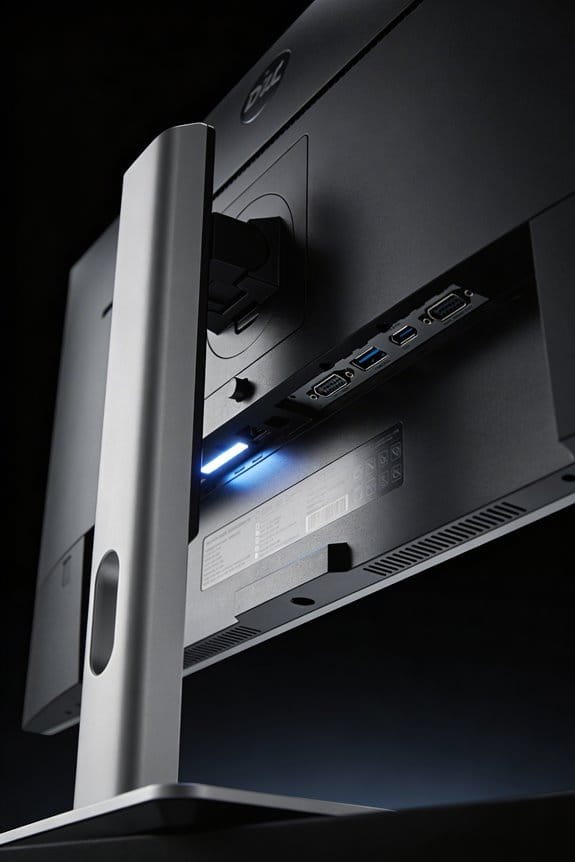
Built-in monitor USB hubs consolidate power delivery up to 100W, 4K video output, and data transfer speeds of 5Gbps through a single USB-C connection, reducing desk cable clutter considerably. These integrated hubs typically offer 4-7 ports, supporting Ethernet connectivity and multiple peripherals simultaneously. However, limitations emerge with demanding setups requiring dual 4K displays or high-performance devices exceeding power specifications. Compatibility verification across USB-C, Thunderbolt, and USB4 standards remains essential before purchase, as mismatches compromise functionality. Understanding your specific connectivity requirements determines whether built-in solutions suffice or necessitate dedicated docking stations.
Key Takeaways
- Built-in monitor USB hubs consolidate power delivery, video output, and data transfer through a single USB-C cable connection.
- Monitor hubs reduce desk cable clutter by converting the display into a central hub for peripherals and devices.
- Most built-in hubs support 4K video, Ethernet connectivity, and USB-A ports with up to 5Gbps data transfer speeds.
- Limitations include maxing out at 4-7 ports and 90-100W power delivery, unsuitable for complex, demanding setups.
- Verify USB-C, Thunderbolt, and USB4 compatibility between your monitor and laptop before setup to ensure optimal functionality.
One Cable, Zero Clutter: What Built-in Monitor Hubs Actually Solve
Tired of cable spaghetti taking over your desk? You’re not alone. If you’ve got a monitor, keyboard, mouse, and laptop all fighting for space on your work surface, built-in monitor USB hubs might be the practical solution you’ve been looking for.
Here’s what’s actually happening: instead of plugging multiple cables into your laptop or using a separate docking station, your monitor becomes the central connection point. One USB-C cable runs from your laptop to the monitor, and everything else—power, data, ethernet—flows through that single connection. No extra adapters cluttering your desk, no hunting for the right cable when you need to plug something in.
So, why does this matter? Because your workspace only has so much real estate. When your monitor handles power delivery (up to 100W on quality models like Philips), ethernet connectivity, and video output all at once, you’re actually freeing up physical space and reducing the tangle of wires behind your setup.
Try this: think about your current setup. How many cables are actually running to your computer right now? A power cord, USB cables for your mouse and keyboard, maybe an ethernet cable, your monitor connection, your laptop charger. Built-in monitor hubs compress most of that into a single connection.
The real benefit shows up when you’re using a monitor-keyboard-mouse combo. Your monitor stops being just a display and starts acting like the hub of your whole operation. You plug in once, and you’re done. No more digging around for a docking station or swapping adapters depending on what device you’re using.
Honestly, this approach won’t solve every cable management problem. But it does handle the biggest offenders—power, video, and data—in one straightforward way. That’s worth considering if you’re building or refreshing your workspace.
What does your current desk look like? Could cutting down on cables make your setup feel less chaotic?
Recommended Products

18” UHD+ 4K 200Hz DISPLAY — Enjoy ultra-sharp 4K quality for creative work and high refresh rates for silky-smooth gameplay, backed by 100% DCI-P3 color accuracy that’s Calman Verified for the most lifelike visual
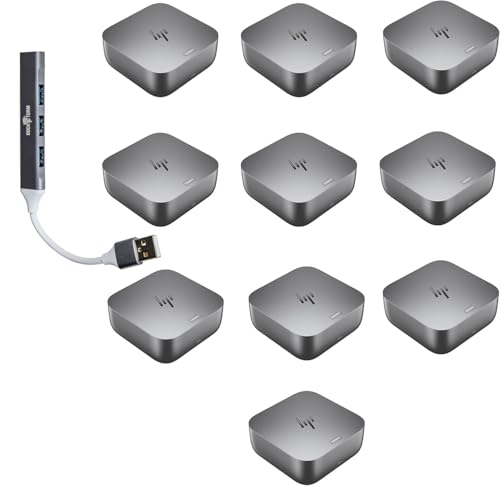
Power Connections – HP Quick Connect wakes your devices before you even take a seat. Stay in your flow all day with up to 280W of power delivery and 40 Gbps of data transfer speeds via Thunderbolt 4 technology and all the ports you need to connect your setup.

POWERFUL FOR CREATIVITY - The Dell Precision 7000 series, positioned at the apex of the Precision lineup, surpasses the 3000 and 5000 series and aligns closely with the evolving direction of the Dell Pro Max series. This top-tier 7680 features the NVIDIA RTX 2000 Ada 8GB GPU to deliver robust performance for professionals in design, architecture, photography, video editing, and engineering. Furthermore, the series' intelligent design for data science leverages AI to optimize system performance for key applications, enabling accelerated workflow efficiency.
The Full Picture: Power, Video, Data, and Network-All Through Your Monitor
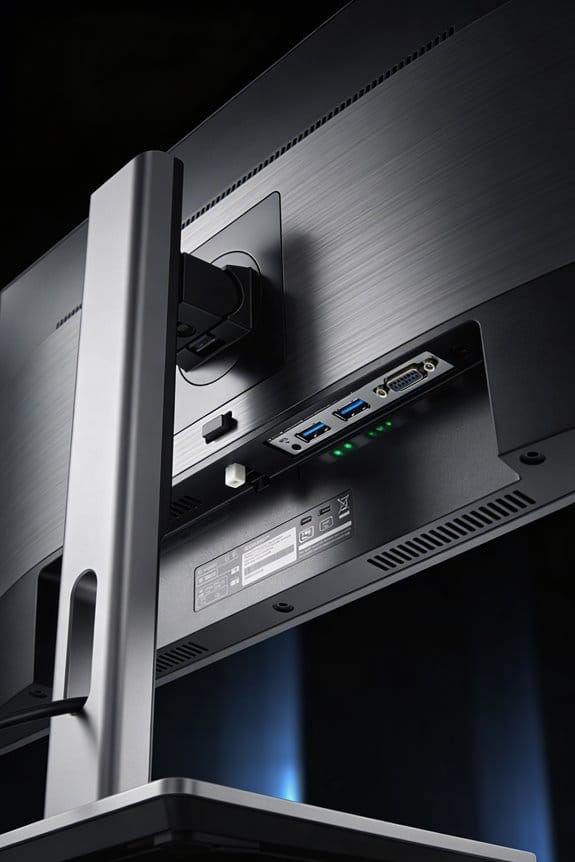
The Full Picture: Power, Video, Data, and Network—All Through Your Monitor
Tired of wrestling with cables under your desk? Modern monitors with built-in USB-C hubs might be the answer you’ve been looking for.
What if one cable could handle everything—charging your laptop, displaying video, connecting to the internet, and linking your peripherals? That’s exactly what these integrated monitor hubs do. Philips monitors, for example, deliver 90W to 100W of power straight to your laptop while simultaneously pushing 4K video through DisplayPort. At the same time, you get RJ-45 Ethernet built right in, so you can ditch the wireless guessing game if you want a solid connection.
The data transfer speeds are solid too. You’re looking at 5Gbps through USB-A ports, which means external drives and keyboards plug in without needing extra adapters or hubs. Honestly, it’s a relief not to think about compatibility.
So, why does this matter? Cable clutter isn’t just annoying—it actually slows down your workflow. Every cable you don’t have to plug in is one less thing between you and getting work done. The integrated setup transforms your monitor into a real docking station. One cable supplies power, bandwidth, video, and network access all at once.
For anyone setting up a professional desk or a home office, this consolidation saves serious time and physical space. Your monitor becomes the hub; everything else branches from there.
Think about what your desk currently looks like. Could you use less clutter and fewer adapters?
When a Monitor Hub Works (and When You Need More)
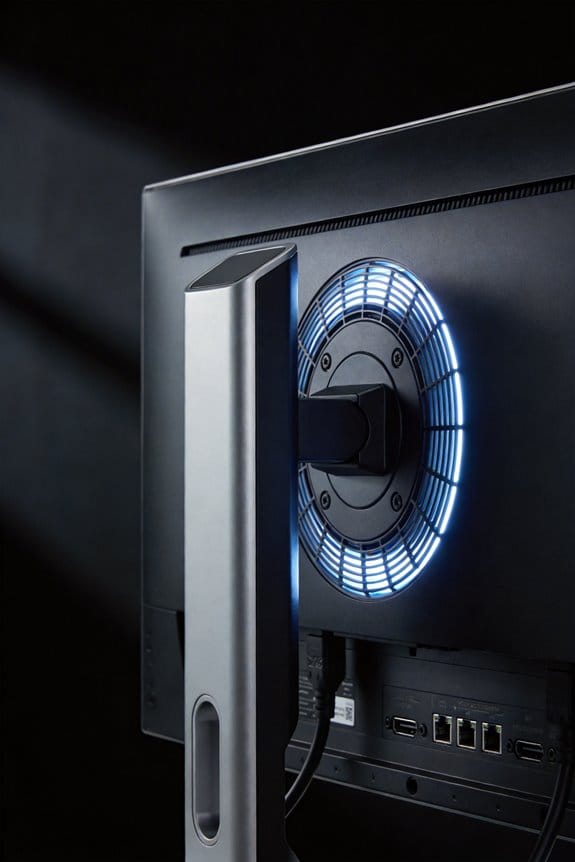
When a Monitor Hub Works (and When You Need More)
Your monitor’s built-in USB hub probably handles your basic setup just fine—keyboard, mouse, maybe a printer. But what happens when you plug in a few more devices? That’s when you start noticing the cracks.
Built-in monitor hubs max out around 4-7 ports, and honestly, that’s not much wiggle room. If you’re juggling more peripherals than that, you’ll need to look at a dedicated docking station that can handle up to 16 connections. It’s a bigger investment, but it solves the port shortage problem pretty quickly.
Then there’s the display side of things. Your monitor’s hub can typically handle one or two 4K displays at 60Hz—fine for most people. But if you’re doing professional work that demands four 4K screens running at once? That’s docking station territory only. The difference between “it works” and “it actually works well” matters more than you’d think.
Here’s what really separates integrated hubs from standalone options:
Power and speed are where most people hit a wall. If you need more than 90-100W of power delivery or your data transfers demand speeds over 5Gbps consistently, a Thunderbolt 4 or 5 dock isn’t optional—it’s necessary. Built-in hubs just can’t deliver that kind of performance.
So, why does this matter? Because buying the wrong setup wastes money and creates frustration. Before you decide, ask yourself three quick questions: How many devices are you actually plugging in? Do you need multiple large displays? And how much power do your devices need?
Take a few minutes to count your peripherals, check your display setup, and think about your charging needs. That’s all it takes to figure out whether your monitor’s hub is enough or if you need something more powerful.
Recommended Products
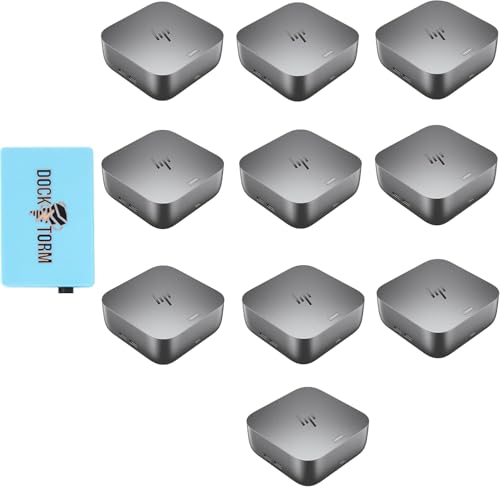
Power Connections – HP Quick Connect wakes your devices before you even take a seat. Stay in your flow all day with up to 280W of power delivery and 40 Gbps of data transfer speeds via Thunderbolt 4 technology and all the ports you need to connect your setup.
Power Connections – HP Quick Connect wakes your devices before you even take a seat. Stay in your flow all day with up to 180W of power delivery and 40 Gbps of data transfer speeds via Thunderbolt 4 technology and all the ports you need to connect your setup.

Power your Everyday – This dock starts working before you even take a seat. HP Quick Connect wakes your devices when approaching so you never have to slow your rhythm. Keeps the power flowing all day with a high-speed Thunderbolt 4 connection and plenty of ports to connect your devices.
Built-in Monitor Hubs for Different Setups and Budgets
Built-in Monitor Hubs for Different Setups and Budgets
Trying to figure out which monitor hub you actually need? That’s the real question, because not every desk setup is the same—and honestly, your budget plays a huge role in what makes sense.
Think about what you’re actually plugging in. If you’re just running a keyboard, mouse, and single monitor, you don’t need to break the bank. A basic USB-C hub from Philips that delivers 90W of power will do the job perfectly fine for most people working a standard professional setup. You’re looking at solid connectivity without spending a fortune.
Now, if your work demands more? That’s where things get interesting. Professionals working with multiple displays and tons of peripherals benefit from stepping up to something like a Thunderbolt 4 docking station. These handle dual 4K displays at 60Hz and throw in 100W of charging power. So why does this matter? Because trying to run a complex setup on a basic hub is like trying to haul groceries in a sports car—it just doesn’t work.
Here’s the breakdown for different situations:
On a tight budget: MOKiN’s 6-in-1 USB-C hub hits the sweet spot. You get 4K HDMI output without emptying your wallet, which is solid for someone who wants better connectivity without going all-in on a premium solution.
Demanding workflows: If you’re dealing with video editing, design work, or anything requiring quad 4K support at 60Hz, you’ll need a specialized docking station. Frankly, there’s no getting around it—basic hubs just can’t keep up.
The real takeaway? Match your hub to what’s actually sitting on your desk, not what you think you might need someday. What does your typical workday actually require?
Checking Compatibility Before You Buy
Checking Compatibility Before You Buy
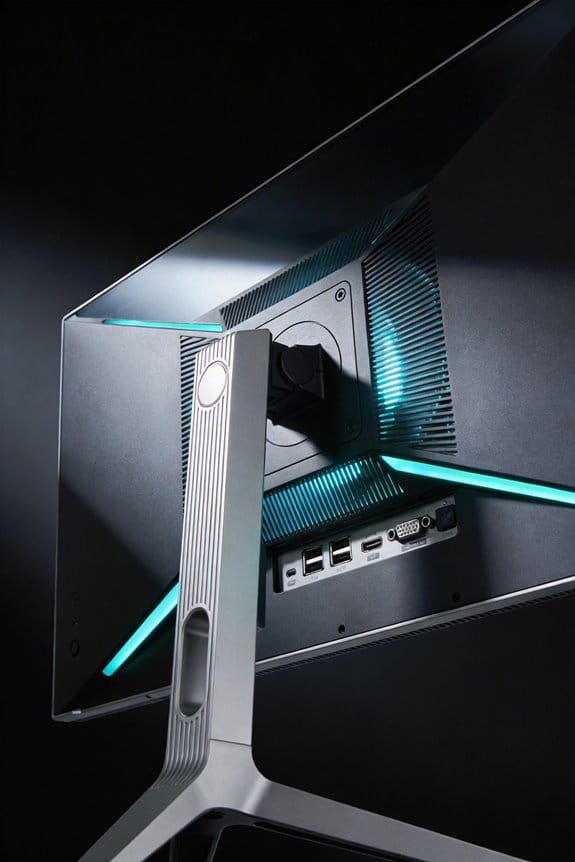
Ever grabbed a monitor with a built-in USB hub, plugged it in, and nothing worked? That’s what happens when you skip the compatibility check. Your laptop and that fancy hub speak different languages—literally. USB-C, Thunderbolt 3, Thunderbolt 4, USB4—they’re all different connection standards, and mixing them up means no data transfer, no power delivery, and no display output. Basically, you’ve got an expensive paperweight.
So why does this matter? Because incompatibility isn’t always obvious from the product photos. You need to actually dig into your device’s specs before you hand over your cash.
Start by checking your laptop or device’s manual or the manufacturer’s website. Write down what ports you actually have. Newer MacBooks and Windows machines usually come with USB-C or Thunderbolt ports, which is great news—it means you’ve got options and won’t run into problems with most modern monitors.
If your laptop’s older, though, you might be out of luck. Older devices simply don’t have these connection types built in. You could buy external adapters to make things work, but that gets messy fast and doesn’t always solve the problem completely.
Here’s the trick: don’t just check the monitor’s specs. Cross-reference your device’s actual capabilities with what the monitor requires. Look at both power delivery requirements and data speed expectations. These features depend entirely on whether your host device can actually handle what the hub’s asking of it.
Honestly, taking 10 minutes now to verify compatibility saves you from frustration and a return hassle later. Does your device have the right port, or are you going to need a workaround?
Recommended Products

POWERFUL FOR CREATIVITY - The Dell Precision 7000 series, positioned at the apex of the Precision lineup, surpasses the 3000 and 5000 series and aligns closely with the evolving direction of the Dell Pro Max series. This top-tier 7680 features the NVIDIA RTX 1000 Ada 6GB GPU to deliver robust performance for professionals in design, architecture, photography, video editing, and engineering. Furthermore, the series' intelligent design for data science leverages AI to optimize system performance for key applications, enabling accelerated workflow efficiency.

QD-OLED 5th Gen - MSI MPG 341CQR QD-OLED X36 gaming monitor uses 5th Gen QD-OLED Tandem technology with RGB bands, ensuring sharper text and almost totally eliminating chromatic aberrations

POWERFUL FOR CREATIVITY - The Dell Precision 7000 series, positioned at the apex of the Precision lineup, surpasses the 3000 and 5000 series and aligns closely with the evolving direction of the Dell Pro Max series. This top-tier 7680 features the NVIDIA RTX 2000 Ada 8GB GPU to deliver robust performance for professionals in design, architecture, photography, video editing, and engineering.
Setting Up Your Monitor Hub: What Changes and What Doesn’t
Once you’ve plugged in your monitor hub, the physical setup is honestly pretty simple. But getting everything to actually *work* together? That’s where you’ll need to put in some intentional effort.
Your monitor itself doesn’t need any tweaking—it just sits there doing its job. Your computer, though, is a different story. You’ll need to install drivers or manually activate the docking features so your laptop or desktop recognizes what you’ve connected. Think of it like introducing two people who’ve never met before; they need a proper introduction.
Here’s what actually requires your attention:
Display settings (resolution and refresh rate), hub power delivery, data transfer protocols, and peripheral recognition all need to be configured separately. Why does this matter? Because they’re basically independent systems running on the same hardware.
The cables you run? Those stay put once they’re connected. But the software side needs individual attention. You’ll want to check your operating system’s device management settings to enable power delivery, set up Ethernet if you’re using it, and handle multi-display parameters.
Honestly, most people plug everything in and it just works right away. That’s the good news. In my experience, though, you might need to dig into advanced settings if you want to squeeze out faster transfer speeds or maximize charging capacity. It’s not complicated—just a few clicks in the right menu—but it’s worth doing if you actually care about performance.
What specific features matter most to your setup? That’ll help you figure out which settings are worth your time.
Recommended Products
POWERFUL FOR CREATIVITY - The Dell Precision 7000 series, positioned at the apex of the Precision lineup, surpasses the 3000 and 5000 series and aligns closely with the evolving direction of the Dell Pro Max series. This top-tier 7680 features the NVIDIA RTX 2000 Ada 8GB GPU to deliver robust performance for professionals in design, architecture, photography, video editing, and engineering

1big Dock is an external hard drive and laptop docking station for filmmakers looking to centralize their desktop peripherals and store a massive portfolio of work with high-performance Thunderbolt 4 compatible technology
Frequently Asked Questions
Can Built-In Monitor Hubs Replace a Dedicated Docking Station for Professionals?
I’d say it depends on your needs. Built-in monitor hubs won’t fully replace dedicated docking stations for power-hungry professionals, but they’re excellent for ergonomic benefits and workspace organization. They reduce cable clutter, though you might sacrifice advanced display connectivity and charging capacity.
Do Monitor Hubs Support Charging While Simultaneously Transferring Data at Full Speeds?
I’ll tell you: yes, modern monitor hubs support simultaneous charging through power delivery and data transfer at full speeds. You’ll find models like Philips monitors offering up to 100W power delivery alongside high-speed data connectivity through a single USB-C connection.
What Happens if My Monitor Hub Port Fails—Can I Still Use the Monitor?
Here’s what I’d tell you: if your monitor’s USB hub port fails, you’ve got good news—your monitor still works perfectly fine. The hub’s malfunction doesn’t affect monitor functionality or display quality. You’ll simply lose hub reliability and those convenient port connections, but you’re viewing uninterrupted.
Are Built-In Monitor Hubs Future-Proof for Upcoming USB and Thunderbolt Standards?
I’d say built-in monitor hubs offer decent future-proofing since they’re compatible with USB Standards and Thunderbolt Compatibility across devices. However, Monitor Longevity might outlast evolving standards, so you’ll want to verify Thunderbolt 4/5 support before purchasing.
How Do Monitor Hub Speeds Compare to External Docking Stations With Identical Specs?
I’ve found that monitor hub performance typically matches external docking comparison specs when both share identical Thunderbolt or USB standards. You’ll notice they’re functionally equivalent—the real difference isn’t speed, but whether you’re consolidating cables through your display or desk separately.